16
Figure 2.4.1. EZ Record Setup Procedure
① Select EZ Record for Date/Time and Recording Setup, and click “next” to proceed.
② When the description of EZ Record Setup is displayed, click “next” to proceed.
③ Set up the Date/Time settings and click “next” to get to the recording setup.
④ Select the recording mode and click “next” to get to the record video quality setup.
⑤ After setup the Record Video Quality, click “next” to to proceed.
⑥ To close the setup page click “finish” or “go to ez camera” to set up IP Camera.
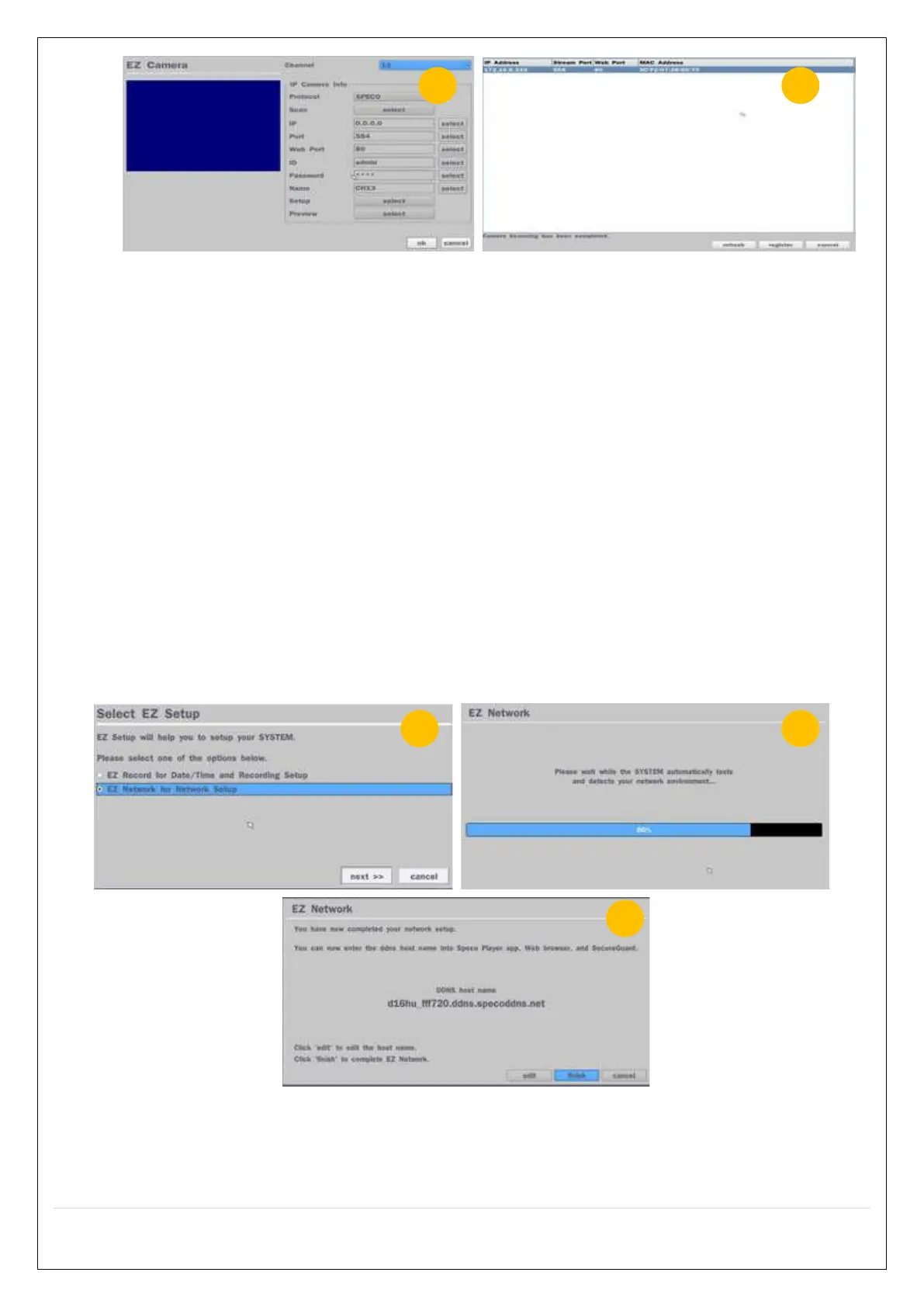
⑦ Configure individual cameras in the EZ Camera Setup.
Select the Channel to configure.
Select the Camera Protocol, and then click “select” on Scan menu. (This will scan the
network for any IP cameras using the specified protocol.)
Select the desired IP camera from the list, and then click on “register”.
If necessary, click on “Preview” to preview the camera, or Setup to change camera settings.
2.4.2. EZ Network (Using an internet connection)


 To Next Page
 Loading...