30
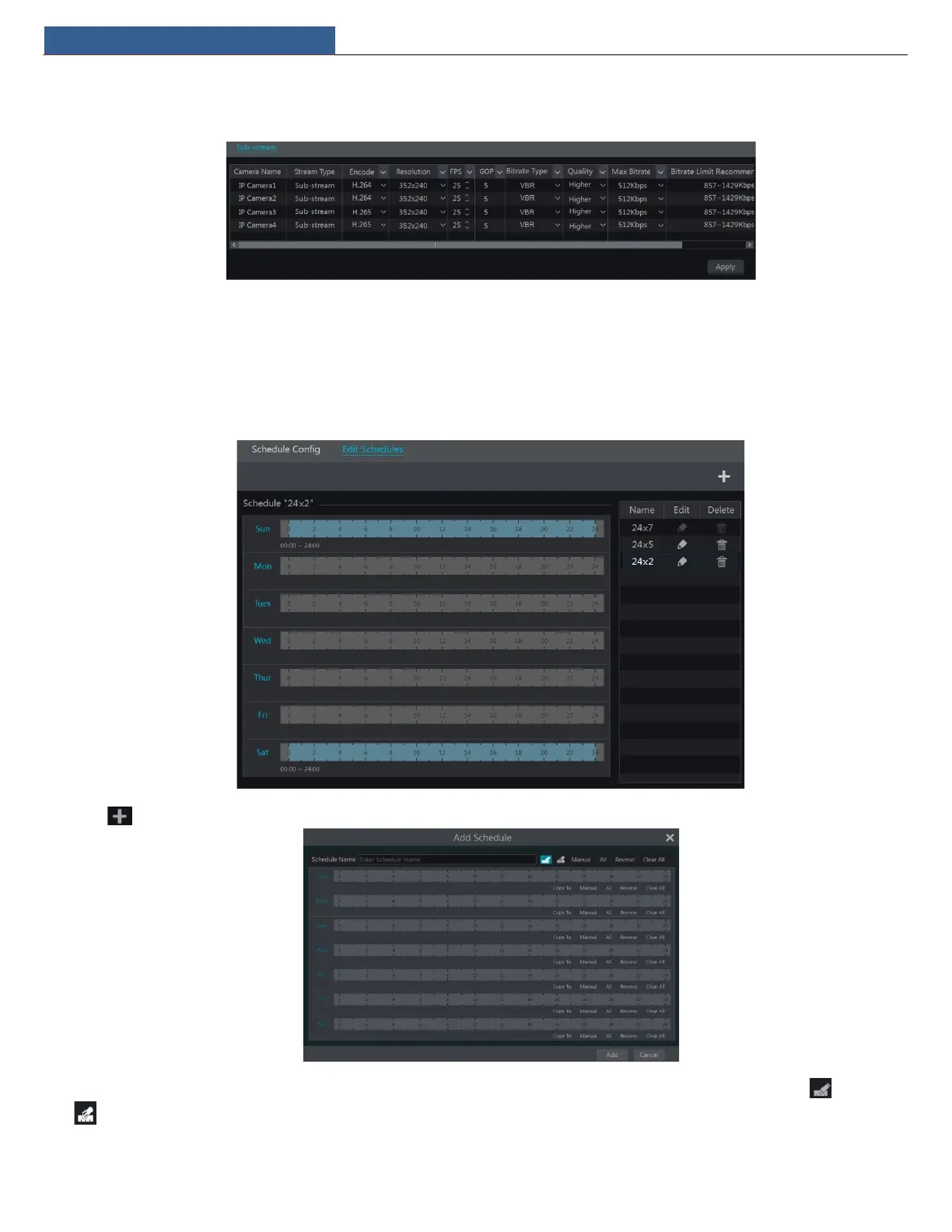
Click StartSettingsRecordStream Settings to go to “Sub-stream” interface. Set the encode, resolution, FPS, G O P, bitrate type, quality and max
bitrate of sub-stream for each camera in the interface and then click “Apply” to save the settings.
7.3 Schedule Setting
7.3.1 Add Schedule
Click StartSettingsRecordRecord ScheduleEdit Schedules to go to the interface as shown below. “24ⅹ7”, “24ⅹ5” and “24ⅹ2” are the default
schedules; you cannot edit or delete “24
ⅹ7” while “24ⅹ5” and “24ⅹ2” can be edited and deleted. Click the schedule name to display the detailed
schedule information on the left side of the interface. The seven rows stand for the seven days in a week and each row stands for 24 hours in a day.
Blue stands for the selected time and gray stands for unselected time.
Click to add a new schedule. Refer to the picture below.
Set the schedule name and schedule time and then click “Add” to save the schedule. You can set day schedule or week schedule. : add button;
: delete button.
Set Day Schedule



 To Next Page