4
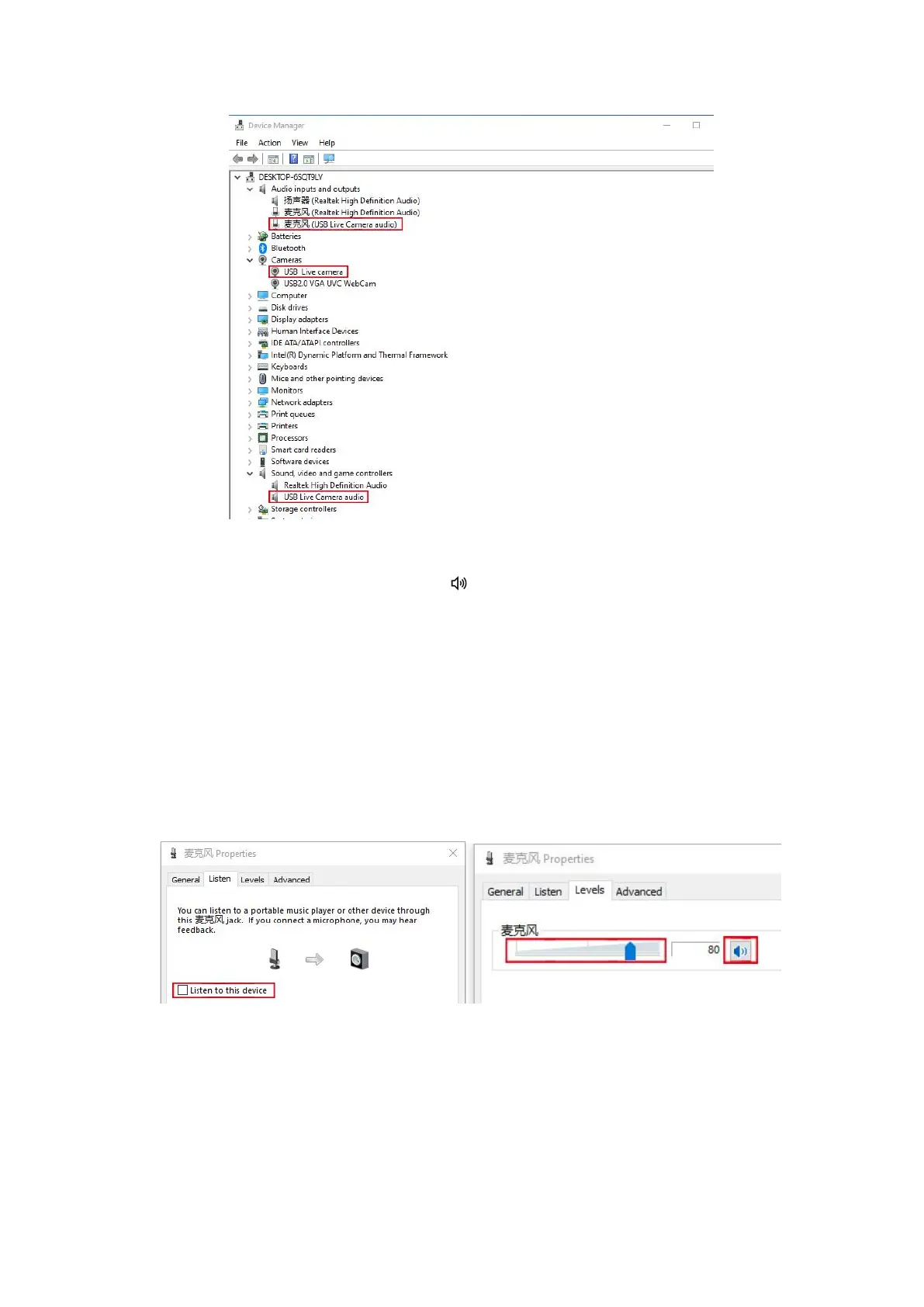
3) Audio input (microphone) settings
① Right-click on the sound icon “ ” on the right side of the taskbar and
select "Open Sound Settings".
② In "Choose your Input Device" under "Input", select "
麦克风
(USB Live
Camera Audio) ".
③ Click on "Device Properties" under "Input", and click on "Additional
Device Properties" under "Related Settings".
④ In the “Microphone Properties” settings panel that pops up, click on the
“Listen” tab and make sure that “Listen to this device” is unchecked.
⑤ Click on the "Level" tab, adjust the volume to an appropriate level and
make sure that the sound icon is not displaying in a mute state.
⑥ Click on the "Advanced " tab. For "Default Format", it is recom-mended
to select "CD quality" or above. For "Exclusive Mode", please make sure
that the two options of "Allow applications to take exclusive control of this
device" and "Give exclusive mode applications priority" are checked.



 To Next Page