13
Change Mobile Hotspot’s Access Status
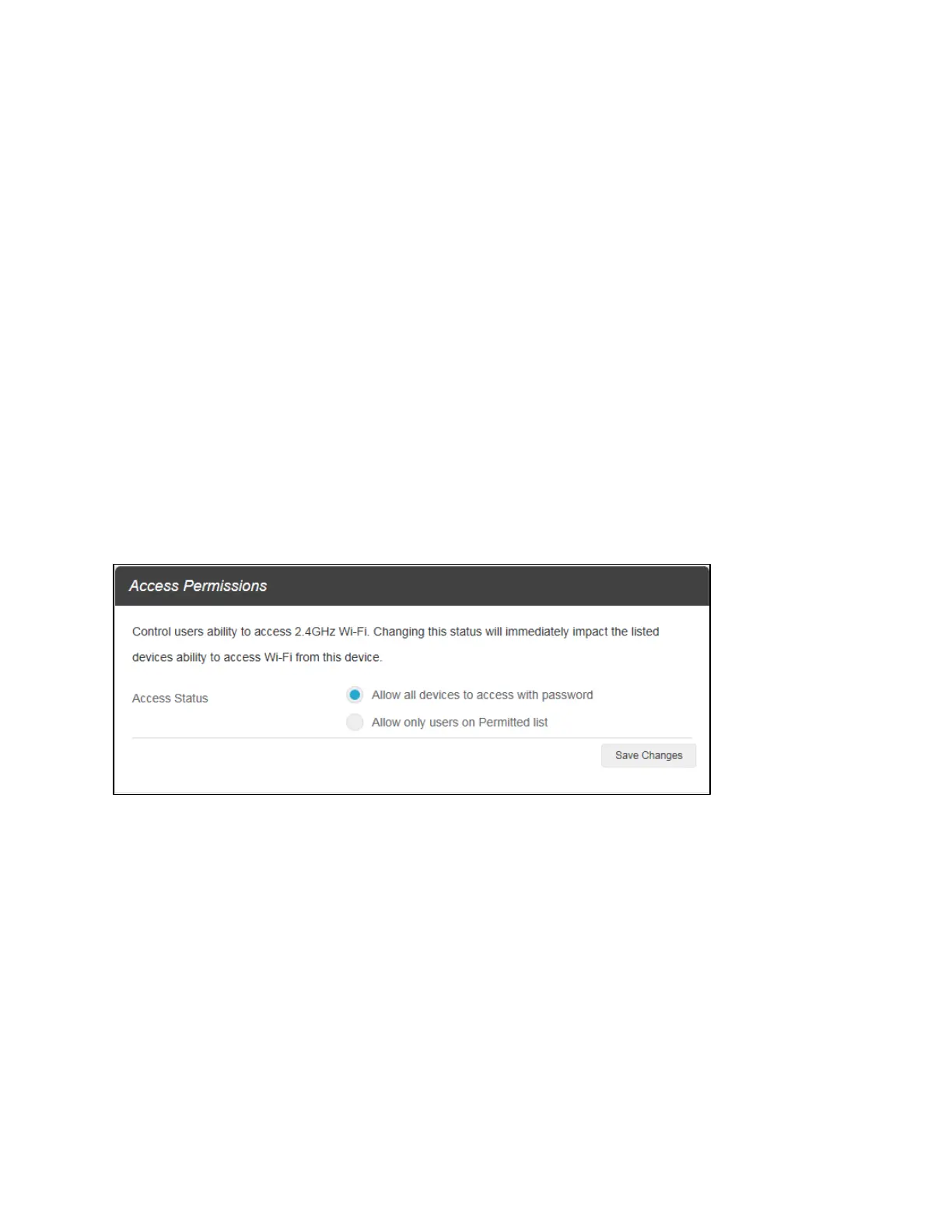
When the Access Status "Allow all devices to access with password" is selected, users will be
allowed to access to network via use of correct password. When the Access Status "Allow only users
on Permitted list" is selected, only users that have been granted access by adding a user’s MAC
address will be able to connect to the network.
1. Log into the Web User Interface.
2. Go to Connected Devices > Access Permissions. The Access Status "Allow all devices to
access with password" is selected by default. Any user who inputs the correct password can
access the network.
3. Select "Allow only users on Permitted list" and click Add.
4. Enter the device name and the MAC address, and click Apply to add a user to the Permitted
Device List.
5. Click Save Changes.
Note: If you remove a user from the Permitted Device List, such user will no longer be allowed to connect
to the network. Click Delete to remove.


 To Next Page