4
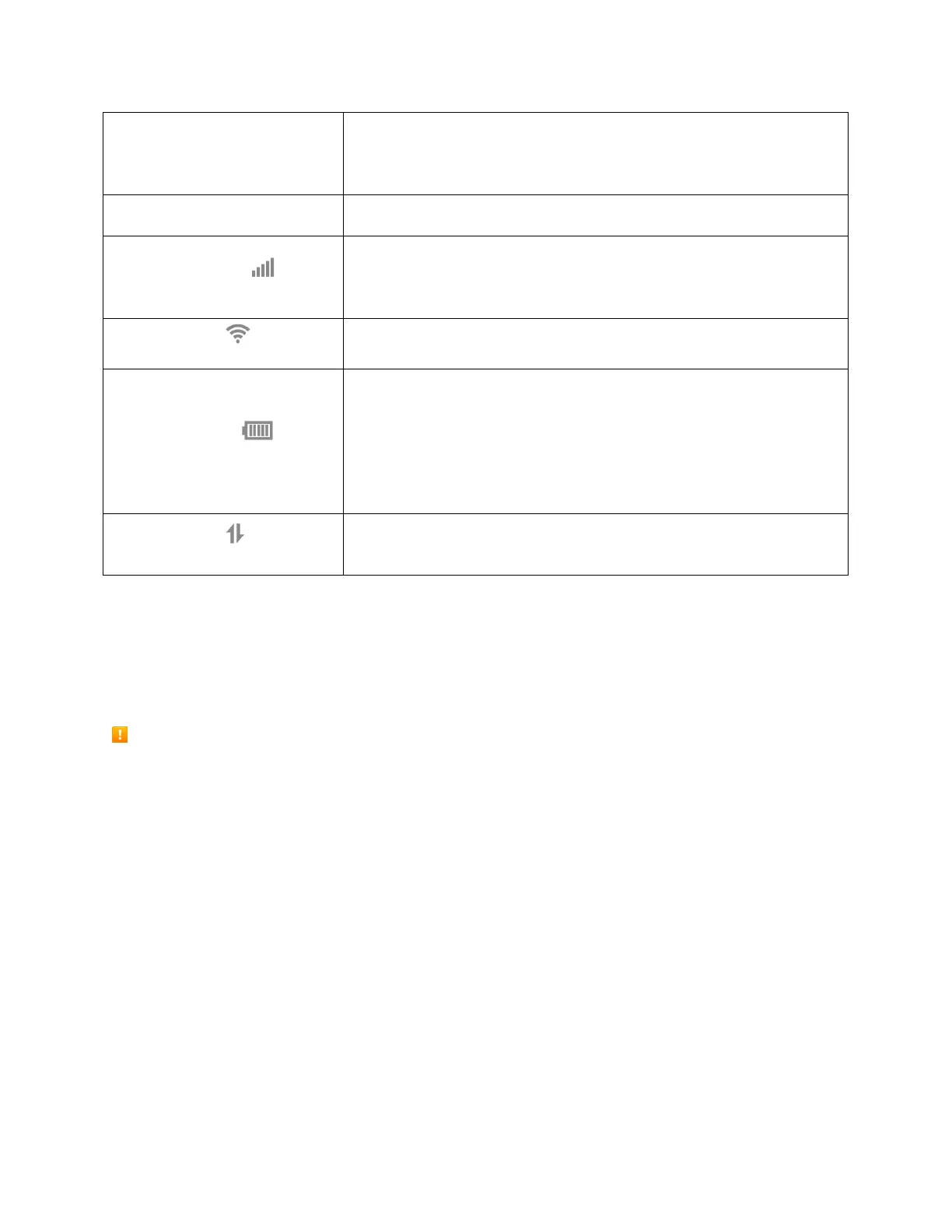
Hold both the Power key and the WPS key simultaneously for 15
seconds. All LED indicators will flash green 4 times to indicate that the
device has been reset to factory default settings.
Hold the Power key for 10 seconds to restart your device.
Displays your current network status. Green light indicates good
network connection; yellow light indicates poor network connection;
red light indicates no network connection, no SIM card, or no service.
Indicates when Wi-Fi is connected.
Displays your current battery status. Solid green light indicates the
battery level is 40%-100%, solid yellow light indicates the battery level
is 16%-39%, and solid red light indicates the battery level is less than
15%; when the device is charging, the indicator will flash red when the
battery level is below 15%, will flash yellow when the battery level is
16%-39%, and will flash green when the battery level is 40%-100%.
Displays when your device is communicating with mobile data
network.
CAUTION! Inserting an accessory into the incorrect jack may damage the mobile hotspot.
Battery Use
The following topics explain how to insert and remove your mobile hotspot’s battery.
Battery Cautions
Storage: Avoid storing or leaving battery with no charge remaining. Battery may become unusable.
Charge once every six months before storing or leaving unused for a long period.
Bulges: Depending on use, bulges may appear near end of battery life. This does not affect safety.
Replacing Battery: The battery is a consumable item. It needs to be replaced if operating time
shortens noticeably. Purchase a new battery.
Cleaning: Clean soiled terminals between battery and mobile hotspot with a clean, dry cotton swab.
Soiled terminals can result in a poor connection and prevent charging, etc.
Insert the Battery
Follow these instructions to insert your mobile hotspot’s battery safely and properly.


 To Next Page