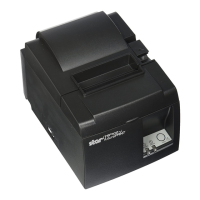
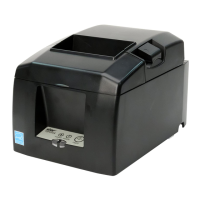
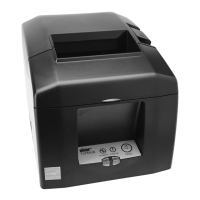
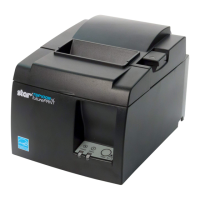
This document outlines the setup procedure for connecting a tablet to a TSP143IIIBI printer, primarily for use with the Grubhub for Restaurants (GFR) application. The process involves establishing a Bluetooth connection between the tablet and the printer, followed by configuring the printer within the GFR application.
Function Description:
The TSP143IIIBI is a thermal receipt printer designed to work seamlessly with Grubhub's restaurant management system. Its primary function is to print receipts for incoming orders received through the GFR application. This integration streamlines order processing for restaurants, enabling automatic printing of tickets, which helps in efficient kitchen management and customer service. The printer supports Bluetooth connectivity, making it a wireless solution for various restaurant setups. The setup guide emphasizes its role in automating the printing of Grubhub orders, thereby reducing manual intervention and potential errors in order handling.
Important Technical Specifications (Inferred from the document):
- Model: TSP143IIIBI (also referred to as TSP143IIIBI (STR_T-001) in the application interface).
- Connectivity: Bluetooth. This is a crucial specification as the entire setup process revolves around establishing a Bluetooth pairing. The printer features a dedicated "PAIR" button for initiating the Bluetooth pairing mode.
- Indicator LED: The printer has an LED that flashes green to indicate it is in pairing mode. This visual cue is essential for the user to confirm the printer's status during the setup.
- Pairing Window: The printer remains in pairing mode for 60 seconds once the PAIR button is pressed, allowing a limited time for the tablet to detect and connect.
- Compatibility: Specifically designed to integrate with the Grubhub for Restaurants (GFR) application. The tablet must be running the latest version of GFR for optimal functionality.
- Power: The printer requires a power source, as indicated by the instruction to "Turn the printer's power switch on."
Usage Features:
- Wireless Connectivity: Utilizes Bluetooth for a cable-free connection to the tablet, offering flexibility in printer placement within the restaurant environment.
- Automated Receipt Printing: Once configured within GFR, the printer can be set to automatically print incoming Grubhub orders, enhancing operational efficiency. This "Auto-print receipts" feature is a key benefit, ensuring that no order is missed and kitchen staff receive tickets promptly.
- Easy Pairing Process: The printer features a dedicated "PAIR" button, simplifying the initiation of the Bluetooth pairing process. The flashing green LED provides clear visual feedback during pairing.
- In-App Printer Management: The GFR application provides a dedicated "Receipt printer" section within its settings, allowing users to:
- Add a new printer.
- Select an available printer from a list of detected Bluetooth devices.
- Test the printer to ensure it's functioning correctly.
- Disconnect a printer if needed.
- Enable or disable auto-printing.
- User Feedback and Error Handling: The GFR app provides clear messages, such as "No printer connected" or an error message if a printer cannot be found, guiding the user through troubleshooting. It also lists the detected printer model number (e.g., TSP143IIIBI (STR_T-001)) for easy identification.
- Intuitive Interface: The setup process within the GFR app is guided by clear on-screen instructions and visual cues, such as tapping specific icons and buttons (e.g., "Settings," "Add printer," "Select printer").
Maintenance Features (Inferred from the document):
- Firmware Updates: The document implicitly suggests the importance of keeping the tablet's GFR application updated ("Confirm the tablet is running the latest version of GFR"). While not directly a printer maintenance feature, it's crucial for maintaining compatibility and optimal performance between the tablet and the printer.
- Troubleshooting Guidance: The document provides basic troubleshooting steps:
- If connection issues arise, users are advised to "try reconnecting by turning off Bluetooth and start from the beginning of step 1."
- The error message "We couldn't find a printer. Make sure it's powered on, connected to your network or paired via bluetooth, and try again" provides clear instructions for initial checks.
- Test Print Functionality: The GFR application includes a "Test printer" option, allowing users to verify the printer's functionality after setup or during troubleshooting, ensuring that the printer is ready to receive orders. This helps in quickly diagnosing if the issue lies with the printer itself or the connection.
- Power Management: The instruction to "Turn the printer's power switch on" highlights the basic power requirement, which is a fundamental aspect of printer maintenance and operation.
- Bluetooth Reconnection: The ability to easily disconnect and reconnect the printer via Bluetooth within the GFR app offers a simple method for resolving minor connectivity glitches without complex technical intervention.
In summary, the TSP143IIIBI printer, when integrated with a Grubhub-enabled tablet, serves as an essential tool for restaurants to automate and streamline their order fulfillment process. Its wireless Bluetooth connectivity, user-friendly pairing, and in-app management features make it a practical and efficient solution for busy kitchen environments. The provided setup guide emphasizes a straightforward process, ensuring that even users with limited technical expertise can successfully connect and configure the printer for daily operations.

 Need help?
 General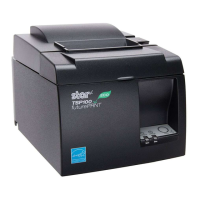



 To Next Page