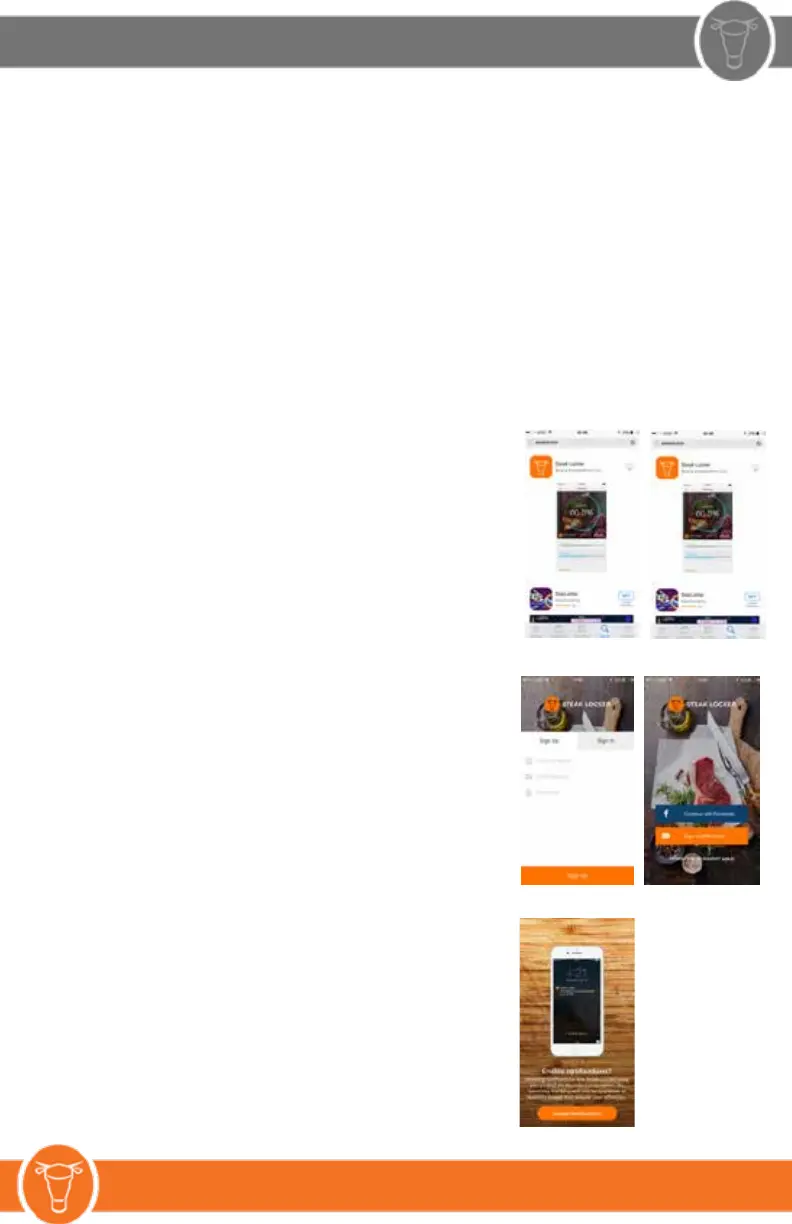
7. HOW TO SYNC THE SMART APPLICATION:
1. Download the Steak Locker Application
Apple - iOS,
Google Play - Andriod
Ensure to use the 2.4ghz on the WiFi router, the controller will not operate on 5.0ghz. If the router does
not have two lines, contact the internet provider and get instruction to facilitate the separate lines.
Turn the S4 Controller on by switching the power level to the right in the back of the controller.
When the S4 is fully charged, use the included USB Port for future charge requirements.
Battery levels may be monitored on the dashboard of the Smart App, once downloaded and synced.
Once turned on, the S4 Controller will blink a red light.
Press the small white button in the front of the controller for 10 seconds to activate broadcast mode.
The best placement for the S4 Controller is on the wire shelf inside the Steak Locker, this allows for
airflow around it’s interior temperature and humidity sensors.
The 12 volt charging cord located inside the Steak Locker is no longer necessary for the S4 Controller,
although may be necessary for future deveopments. DO NOT CUT or REMOVE.
2. Sign Up with Email
OR
Continue with Facebook
3. Enable Notification:
Without enabling notification,
safety alerts will not be received.


 To Next Page