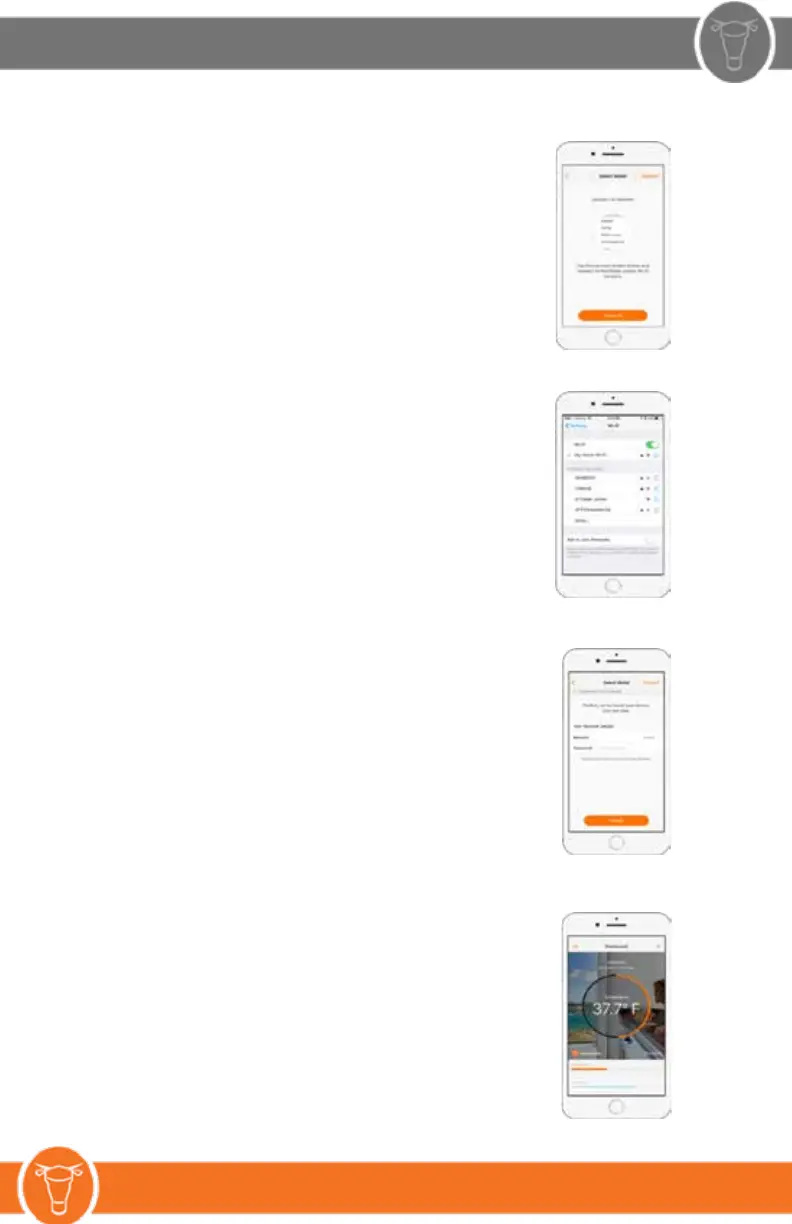
4. After the account is created, select either the
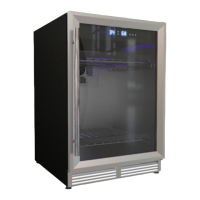
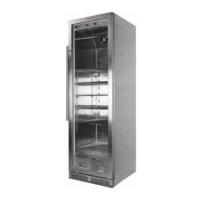
SL150 or SL520 locker, click on either photo of the
locker or use the scroll to select the correct series locker.
Tap NEXT to go to next step.
Tap Connect at the bottom of the screen and locate the
network called “Steak Locker” in your iOS/Android network
settings.
5. Tap on the network that says “Steak Locker” and wait for
the blue check mark to confirm that there is a connection.
Once connected tap the top left text that reads
“Back to Steak Locker”
6. Now that there is connection to the Steak Locker Wifi
Controller, Enter the home router network’s name and
password.
It’s important that the correct capitalization is used for both
the username and the password, also be sure to double
check spelling.
Once completed tap the “Finish” button on the bottom
of the screen.
7. This next step can take a minute or two for the Steak Locker
to get setup.
Once complete you’ll be redirected to the Dashboard.
Use the Settings Tab to set the Humidity algorithim by scrolling
to 70% mark. Products can be added and deleted via the
Settings Tab.


 To Next Page