Panel Controls and Terminals
UR242 Operation Manual 14
Controls and Functions
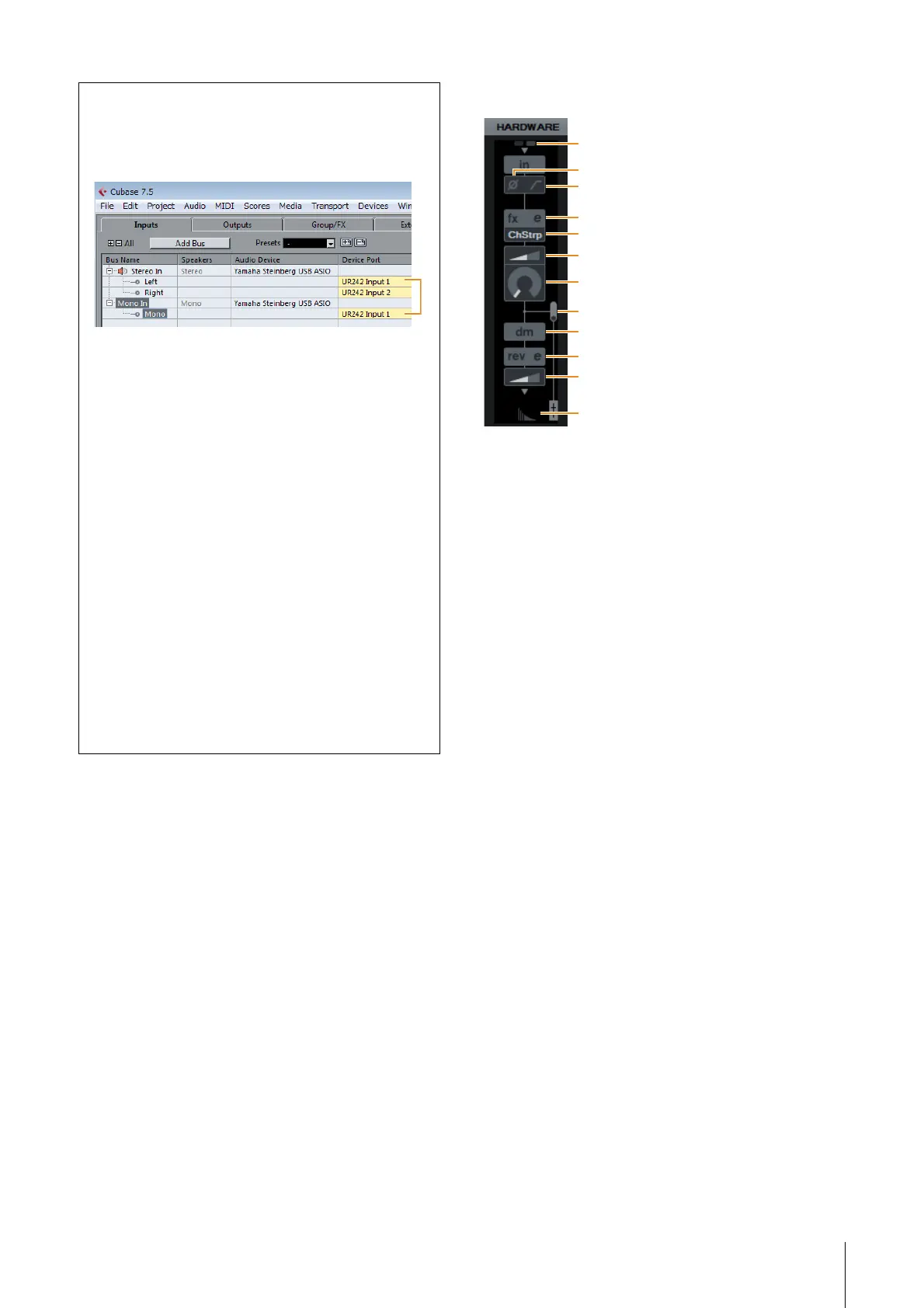
1 +48V
Indicates the phantom power on/off status.
2 Phase
Turns on (lit) and off (dark) the phase inversion of the
signal.
3 High Pass Filter
Turns on (lit) and off (dark) the high pass filter (not available
on [LINE INPUT 3/4] ). To select the cutoff frequency of the
high pass filter, use the “Settings Window” (page 16) in the
section “Dedicated Windows for Cubase Series.
4 Effect Edit
Opens the selected effect setup window.
5 Effect Type
Selects the effect type.
Options: ChStrp, Clean, Crnch, Lead, Drive
NOTE
The maximum number of Channel Strip and Guitar Amp
Classics iterations which can be used simultaneously has
restrictions. Refer to the “Limitations on the use of effects”
(page 27).
6 DRIVE/Output Level
When Channel Strip is selected, this adjusts the degree to
which the compressor is applied. The higher the value, the
greater the effect.
Range: 0.00 – 10.00
When Guitar Amp Classics is selected, this adjusts the
output level.
Range: 0.00 – 1.00
7 MORPH
Adjusts the Channel Strip Sweet Spot Data. (Refer to the
“MORPH” in the section “Channel Strip” on page 16). When
Guitar Amp Classics is selected, MORPH is not displayed.
If [HARDWARE] does not appear in the channel
Change the settings in the VST connection menu from
the Cubase menu [Devices] [VST Connections].
When the same plural input port is assigned to the
device port, the only [HARDWARE] listed upper in the
device port is shown in the channel.
In this example, the only [HARDWARE] for Stereo bus
is shown in the channel. Change the settings at Stereo
bus to [Not connected] or assign an input port other
than [UR242 Input 1] to be shown as the
[HARDWARE] for Mono In bus.
For the Stereo bus, set the combination [UR242 Input
1] and [UR242 Input 2] or [UR242 Input 3] and [UR242
Input 4] to be shown as the [HARDWARE].
[HARDWARE] is disable for other combinations.
If the input setting window is too narrow
Adjust the display width for the channel by using the
[H] and [G] keys in the Mix console. Use the [H] key to
broaden the display width if not all of the input setting
window is shown.


 To Next Page