Panel Controls and Terminals
UR242 Operation Manual 16
5 REV-X Send Source
Indicates the signal which is sent to REV-X.
6 REV-X Return Level
Indicates the return level of REV-X.
7 REV-X Return Level Knob
Adjusts the return level of the selected (highlighted) signal.
Range: - ∞ dB – +6.00 dB
Settings Windows
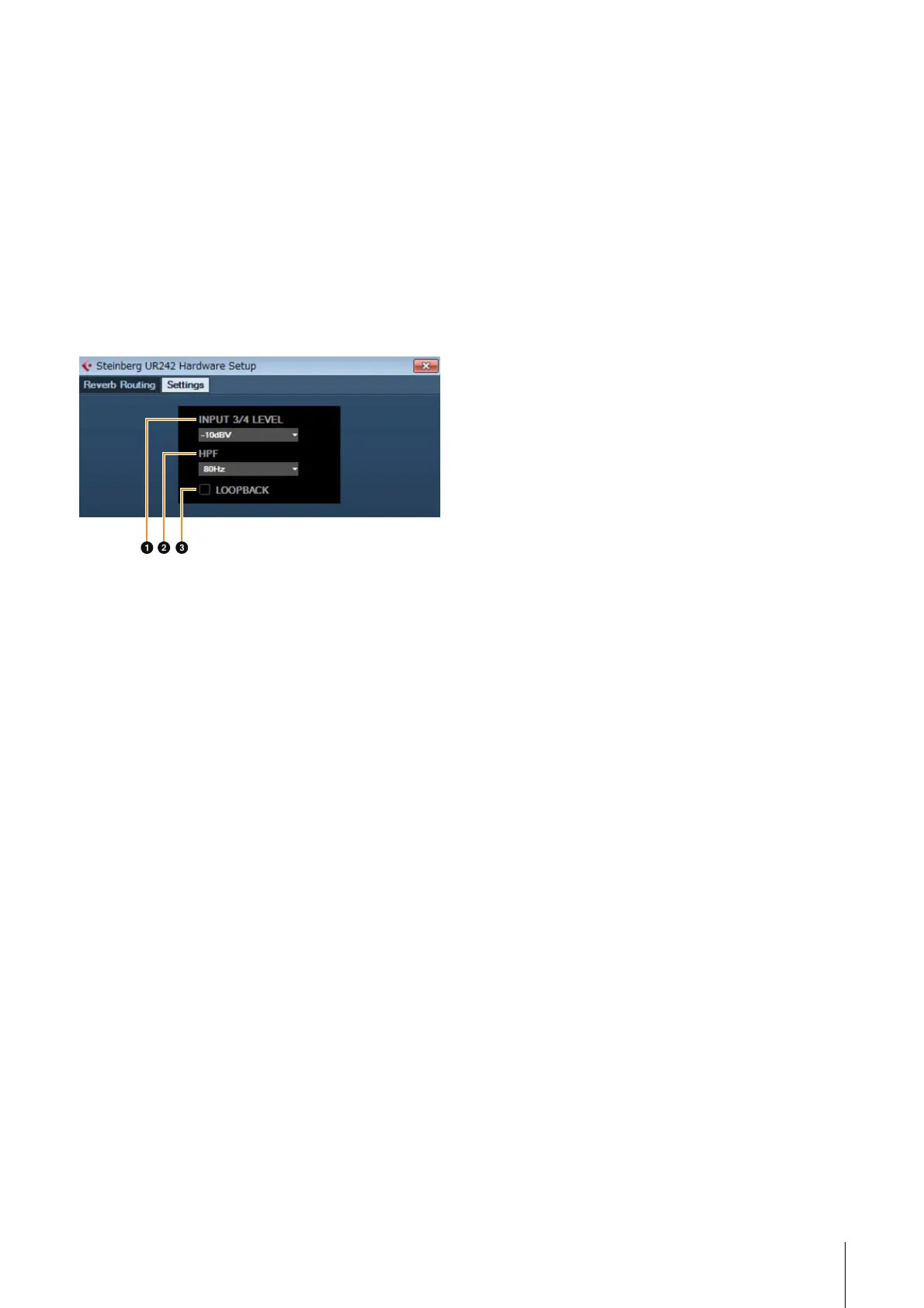
This window is for configuring the device settings.
1 INPUT 3/4 LEVEL
Selects the input signal of [LINE INPUT 3/4].
Options: +4dBu, -10dBV
2 HPF
Selects the cutoff frequency of the high pass filter (not
available on [LINE INPUT 3/4] ).
Options: 120Hz, 100Hz, 80Hz, 60Hz, 40Hz
3 LOOPBACK
Turns the Loopback function on (lit) and off (dark). Refer to
the “LOOPBACK” in the section “dspMixFx UR242” (page
11).
Sweet Spot Morphing Channel Strip
The Sweet Spot Morphing Channel Strip (“Channel Strip”
for short) is a multi-effect that combines compression and
EQ. Advanced sound engineering know-how is condensed
into a number of convenient presets that can be simply and
instantly recalled, for professional results.
Four channel strips are provided, and each can be
assigned to the monitor sound only, or to both the monitor
and recorded sound.
The Channel Strip equipped with the device and the
Channel Strip of the VST Plug-in version have the same
parameters. When using the Channel Strip on Cubase
series programs, you can share the settings between the
built-in Channel Strip and the Channel Strip of the VST
Plug-in version as a preset file. When using the built-in
Channel Strip on Cubase series programs, turn on the
[Direct Monitoring] setting in the program. Also, when
assigning the Channel Strip of the VST Plug-in version to
the effect slot on Cubase series programs, select it from
the [Dynamics] category (in the case of the default
settings). Note that you cannot use the built-in Channel
Strip when the sample rate is set to 176.4 kHz or 192 kHz.
How to Open the Window
From Dedicated Windows for Cubase Series
Select the “Channel Strip” from the “Effect Type,” then click
“Effect Edit” in the section “Input Settings Window” (page
14).
From dspMixFx UR242
Select the “Channel Strip” from the “Effect Type,” then click
“Effect Edit” in the section “Channel Area” (page 9).


 To Next Page