EasyManua.ls Logo

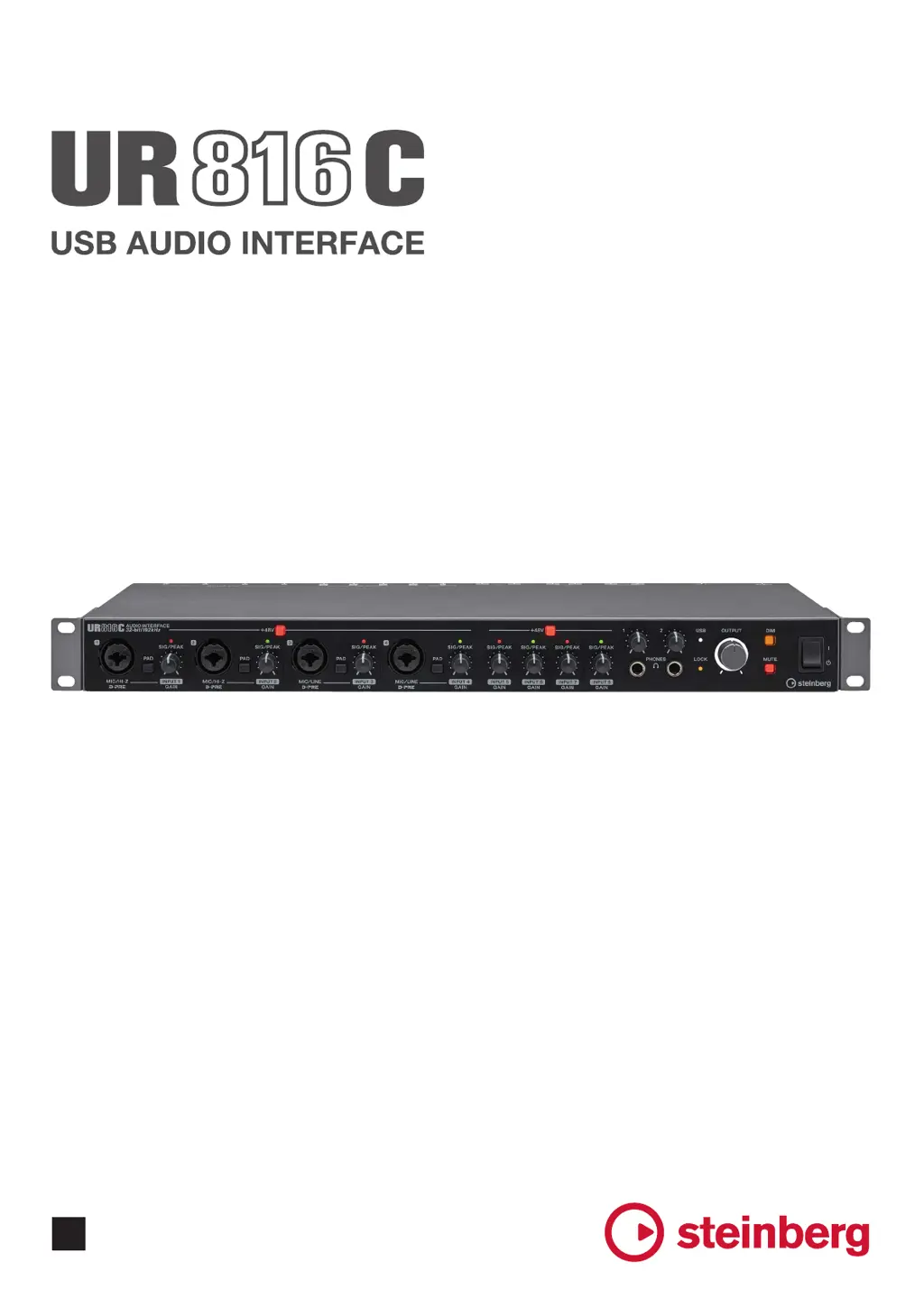
Steinberg UR816C - User Manual

Steinberg UR816C
47 pages
Print Icon
To Next Page IconTo Next Page
Loading...
Operation Manual
EN

Other manuals for Steinberg UR816C

Questions and Answers

  • J
    James RobertsJul 28, 2025
    Why is there no sound from my Steinberg UR816C?
    • B
      Brad MillerJul 28, 2025
      If you're not getting any sound with your Steinberg Accessories, make sure a proper USB cable (the one included) is being used. Check the volume levels of the [OUTPUT] and [PHONES] knobs on the device. Verify that the microphones and monitor speakers are correctly connected. Ensure the audio driver settings are properly configured in your DAW software. Also, check that the [ASIO Driver] setting is correctly set in Cubase (Yamaha Steinberg USB ASIO on Windows, or Steinberg UR816C/Steinberg UR816C (High Precision) on Mac). Finally, ensure the device was powered on before starting the DAW software.
  • S
    steven09Aug 4, 2025
    What to do if the USB indicator flashes continuously on Steinberg Accessories?
    • E
      edayAug 4, 2025
      Refer to the Startup Guide instructions to complete the TOOLS for UR-C installation.
  • B
    Bethany ThomasAug 11, 2025
    What to do if Steinberg Accessories have unusual sound?
    • D
      Desiree MartinezAug 11, 2025
      If you're experiencing unusual sound issues like noise, interruption, or distortion with your Steinberg Accessories, first check if your computer meets the system requirements by visiting the Steinberg website. If you are using SuperSpeed (USB 3.1 Gen1) mode, try switching to High-Speed (USB 2.0) mode in the Yamaha Steinberg USB Driver Control Panel. Reduce the number of audio tracks if you are recording or playing long sections of audio. Ensure microphones with XLR plugs are properly connected; phone plugs may result in insufficient volume. Disable 'Enable Loopback' when not using the Loopback function. If you see the error message 'Audio Format is Unmixable' on Mac, click 'Revert to Mixable'.
  • J
    Joseph HartAug 19, 2025
    How to turn on Steinberg UR816C Accessories if the power indicator is off?
    • T
      Tina Kelly MDAug 19, 2025
      Refer to the Startup Guide instructions to connect the AC adapter to the device.

Summary

Main Features Overview

16 x16 USB 3.0 Audio Interface

High-speed audio interface with extensive input/output capabilities and 32-bit/192 kHz support.

True 32-bit Resolution

Supports 32-bit integer format for higher audio resolution and enhanced music production.

USB 3.0 & USB Type-C Connectivity

Features USB 3.0 SuperSpeed mode and a USB Type-C port for versatile computer connections.

dspMixFx Technology

Provides latency-free monitoring with built-in DSP effects powered by the SSP3 DSP chip.

SSPLL Jitter Reduction

Advanced technology for removing audio band jitter, ensuring reliable clock synchronization.

Panel Controls and Terminals

Front Panel Controls

Detailed description of all front panel buttons, knobs, and indicators for device operation.

Rear Panel Connections

Explanation of all rear panel input, output, and interface ports for connectivity.

Software Configuration and Driver Setup

Yamaha Steinberg USB Driver

Installation and configuration of the USB driver for computer communication and basic settings.

ASIO and CoreAudio Settings

Configuring audio driver settings for DAWs on Windows (ASIO) and Mac (CoreAudio).

dspMixFx UR-C Operation

Software Overview and Access

Introduction to the dspMixFx software and how to open it on Windows and Mac.

Main Window Layout and Controls

Description of the main window layout, including Channel, DAW, REV-X, Master, and Mix areas.

Input Channel Configuration

Settings for individual input channels including gain, pan, mute, solo, and channel linking.

DSP Effects Configuration

Detailed settings for Sweet Spot Channel Strip, REV-X Reverb, and Guitar Amp Classics effects.

Output Routing and Master Settings

Managing output signal routing to various outputs and master channel controls.

Cubase Integration Features

Input Settings Window

Configuring device input parameters and effects within Cubase.

Hardware Setup Window

Setting general hardware and Cubase-linked functions like Digital Mode and Channel Link.

Specialized Operation Modes

Stand-alone Operation

Using the device as a standalone mixer or AD/DA converter without a computer.

HA Mode Operation

Using the UR816C as a mic preamp extension via ADAT with specific connectivity.

iOS Device Integration

Connecting and operating the UR816C with iOS devices using Cubasis and dspMixFx.

Troubleshooting Guide

Power and Connectivity Problems

Resolving issues related to power indicators, USB connection, and device recognition.

Audio Signal Issues

Diagnosing and fixing problems like no sound, noise, interruption, or distortion.

Steinberg UR816C Specifications

General IconGeneral
TypeAudio Interface
Number of Mic Preamps8
Phantom PowerYes
Sample Rate192 kHz
Bit Depth24-bit
MIDI I/OYes
A/D Resolution24-bit/192kHz
Word ClockYes
OS CompatibilityWindows, macOS
Form FactorRackmount
Rack Spaces1U
Analog Inputs8 x XLR/TRS Combo
Analog Outputs8 TRS
Digital InputsADAT, S/PDIF
Digital OutputsADAT, S/PDIF
Power SupplyExternal PSU
Channels16
LatencyLow Latency
SoftwareCubase AI

Related product manuals