EasyManua.ls Logo

Steinberg UR-RT2 - User Manual

Steinberg UR-RT2
51 pages
Print Icon
To Next Page IconTo Next Page
Loading...
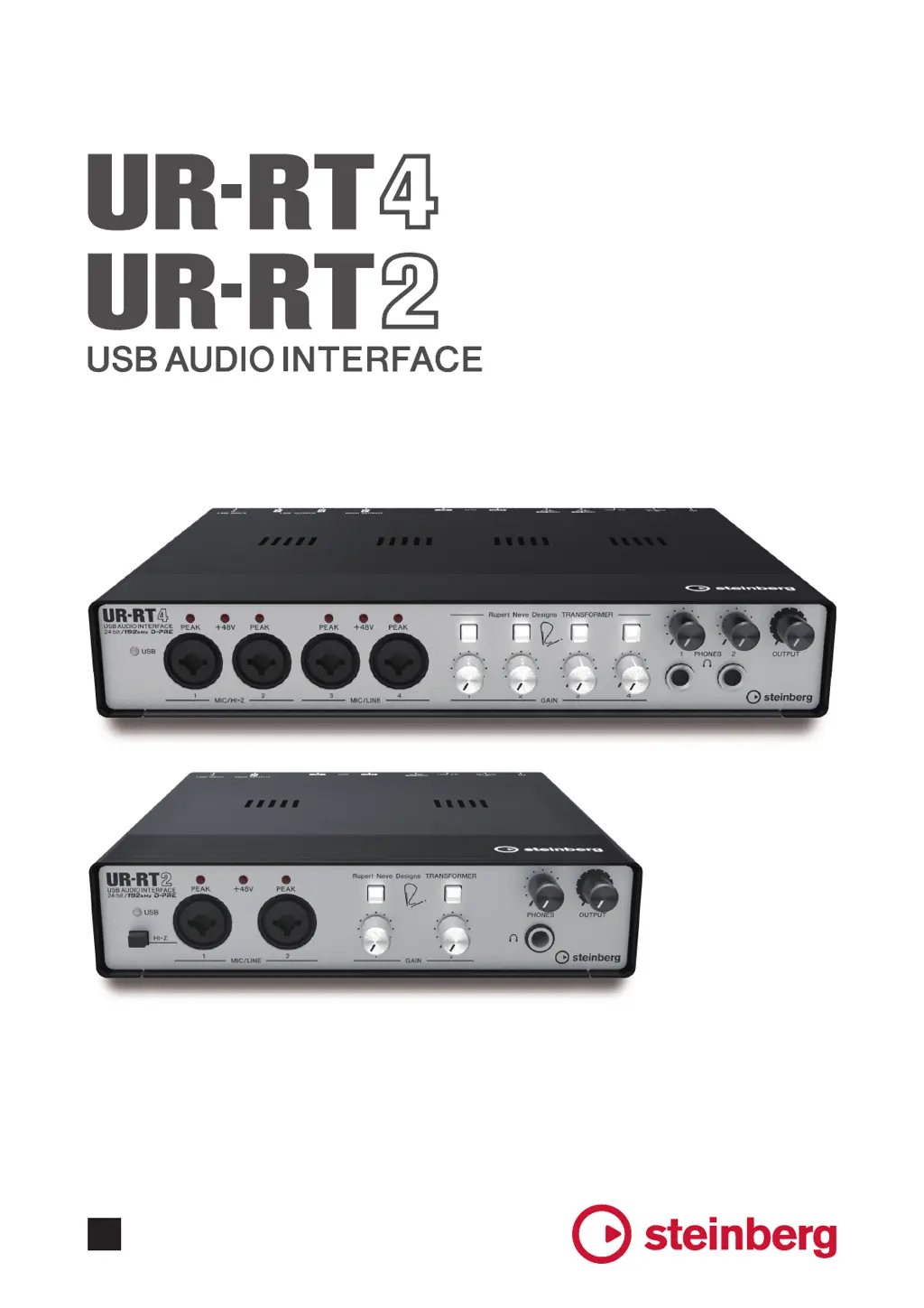
USB AUDIO INTERFACE
UR-RT4 / UR-RT2
Operation Manual
Operation Manual
EN

Other manuals for Steinberg UR-RT2

Questions and Answers

  • B
    boydmikeAug 9, 2025
    Why is there no sound from my Steinberg UR-RT2 Accessories?
    • M
      matthew30Aug 9, 2025
      If you're experiencing no sound with your Steinberg Accessories, ensure that the TOOLS for UR-RT has been properly installed. Also, verify that you are using a proper USB cable, replacing it if broken or damaged, and ensuring it's no longer than 3 meters. Check that the volume controls ([OUTPUT] knob and [PHONES] knob) are set to appropriate levels. Confirm that the microphones and monitor speakers are correctly connected to the device. Additionally, ensure that the audio driver settings on your DAW software are properly configured and that the [ASIO Driver] setting on the Cubase series program is correctly selected.
  • A
    angelaporterAug 16, 2025
    What to do if there is no sound from Steinberg Accessories after starting DAW?
    • C
      Cynthia MillerAug 16, 2025
      If you encounter a no sound issue after starting your DAW with Steinberg Accessories, make sure that the device was powered on before launching the DAW software. Also, check that the monitor speaker switch is turned on. If the buffer size is set too low, try increasing it.
  • J
    Jamie BarberAug 25, 2025
    How to fix unusual sound from Steinberg UR-RT2 Accessories?
    • D
      Derek BennettAug 25, 2025
      If you are experiencing unusual sound issues such as noise, interruption, or distortion with your Steinberg Accessories, first check if your computer meets the system requirements. If you are recording or playing long continuous sections of audio, reduce the number of audio tracks. Ensure that microphones are properly connected to the device using an XLR plug. Also, verify that the loopback function is properly set; turn it off when not in use.
  • M
    Melody DavisAug 31, 2025
    What to do if my Steinberg Accessories power does not turn on?
    • K
      Keith ObrienAug 31, 2025
      If your Steinberg Accessories device isn't powering on, first ensure that the TOOLS for UR-RT has been installed correctly. Next, verify that the AC adapter is properly connected, as the UR-RT is not a bus-powered device. Also, confirm that you are using a suitable USB cable, replacing it if damaged, and ensuring it is no more than 3 meters long.

Summary

Panel Controls and Terminals

Front Panel UR-RT4

Detailed description of the front panel controls and connectors for the UR-RT4 model.

Front Panel UR-RT2

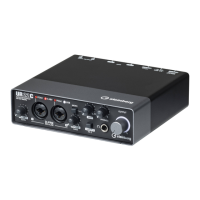
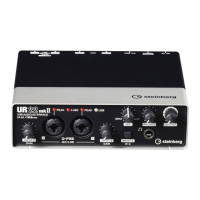
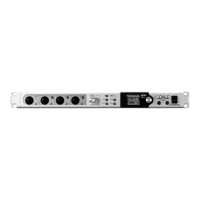
Detailed description of the front panel controls and connectors for the UR-RT2 model.

Software

Yamaha Steinberg USB Driver

Software for computer communication and basic driver settings.

dspMixFx UR-RT

DSP mixer and effects software for convenient audio processing.

Dedicated Windows for Cubase Series

Cubase-specific windows for device setting configuration.

Troubleshooting

Power does not turn on.

Addresses issues regarding device power and USB indicator status.

No Sound

Provides solutions for scenarios with no audio output from the device.

Steinberg UR-RT2 Specifications

General IconGeneral
Number of Inputs2
Number of Outputs4
Number of Preamps2
Sample Rate192 kHz
Bit Depth24-bit
Phantom PowerYes
Direct MonitoringYes
MIDI I/OYes
USBUSB 2.0
Audio Interface TypeUSB
LatencyLow
FeaturesRupert Neve Designs
Included SoftwareCubase AI

Related product manuals