EasyManua.ls Logo

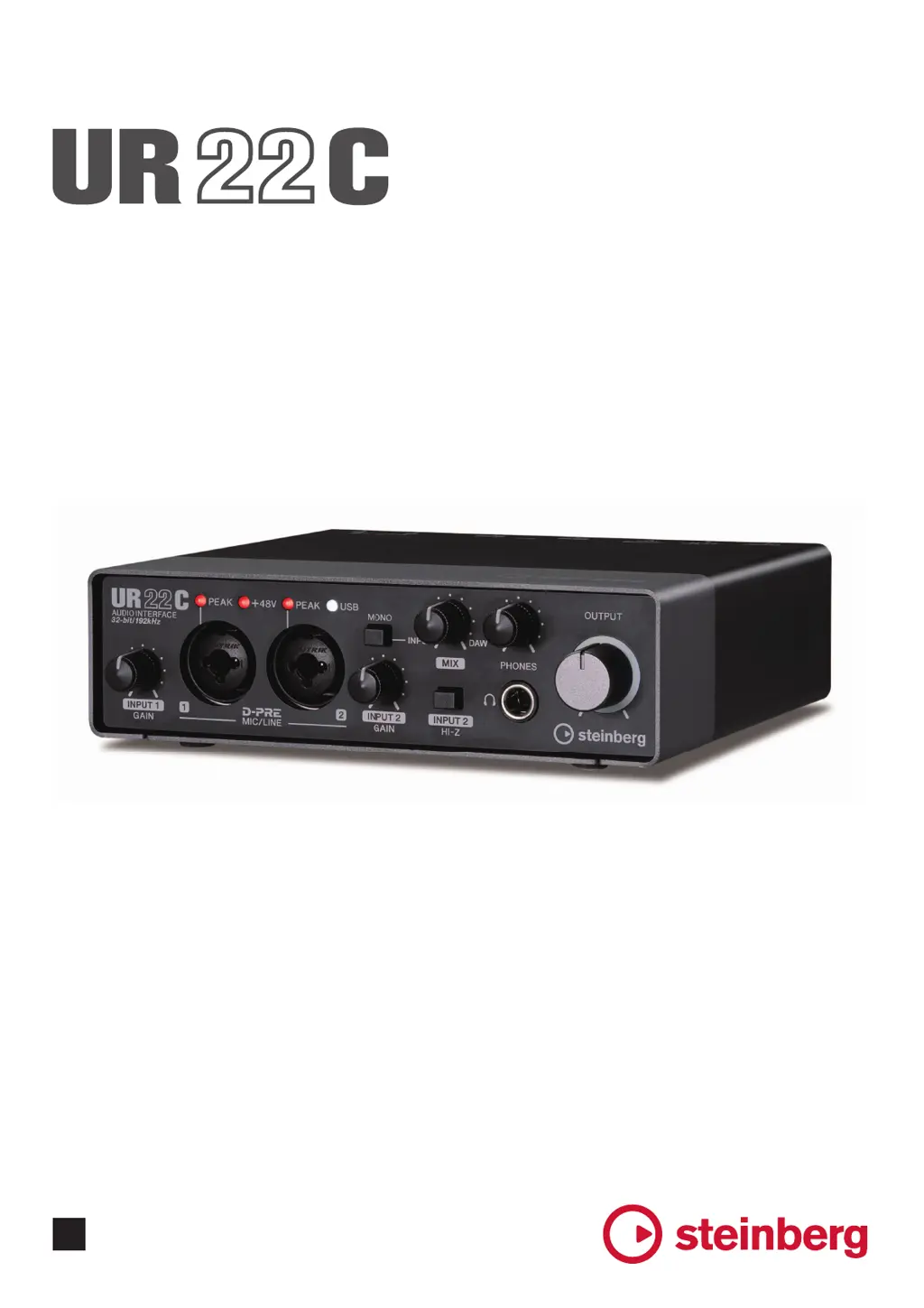
Steinberg UR22C - User Manual

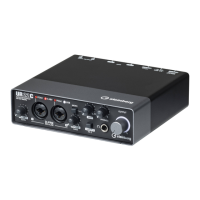
Steinberg UR22C
39 pages
Print Icon
To Next Page IconTo Next Page
Loading...
Operation Manual
EN
USB AUDIO INTERFACE

Other manuals for Steinberg UR22C

Questions and Answers

  • G
    Gavin DeckerJul 28, 2025
    Why does the power indicator flash continuously on my Steinberg UR22C Accessories?
    • M
      maysstephanieJul 28, 2025
      If the power supply is insufficient and the power indicator flashes continuously, move the [POWER SOURCE] switch to the [5V DC] jack side and use the USB power adaptor or USB mobile battery for the power supply. Also, confirm whether or not a proper USB cable is used. Make sure to use the included USB cable or, when connecting the device to the USB Type-C port of a computer, use a commercially available USB 3.1 Type -C to Type-C cable.
  • N
    Nicholas MyersAug 4, 2025
    What to do if there is no sound from my Steinberg UR22C?
    • K
      Kimberly HallAug 4, 2025
      If you are experiencing no sound with your Steinberg Accessories, make sure to use the included USB cable and confirm the levels of the [OUTPUT] knob and [PHONES] knob.
  • M
    michaelelliottAug 12, 2025
    How to fix unusual sound (noise, interruption, or distortion) on Steinberg UR22C?
    • B
      beth45Aug 12, 2025
      If you are experiencing unusual sound (noise, interruption, or distortion) with your Steinberg Accessories, confirm the system requirements. You can also try switching to High-Speed (USB 2.0) mode in the Yamaha Steinberg USB Driver Control Panel. Additionally, try reducing the audio tracks and check the sound again. Ensure that you connect a microphone with an XLR plug to the device and set Enable Loopback to off when not using the Loopback function. Finally, you can click [Revert to Mixable] to resolve the error.
  • T
    travis05Aug 19, 2025
    How to turn on Steinberg UR22C Accessories if the power indicator is off?
    • C
      Christina SanchezAug 20, 2025
      To resolve the issue of the power indicator being off on your Steinberg Accessories, move the [POWER SOURCE] switch to the [5V DC] jack side when using an AC adapter, or move the switch to the [USB 3.0] jack side for bus-powered supply (computer only).

Summary

Main Features

2 x 2 USB 3.0 Audio Interface

Details the interface's 2-in/2-out configuration with D-PRE preamps and 192 kHz/32-bit audio quality.

Panel Controls and Terminals

Front Panel Overview

Details all controls and connectors located on the front of the UR22C interface.

Rear Panel Overview

Details all connectors and switches located on the rear of the UR22C interface.

Software Operations

Yamaha Steinberg USB Driver

Explains the software for computer communication and basic driver settings.

dspMixFx UR-C Software

Cubase Integration Features

Input Settings Window

Window for configuring input settings and signal flow within Cubase.

Hardware Setup Window

Window for configuring general hardware settings and Cubase-linked functions.

Sweet Spot Morphing Channel Strip

Using with a Computer

Computer Connection Example

Illustrates how to connect the UR22C to a computer for audio input/output.

Using with an iOS Device

Troubleshooting Common Issues

Power and USB Indicator Problems

Addresses issues with the power and USB indicators not functioning correctly.

No Sound and Audio Format Errors

Resolves problems related to no audio output or 'Audio Format is Unmixable' errors.

Unusual Sound (Noise;Distortion)

Provides solutions for audio issues like noise, interruptions, or distortion.

Software Uninstallation

Steinberg UR22C Specifications

General IconGeneral
TypePre-amp
Proper useConcert/Studio
Product colorBlack
Housing materialMetal
Headphone outYes
Audio (L/R) out1

Related product manuals