EasyManua.ls Logo

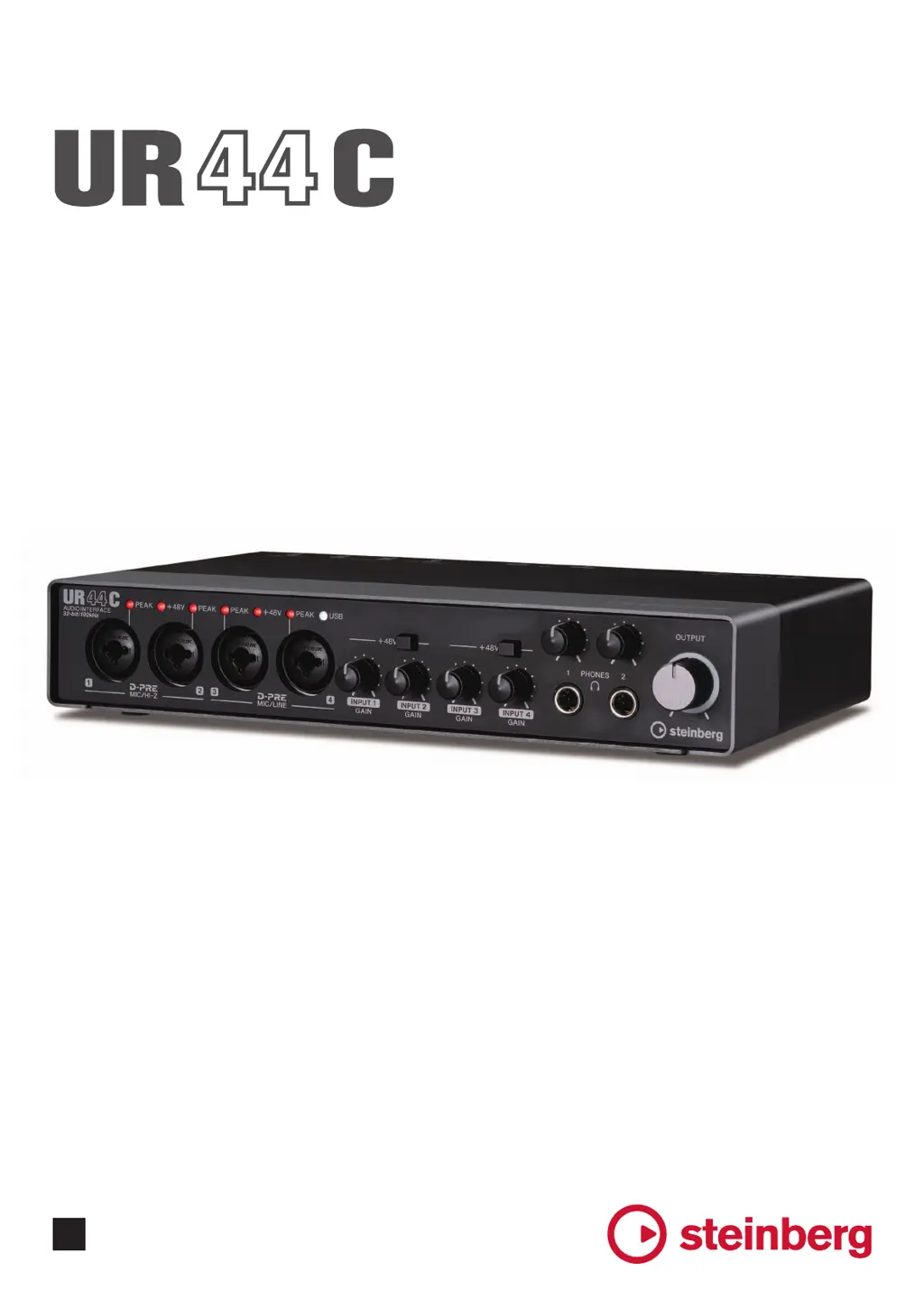
Steinberg UR44C - User Manual

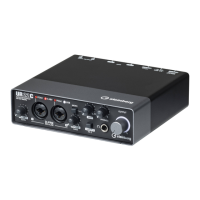
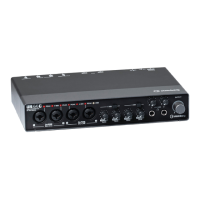
Steinberg UR44C
39 pages
Print Icon
To Next Page IconTo Next Page
Loading...
Operation Manual
EN
USB AUDIO INTERFACE

Other manuals for Steinberg UR44C

Questions and Answers

  • L
    Linda CarrJul 28, 2025
    How to fix no sound issue with Steinberg UR44C Accessories?
    • D
      Donna RobertsJul 28, 2025
      If you're experiencing a 'no sound' issue, make sure to use the included USB cable. Also, check the levels of the [OUTPUT] knob and [PHONES] knob. Confirm that the monitor speaker switch is turned on. Ensure that the [Yamaha Steinberg USB ASIO] (Windows) or [Steinberg UR44C] or [Steinberg UR44C (High Precision)] (Mac) is selected on the [ASIO Driver]. Before starting the DAW software, connect the device to a computer and turn on the power of the device.
  • T
    Tyler SchultzAug 2, 2025
    What to do if Steinberg Accessories have unusual sound (noise, interruption, or distortion)?
    • A
      Anthony PerezAug 2, 2025
      If you are experiencing unusual sound like noise, interruption, or distortion, first confirm the system requirements. You can also try switching to High-Speed (USB 2.0) mode in the Yamaha Steinberg USB Driver Control Panel. Reduce the audio tracks and check the sound again. Ensure that you connect a microphone with an XLR plug to the device. Also, set Enable Loopback to off when not using the Loopback function. Finally, click [Revert to Mixable] to resolve the error.
  • F
    fosterchristopherAug 9, 2025
    What to do if the power indicator flashes continuously on Steinberg UR44C?
    • H
      Heather KingAug 9, 2025
      If the power indicator flashes continuously, move the [POWER SOURCE] switch to [12V DC] jack side and use the AC adapter for the power supply. Alternatively, connect the USB Type-C jack on a computer to the [USB 3.0] jack with USB 3.1 Type-C to Type-C cable (optional). If your computer's USB 3.0 jack is not equipped with the USB Type-C jack, use the AC adapter.
  • D
    Daniel ReedAug 14, 2025
    Why is the USB indicator flashing continuously on my Steinberg Accessories?
    • J
      Jacob AllenAug 14, 2025
      Refer to the Startup Guide instructions to complete the TOOLS for UR-C installation.
  • D
    Diana WilliamsAug 20, 2025
    How to turn on Steinberg UR44C if the power indicator is off?
    • J
      Jeffrey BowenAug 21, 2025
      Refer to the Startup Guide instructions to connect the AC adaptor to the device. Move the [POWER SOURCE] switch to the [12V DC] jack side when using AC adapter or move the switch to [USB 3.0] jack side for bus-powered supply (computer only).

Summary

Key Features Overview

Device Controls and Connections

Front Panel Layout and Controls

Detailed description of all controls and jacks on the UR44C's front panel.

UR44 C Software Applications

Yamaha Steinberg USB Driver Utility

Software for communication between UR44C and computer; configure basic audio driver settings.

dspMixFx UR-C Mixer and Effects

Software for operating the built-in DSP mixer and effects with latency-free monitoring.

Computer Integration Guide

DAW Audio Driver Setup Guide

Steps to set up audio driver settings within Cubase and other DAW software.

Troubleshooting and Problem Solving

Power Indicator Status Troubleshooting

Solutions for when the power indicator is off or flashing continuously.

USB Indicator Flashing Troubleshooting

Troubleshooting for a continuously flashing USB indicator, indicating device recognition issues.

No Sound Troubleshooting Guide

Steps to resolve issues where no audio output is heard from the device.

Unusual Sound Troubleshooting Guide

Addressing audio problems like noise, interruption, or distortion during playback.

Steinberg UR44C Specifications

General IconGeneral
TypePre-amp
Bit rate32 bit
Proper useConcert/Studio
Sample rate192 kHz
Product colorBlack
Housing materialMetal
Main out4
Headphone outYes
Weight and Dimensions IconWeight and Dimensions
Depth159 mm
Width252 mm
Height47 mm
Weight1500 g

Related product manuals