9
SOFTWARE INSTALLATION
The Storage Options IP Camera is supplied with a CD which features two pieces of software:
IP Camera Tool:
IP Camera Client:
Finds the IP Camera on the network and shows address information.
Software for viewing and recording video from one or multiple IP Cameras.
6.1 – INSTALL IP CAMERA TOOL
1. Insert the software CD into an empty CD, DVD, or Blu-ray drive on your computer.
2. Open “My Computer” (or “Computer” in Windows 7) and double-click the CD / DVD drive icon. The disc
contents will be listed on screen.
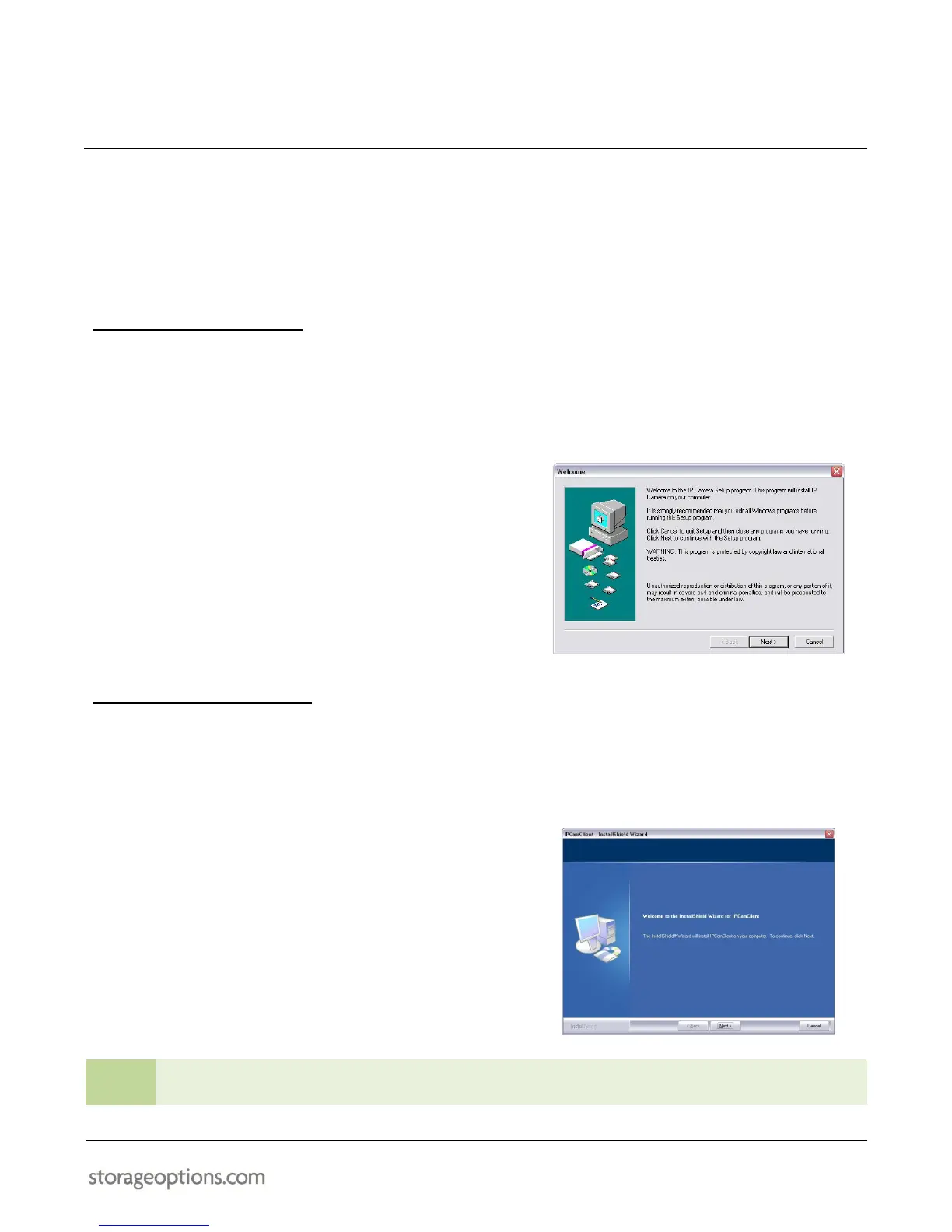
3. Double-click “IP Camera Tool” to install the IP Camera
Tool. You will be presented with an installation wizard.
4. Click “Next” and follow the on-screen instructions to
install the IP Camera Tool software.
5. An “IP Camera Tool” icon will appear on the Windows
desktop. Double-click it to run the software.
6. Refer to section “IP Camera Tool Software” (page 10) for
further instructions on this program.
6.2 – INSTALL IP CAMERA CLIENT
1. Insert the software CD into an empty CD, DVD or Blu-ray drive on your computer.
2. Open “My Computer” (or “Computer” in Windows 7) and double-click the drive icon. The disc contents will
be listed on screen.
3. Double-click “IP Camera Client” to install the IP Camera
Tool. You will be presented with this screen (right).
4. Click “Next” and follow the on-screen instructions to
install the IP Camera Tool software.
5. An “IP Cam Client” icon will appear on the Windows
desktop. Double-click it to run the software.
6. Refer to section “IP Camera Client Software” (page 12)
for further instructions on this software.
Use “Complete” to install with default settings, or “Custom” to change the installation directory.


 To Next Page