ISP Immersive Sound Processor
7
Connect Source Components
Legacy digital sources can be connected to the
digital inputs 1-6. Stereo or surround analog
sources can be connected to the Analog Inputs
section. Analog input configuration is defined at
“4. Main Audio In” on page 12. HDMI sources can
be connected as well.
Connect to Display
Connect your displays using HDMI outputs. Note
that outputs are mirrored (same content). For
long distance we recommend usage of optical
fiber and interface dongles.
eARC/ARC audio return channel is only supported
in HDMI OUT 1, being the recommended output
to interface with a TV receiver. HDMI OUT 2 is
recommended for Projector interface.
Note: when eARC/ARC is not used, it might be preferable to
connect the screen to HDMI OUT 2 due to CEC commands
on HDMI OUT 1 that some screen cannot override.
Connect Audio Outputs
If you choose to connect your outputs at this
step, take note of which output number is
routed to each channel so that you can map
them appropriately in a later step. Otherwise,
when you setup the theater using the web UI,
the default outputs will be defined for you. At
that point, you can connect your amplifiers
based on the default output channel mapping.
We recommend XLR cables with length <3m.
First Run
Upon first run, you must configure the ISP
according to your specifications using the web
based user interface. There is no on-screen
display or provision to configure the unit using
the front panel.
Power On
Turn the main switch on the rear panel to the
ON position.
The front panel display will show the StormAudio
logo for a few seconds, then will go blank as the
ISP enters sleep mode. The power LED will show
steady red.
Once in sleep mode, press the front panel POWER
button. The ISP will begin the startup sequence.
During the Initialization process (about 30s) the
LED will blink green until the unit is ready with
a steady green LED. Initialization process can
be shorten at the cost of more standby power
consumption. See ““Settings”” on page 30 to
adjust this.
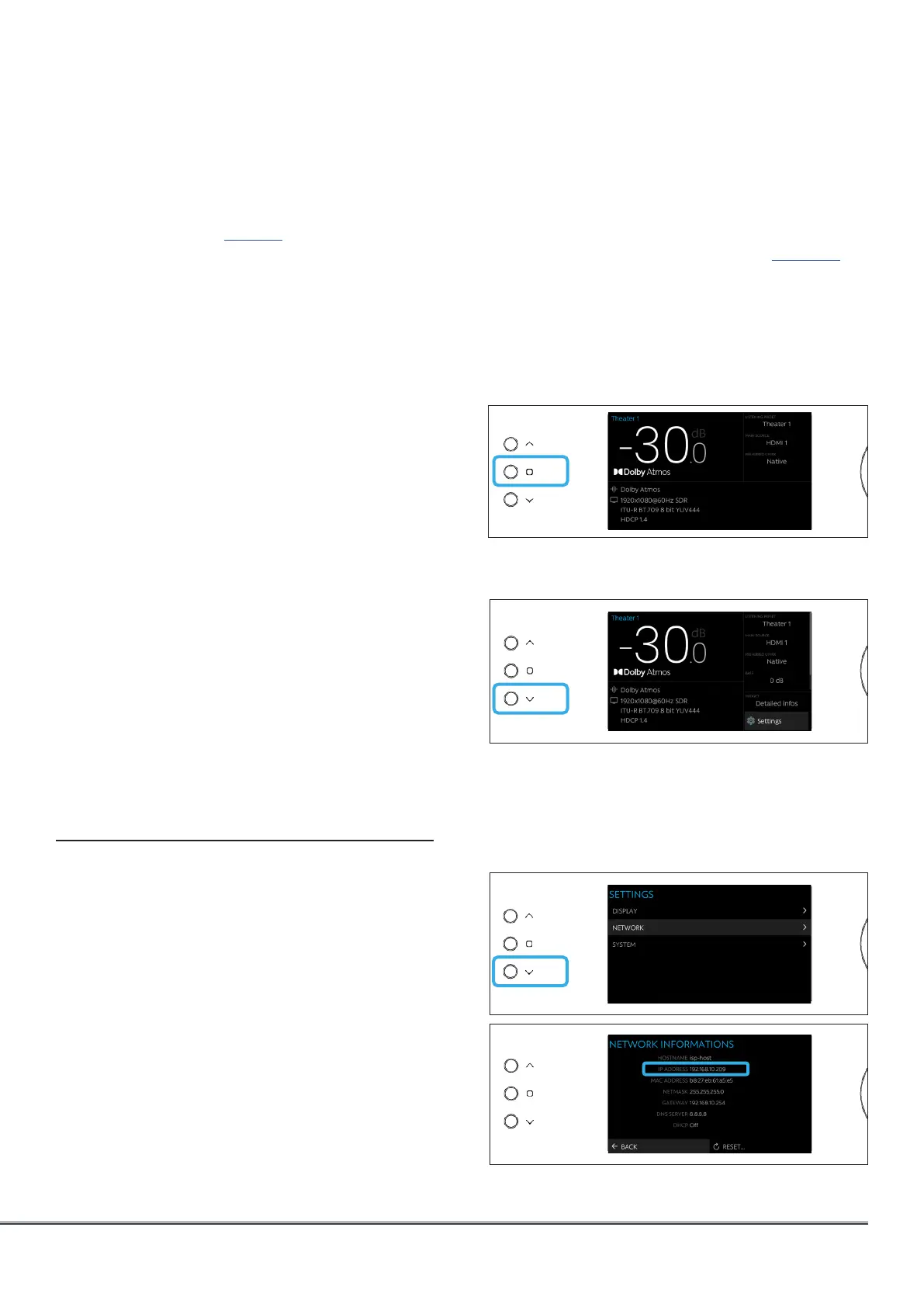
Get Network Access
1. When the Home display screen is shown,
press the Home/Access button (rounded
square) to access the Adjustment Menu.
2.
1
Using the Arrow button, access the Settings
and press the Volume knob to Validate.
3.
2
Select the Network item and press the
Volume knob to validate. This will give access
to the Network info where you can take note
of the IP address and also reset the network
parameters. Select Back to exit.
3



 To Next Page