9
Operation (continued)
3
Adjusting the settings
4
Removing and formatting the
memory card
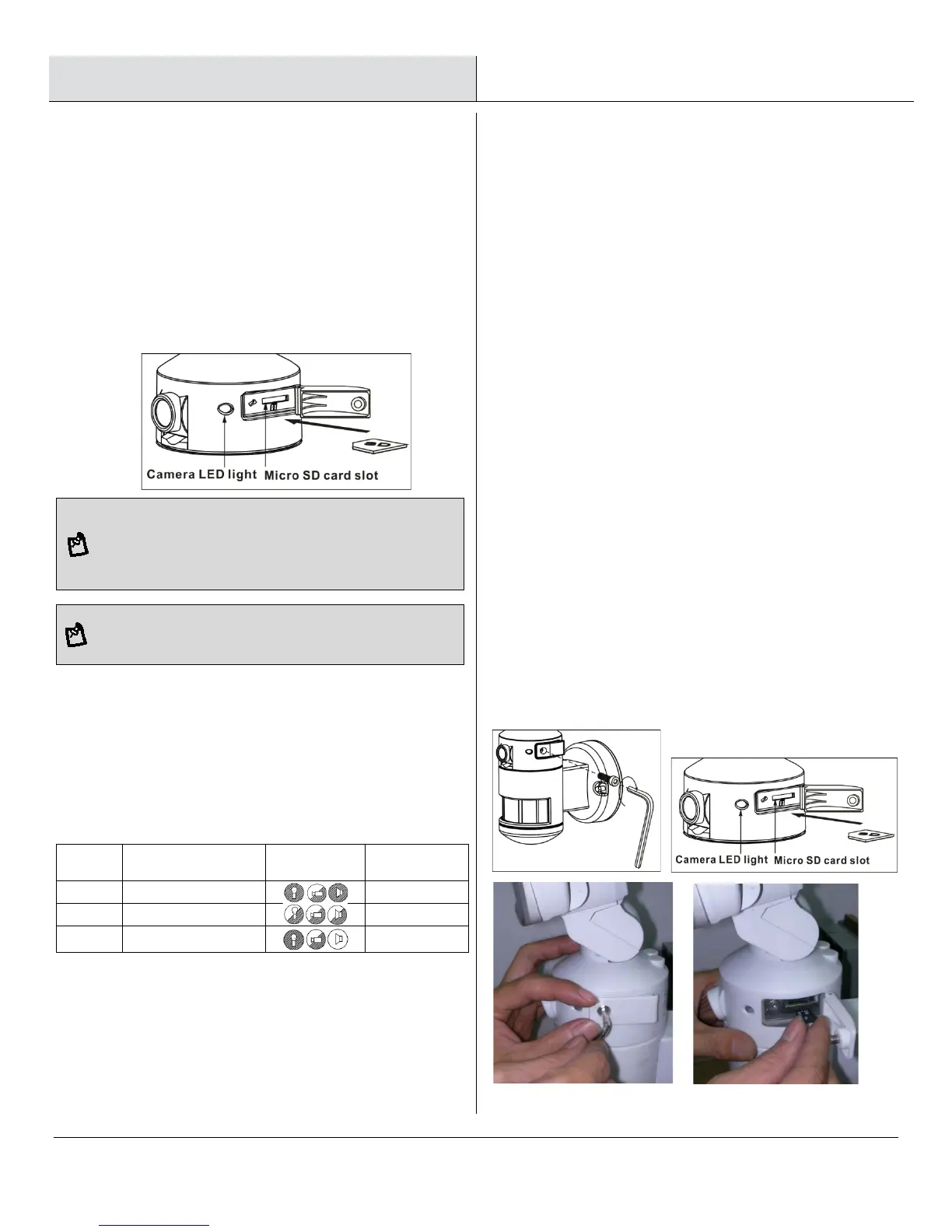
□ The LED light next to the micro card compartment
indicates the function status of the camera by using
different colored LED lights.
- Red: Micro card is not inserted into the Micro card
slot or the system is malfunctioning.
- Green: The unit is recording.
Before removing the micro card from the slot, please press the
mode button on the bottom of the NightWatcher for 3 seconds
to stop the light from turning – the “Mode” LED will flash
orange. To resume working, press the mode button once.
Please reformat your micro card every 6 months for optimal
□ Fixed Light Mode: allows the unit to function as a
traditional motion activated flood light where the light and
camera will not move. Press the mode-button for 3
seconds to stop the light from turning, the hidden
LED will flash RED in Night Mode and flash
GREEN in ALL Day Mode in a quick flash pattern.
To resume working, press the mode button for 3
seconds again.
Mode LED indicator
(hidden inside the lens)
Symbol
Mode 1 RED
Flash RED
Mode 2 ORANGE
Flash ORANGE
Mode 3 GREEN
Flash GREED
Note: for more details, please refer to F.A.Q. section
□ Before removing the micro card from the card slot, press the
mode button on the bottom of the NightWatcher for 3
seconds to stop the light from turning – the Mode LED will
flash orange. (To resume working, press the mode button
again.)
□ To remove micro card, open the card compartment
using the provided Allen key and push in micro card
to eject then pull out.
□ For viewing and/or formatting, slide the micro card
into the card adapter that has been provided. Then,
slide the card adapter into the card slot on your
laptop.
Formatting the micro card
□ It is good practice to format the micro card each time
it is removed and files are viewed on your PC. Once
the necessary files have been saved to your
computer, follow these steps for formatting.
□ Ensure that any required images are saved to an
alternative folder prior to formatting.
- Place micro card into the card adapter supplied
- Place the adapter in a spare card slot on your PC /
laptop
- Right click on the micro card location
- Select Format
- Ensure the correct file system is selected FAT16
(or FAT) for SD and FAT32 for SDHC
- Select quick format


 To Next Page