11
WWW.STROMLTD.COM
STROM LIMITED
Changing the current schedule:
To change the current settings being used by your controller the procedure
is similar to that used for reviewing the current settings.
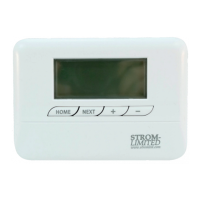
1. Move the “FUNCTION SLIDER” to “PROG”.
2. The controller will show the programming mode of the controller:
• 5/2 Day: The controller will alternate between ashing “MO”
“TU” “WE” “TH” and “FR” and then ashing “SA” and “SU”.
• 7 Day: The controller will ash only one day at a time.
• 24 Hour: All 7 days will ash at the same time.
3. You can change programming mode by using the “ADJUSTMENT
SELECTORS” .
4. Press the “NEXT” button .
5. The controller responds by showing you the rst event time and
temperature that applies. Pressing “Next” again will keep cycling you
through the time and temperature events.
• Day: The controller will highlight the days the current event
applies to in the “DAY OF THE WEEK” section .
• Event Number: The controller will show the event number is the
“EVENT NUMBER” section .
• Time: The controller will show the time of the event in “CURRENT
TIME” section . This time will change to reect the events as
you cycle through with the “NEXT” button.
• Temperature: The controller will show the desired temperature
for the event in the “SET TEMPERATURE” section.
6. As you scroll through the events you can amend the event time in
the “CURRENT TIME” section using the “ADJUSTMENT SELECTORS”.
7. As you scroll through the events you can amend the temperature
in the “SET TEMPERATURE” section using the “ADJUSTMENT
SELECTORS”.
8. To change the day/s highlighted simply press the “DAY” button.
9. Once you have cycled through all the options press the “HOME
SELECTOR” and return the “FUNCTION SLIDER” to the “AUTO”
position.
9
3
11
12
16
2
USER GUIDE
4
5


 To Next Page