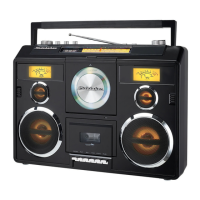
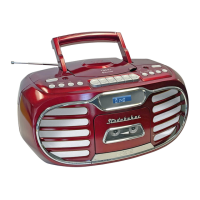
This unit features BATS – Bluetooth Automatic Time Set.
When any smart phone is connected through Bluetooth, the unit will automatically
synchronize with the smart phone’s clock.
This unit support 12 or 24 hour time display. Insert a pin to the 12/24 HOUR SELECTOR
(#11), the 12 hour time display will change to 24 hour display. Insert a pin to the 12/24 HOUR
SELECTOR (#11) again, the 12 hour time display will change back to 12 hour display.
IMPORTANT: After connecting to Bluetooth you may have a message pop up on your smart
phone requesting authorization to access your smart phone. The time on the SB3590 cannot
be set manually, so you need to allow access for the Automatic Time Set feature to
synchronize properly with the time on your smart phone. If you don’t allow access to your
smart phone the time shown on the SB3590 will be different than what’s shown on your smart
phone.
Note:
• In 12 hour display mode, the PM icon on the LCD DISPLAY (#2) will light when the hour is
set to PM and will be off when the hour is set to AM.
BLUETOOTH OPERATION
1. Open the cover of the unit. The display will turn on and show the clock.
2. The Bluetooth icon will turn on and flash on the LCD display (#2).
3. Turn on the Bluetooth function of your device and enable the search or scan function to
find the SB3590.
4. Select SB3590 from the device list when it appears on your device screen. If required,
enter the pass code “0000” to pair (link) SB3590 with your device.
5. If you are pairing (linking) your computer to the speaker using Bluetooth, you may need to
set the SB3590 as your computer’s default sound device.
6. After pairing SB3590 with your Bluetooth device successfully, The Bluetooth icon will
light steadily.
7. If you want SB3590 to pair with another Bluetooth device, press and hold the BLUETOOTH
PAIR BUTTONN (#5), the Bluetooth icon will flash. The unit will go into
Pairing/Discoverable mode. Repeat steps 4 & 5.
Now you can wirelessly play music from your Bluetooth device to the SB3590.
1. Selecting your favorite song, press the Play/Pause Button on your Bluetooth device.
2. Slowly adjust the volume controls of your Bluetooth device until you reach a comfortable
listening level.
Notes:
1. Refer to the manual of your cell phone, tablet PC, computer or other Bluetooth enabled
devices for Bluetooth operation since it may vary from model to model.
2. If your Bluetooth enabled device does not support A2DP profile, it will not play the music
through the speaker, even if paired (linked).
3. If the unit does not paired/linked with any Bluetooth device, the Bluetooth function will turn off
after 2 minutes for power saving.
WIRELESS CHARGING



 To Next Page