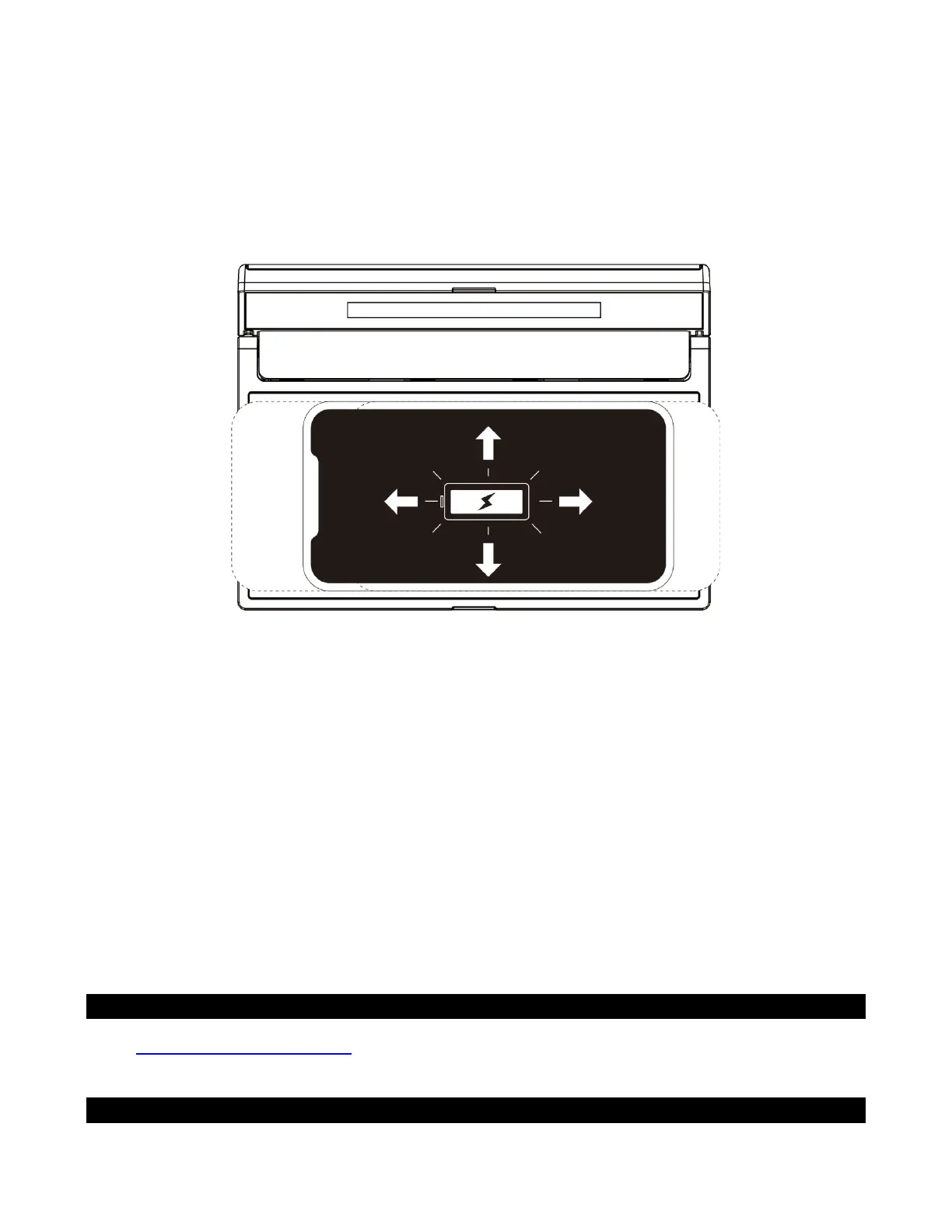
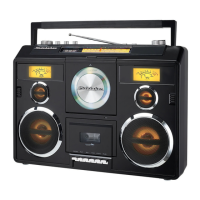
SB3590 supports wireless charging for Smart Phones.
1. Place your smart phone (wireless charging compatible) on the charging pad in Horizontal
position.
2. The wireless charge icon will light on the LCD DISPLAY (#2) to indicate the device is
charging.
3. Observe the battery charge indicator on your smart phone to make sure the charging
process starts normally.
4. Remove the smart phone from the charging pad when it is fully charged.
Notes:
• Optimizing Wireless Charging: Minimizing Disruptions with Do Not Disturb
If your mobile device is set to vibrate for alerts and is placed on the charging pad, it may
shift off the best charging area due to vibrations. To ensure a steady and uninterrupted
charging experience, please consider disabling the vibrate feature on your mobile device
or activating "Do Not Disturb" mode.
• If the wireless charge does not function immediately when you place your phone on the
charging pad, tap DIMMER BUTTON (7) or BLUETOOTH PAIR BUTTON (#5) to activate
the wireless charge function.
• The charging time is varied due to different smart phones and the battery’s condition.
• Remove your phone from any metal or magnetic protective case before placing it on the
Charging Pad. Do not place any metal objects or magnetic-striped devices on the
Charging Pads. Doing so could damage the object or this unit.
• Qi compatible phones with metallic finishes will charge normally.
Qi WIRELESS CHARGING FAQ AND COMPATIBILITY
Visit www.spectraintl.com/FAQ and click on “WIRELESS CHARGING FAQ” for more
information on Qi Charging and a list of devices compatible with the Qi charging system.
USB CHARGING



 To Next Page