SunFounder Pironman
The authenticity of host 'raspberrypi.local␣
˓→(2400:2410:2101:5800:635b:f0b6:2662:8cba)' can't be established.
ED25519 key fingerprint is SHA256:oo7x3ZSgAo032wD1tE8eW0fFM/
˓→kmewIvRwkBys6XRwg.
Are you sure you want to continue connecting (yes/no/[fingerprint])?
5. Enter the password you previously set. Note that for security reasons, the password won’t be visible as you type.
Note: It’s normal for the password characters not to display in the terminal. Just ensure to enter the
correct password.
6. Once you’ve successfully logged in, your Raspberry Pi is now connected, and you’re ready to proceed to the next
step.
4.2.4 Access the Raspberry Pi desktop through VNC Viewer
For those preferring a graphical user interface (GUI) over command-line access, the Raspberry Pi supports remote
desktop functionality. This guide will walk you through setting up and using VNC (Virtual Network Computing) for
remote access.
We recommend using VNC® Viewer for this purpose.
Enabling VNC Service on Raspberry Pi
VNC service comes pre-installed in the Raspberry Pi OS but is disabled by default. Follow these steps to enable it:
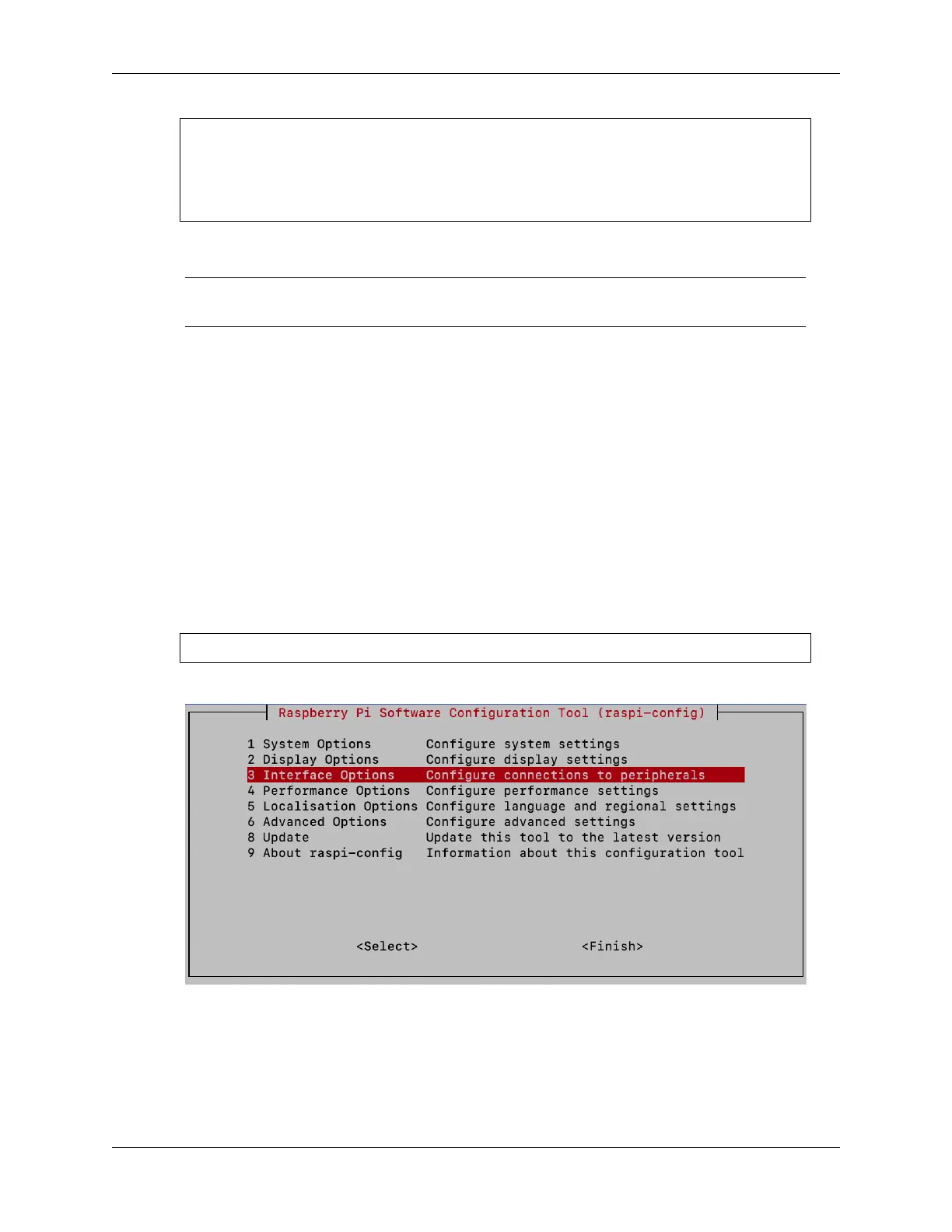
1. Enter the following command in the Raspberry Pi terminal:
sudo raspi-config
2. Navigate to Interfacing Options using the down arrow key, then press Enter.
3. Select VNC from the options.
20 Chapter 4. 4. Setting Up Your Raspberry Pi



 To Next Page