20
APPENDIX B
CALIBRATING THE SUNIT TOUCHSCREEN
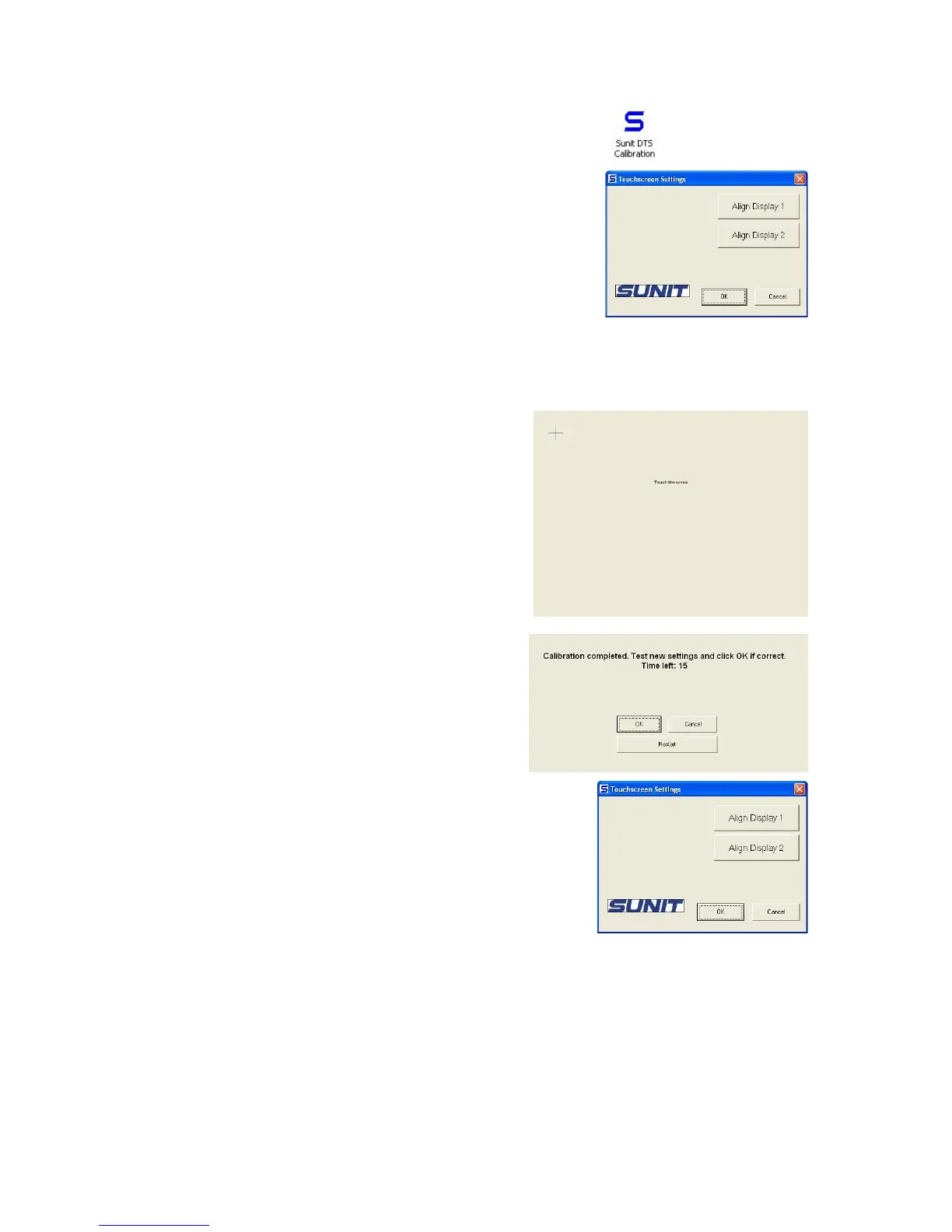
- start Windows Control panel
- open Sunit DTS touchscreen application by doubleclicking it’s icon
in control panel
1. Start calibration:
- Press “Align Display 1” Button.
2. Calibrate touch-screen: Touch calibration cross with
your finger. When cross is pressed, it will disappear, and
new calibration cross will appear on the different corner
of the screen. To complete calibration press the three
calibration crosses.
3. When calibration is completed, check that mouse
pointer will follow finger on the screen correctly, and
press “OK”. If calibration is not accurate, you can
recalibrate touch-screen by pressing “Restart” button.
If dualscreen is in use, you can calibrate second display by
pressing “Align Display 2” button, and follow the
instructions from step 2. (Button is active only when
dualscreen is in use) Otherwice click only “OK”.


 To Next Page