Need help?
Do you have a question about the Sunlux XL-9600 and is the answer not in the manual?
Resets scanner settings to factory defaults.
Prioritizes data output via USB when connected.
Allows data output via multiple connection types concurrently.
Uploads scanned data immediately without buffering.
Saves scanned barcodes automatically for later upload or review.
Stores data when the scanner is out of range, uploading later.
Connects wirelessly using a 2.4GHz radio frequency.
Connects via Bluetooth using the Human Interface Device profile.
Utilizes Bluetooth Low Energy for wireless communication.
Uses Bluetooth Serial Port Profile for data transmission.
Configures the scanner's USB connection type (HID or VCOM).
Selects how data is sent over USB-HID (e.g., keyboard keys, ASCII).
Adjusts the scanner's audible feedback volume (Mute, Low, Medium, High).
Configures automatic sleep modes and durations (No Sleep, Sleep Now, timed).
Sets how the Group Separator character is processed or converted.
Defines how input character casing is handled (Normal, Uppercase, Lowercase, Inversion).
Selects the keyboard layout and language for the scanner's output.
Establishes a wireless connection using the 2.4GHz dongle.
Pairs the scanner with devices via Bluetooth HID.
Configures the data transfer speed for Bluetooth HID connections.
Defines characters or actions to append after scanned data.
Configures hiding a specified number of characters from the beginning of scanned data.
Configures hiding a specified number of characters from the end of scanned data.
Adds custom characters before the scanned data.
Appends custom characters after the scanned data.
Provides quick scan codes to hide a specific number of leading characters.
Offers scan codes to hide a specific number of trailing characters.
Numeric code '0' for scanner configuration.
Numeric code '1' for scanner configuration.
Numeric code '2' for scanner configuration.
Numeric code '3' for scanner configuration.
Numeric code '4' for scanner configuration.
Numeric code '5' for scanner configuration.
Numeric code '6' for scanner configuration.
Numeric code '7' for scanner configuration.
Numeric code '8' for scanner configuration.
Numeric code '9' for scanner configuration.
Represents the Null character in the ASCII table.
Represents the Start of Heading (SOH) character.
Represents the Start of Text (STX) character.
Represents the End of Text (ETX) character.
Represents the End of Transmission (EOT) character.
Represents the Enquiry (ENQ) character.
Represents the Acknowledge (ACK) character.
Represents the Bell (BEL) character.
Represents the Backspace (BS) character.
Represents the Horizontal Tab (HT) character.
Represents the Line Feed (LF) character.
Represents the Vertical Tab (VT) character.
Represents the Form Feed (FF) character.
Represents the Carriage Return (CR) character.
Represents the Shift Out (SO) character.
Represents the Shift In (SI) character.
Represents the Data Link Escape (DLE) character.
Represents the Device Control 1 (DC1) character.
Represents the Device Control 2 (DC2) character.
Represents the Device Control 3 (DC3) character.
Represents the Device Control 4 (DC4) character.
Represents the Negative Acknowledge (NAK) character.
Represents the Synchronous Idle (SYN) character.
Represents the End of Transmission Block (ETB) character.
Represents the Cancel (CAN) character.
Represents the End of Medium (EM) character.
Represents the Substitute (SUB) character.
Represents the Escape (ESC) character.
Represents the File Separator (FS) character.
Represents the Group Separator (GS) character.
Represents the Record Separator (RS) character.
Represents the Unit Separator (US) character.
Represents the Space (SP) character.
Represents the exclamation mark (!) character.
Represents the double quote (") character.
Represents the hash (#) character.
Represents the dollar sign ($) character.
Represents the percent (%) character.
Represents the ampersand (&) character.
Represents the single quote (') character.
Represents the opening parenthesis (() character.
Represents the closing parenthesis ()) character.
Represents the asterisk (*) character.
Represents the plus (+) character.
Represents the comma (,) character.
Represents the hyphen (-) character.
Represents the period (.) character.
Represents the forward slash (/) character.
Represents the digit '0' character.
Represents the digit '1' character.
Represents the digit '2' character.
Represents the digit '3' character.
Represents the digit '4' character.
Represents the digit '5' character.
Represents the digit '6' character.
Represents the digit '7' character.
Represents the digit '8' character.
Represents the digit '9' character.
Represents the colon (:) character.
Represents the semicolon (;) character.
Represents the less than (<) character.
Represents the equals (=) character.
Represents the greater than (>) character.
Represents the question mark (?) character.
Represents the at symbol (@) character.
Represents the letter 'A' character.
Represents the letter 'B' character.
Represents the letter 'C' character.
Represents the letter 'D' character.
Represents the letter 'E' character.
Represents the letter 'F' character.
Represents the letter 'G' character.
Represents the letter 'H' character.
Represents the letter 'I' character.
Represents the letter 'J' character.
Represents the letter 'K' character.
Represents the letter 'L' character.
Represents the letter 'M' character.
Represents the letter 'N' character.
Represents the letter 'O' character.
Represents the letter 'P' character.
Represents the letter 'Q' character.
Represents the letter 'R' character.
Represents the letter 'S' character.
Represents the letter 'T' character.
Represents the letter 'U' character.
Represents the letter 'V' character.
Represents the letter 'W' character.
Represents the letter 'X' character.
Represents the letter 'Y' character.
Represents the letter 'Z' character.
Represents the opening bracket ([) character.
Represents the backslash (\) character.
Represents the closing bracket (]) character.
Represents the caret (^) character.
Represents the grave accent (`) character.
Represents the letter 'a' character.
Represents the letter 'b' character.
Represents the letter 'c' character.
Represents the letter 'd' character.
Represents the letter 'e' character.
Represents the letter 'f' character.
Represents the letter 'g' character.
Represents the letter 'h' character.
Represents the letter 'i' character.
Represents the letter 'j' character.
Represents the letter 'k' character.
Represents the letter 'l' character.
Represents the letter 'm' character.
Represents the letter 'n' character.
Represents the letter 'o' character.
Represents the letter 'p' character.
Represents the letter 'q' character.
Represents the letter 'r' character.
Represents the letter 's' character.
Represents the letter 't' character.
Represents the letter 'u' character.
Represents the letter 'v' character.
Represents the letter 'w' character.
Represents the letter 'x' character.
Represents the letter 'y' character.
Represents the letter 'z' character.
Represents the opening brace ({) character.
Represents the vertical bar (|) character.
Represents the closing brace (}) character.
Represents the tilde (~) character.
Represents the Delete (DEL) character.
Represents the Caps Lock function key.
Represents the F1 function key.
Represents the F2 function key.
Represents the F3 function key.
Represents the F4 function key.
Represents the F5 function key.
Represents the F6 function key.
Represents the F7 function key.
Represents the F8 function key.
Represents the F9 function key.
Represents the F10 function key.
Represents the F11 function key.
Represents the F12 function key.
Represents the PrintScreen function key.
Represents the Scroll Lock function key.
Represents the Pause function key.
Represents the Insert function key.
Represents the Home function key.
Represents the PageUp function key.
Represents the Delete function key.
Represents the PageDown function key.
Represents the End function key.
Represents the Right Arrow function key.
Represents the Left Arrow function key.
Represents the Down Arrow function key.
Represents the Up Arrow function key.
Represents the Num Lock function key on the keypad.
Represents the Slash key on the keypad.
Represents the Asterisk key on the keypad.
Represents the Hyphen key on the keypad.
Represents the Plus key on the keypad.
Represents the Enter key on the keypad.
Represents the '1' key on the keypad.
Represents the '2' key on the keypad.
Represents the '3' key on the keypad.
Represents the '4' key on the keypad.
Represents the '5' key on the keypad.
Represents the '6' key on the keypad.
Represents the '7' key on the keypad.
Represents the '8' key on the keypad.
Represents the '9' key on the keypad.
Represents the '0' key on the keypad.
Represents the Period key on the keypad.
Configures the press action for the Left Control key.
Configures the press action for the Left Shift key.
Configures the press action for the Left Alt key.
Configures the press action for the Middle GUI key.
Configures the press action for the Right Control key.
Configures the press action for the Right Shift key.
Configures the press action for the Right Alt key.
Configures the press action for the Right GUI key.
Configures the release action for the Left Control key.
Configures the release action for the Left Shift key.
Configures the release action for the Left Alt key.
Configures the release action for the Left GUI key.
Configures the release action for the Right Control key.
Configures the release action for the Right Shift key.
Configures the release action for the Right Alt key.
Configures the release action for the Right GUI key.
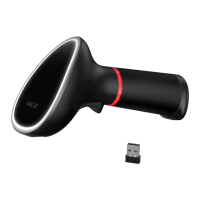
This document outlines the features and functionalities of a Wireless 2D Barcode Scanner, focusing on its wireless operation. The manual provides comprehensive instructions for configuring various aspects of the scanner, from basic output modes to advanced data editing and key function assignments.
The Wireless 2D Barcode Scanner is designed for efficient data capture, offering both immediate and inventory data transfer modes. It supports multiple communication interfaces, including 2.4G, Bluetooth HID, Bluetooth BLE, and Bluetooth SPP, providing flexibility for different application environments. The scanner can be configured to output data via USB when connected, or simultaneously through USB and a wireless mode.
Output Mode: The scanner offers two primary output modes:
Data Transfer Mode: The device supports two data transfer mechanisms:
Communication Mode: The scanner supports various communication protocols to suit different host systems:
USB Interface Type: The scanner can connect to a host via USB in two ways:
USB-HID Data Type: When operating in USB-HID mode, the scanner can be configured to:
Inventory Mode Features: Within Inventory Mode, users have options for managing saved data:
Sound Set: The scanner provides configurable sound feedback:
Sleep Time Set: To conserve battery life, the scanner's sleep timer can be adjusted:
GS (Group Separator) Characters Conversion: The scanner offers options for handling Group Separator (GS) characters:
Letter Case Conversion: The scanner can modify the case of scanned characters:
Language Set: The scanner supports various keyboard layouts for different regions, ensuring correct character mapping:
Bluetooth HID Transfer Rate: The speed of data transfer over Bluetooth HID can be adjusted:
Data Editor: The data editor provides advanced functionalities for manipulating scanned data before output.
Suffix Terminator Character Setting: This feature allows users to append a specific character or sequence to the end of each scanned barcode:
Hidden Character Settings: This powerful feature allows users to hide specific characters from the beginning or end of a barcode.
Hide Front Character: This function hides characters from the front of the barcode.
Hide Back Character: This function hides characters from the back of the barcode.
Add Prefix and Suffix Settings: These features allow users to add custom characters or sequences to the beginning or end of scanned data.
Add Prefix Setting:
Add Suffix Setting:
Add Ctrl, Shift, Alt, GUI Function Key: This advanced feature allows the scanner to output control, shift, alt, or GUI (Windows key) functions, either individually or in combination.
The scanner is designed for user-friendly configuration through barcode scanning. Each setting is represented by a unique barcode, which, when scanned, activates the corresponding function. This method eliminates the need for complex software interfaces for basic setup.
The manual implicitly suggests several maintenance-related features:
Overall, the Wireless 2D Barcode Scanner is a versatile tool with extensive configuration options, designed to adapt to various data capture and integration requirements. Its barcode-based configuration system simplifies setup, while advanced data editing features provide powerful customization capabilities.
 General
| Scan Rate | 100 scans per second |
|---|---|
| Interfaces Supported | USB, RS-232, Keyboard Wedge |
| Storage Temperature | -20°C to 60°C |
| Interface | USB |
| Supported Barcodes | Code 39, Code 128, Interleaved 2 of 5, Codabar |
| Operating Voltage | 5V DC |
| Operating Current | 100mA |
| Humidity | 5% to 95% (non-condensing) |
| Type | Handheld Laser Barcode Scanner |

 To Next Page