Conducting an Ambulatory Blood Pressure Study
Communicating with the Oscar 2
To successfully complete an ABP study, you need your computer to be able to
communicate with your ABP monitor in order to program it and retrieve data from it.
Connecting the monitor to your computer
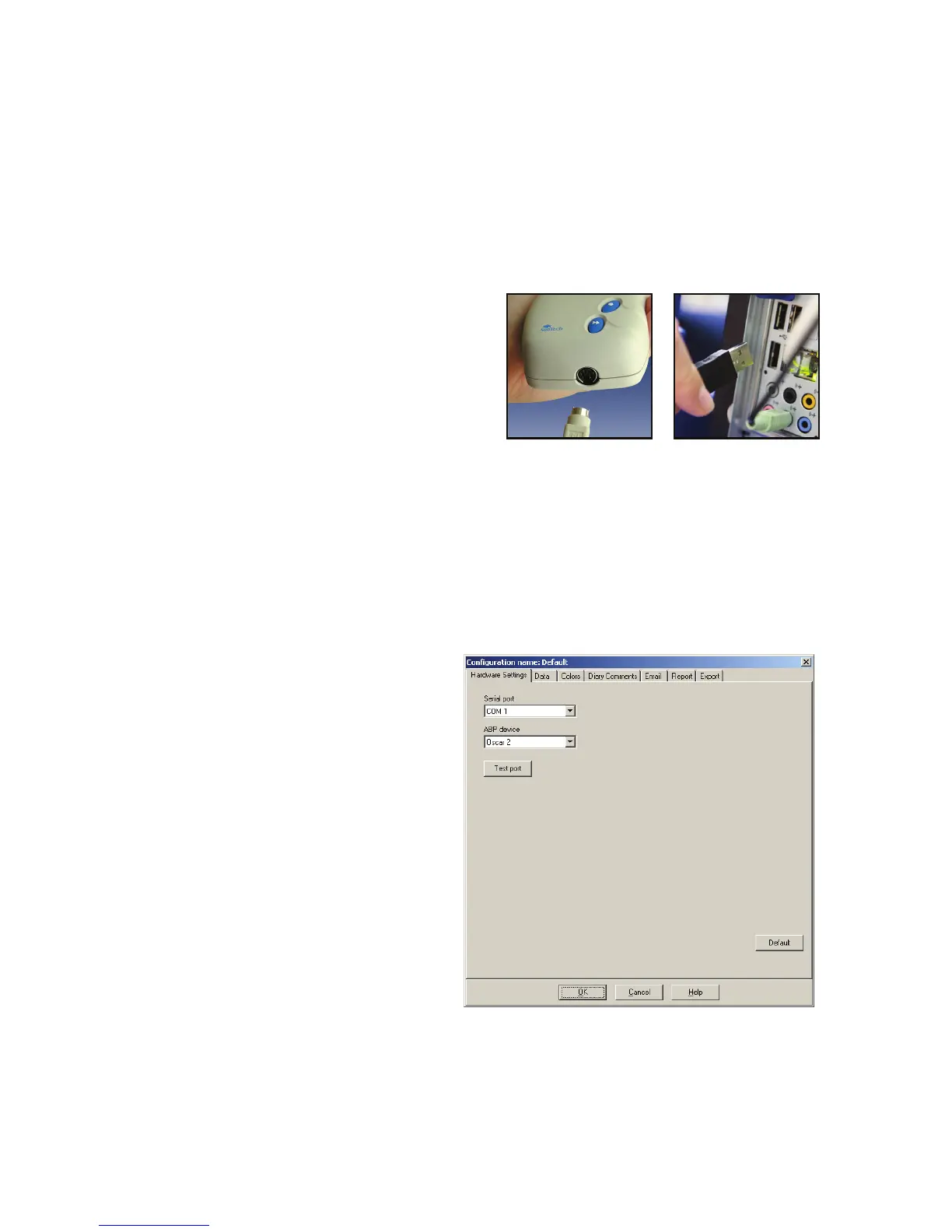
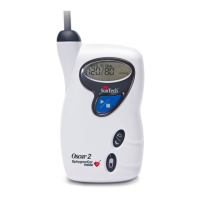
1. Connect the PC interface USB cable to the connection site at the bottom of the
ABP monitor (Fig. 1).
2. Connect the USB end of the PC
interface cable to the USB port on the
back of your computer (Fig. 2).
3. If using the serial port PC interface
cable, connect the cable to the
9-pinserialportonthebackofyour
computer.
Configuring your computer for communication
Using the PC Interface USB cable
Installing AccuWin Pro v3 will load the driver(s) for the USB cable. Once the cable is
connected to the PC, AccuWin Pro v3 will recognize the cable and auto-select it as
the connection to the monitor (Fig. 3).
Using the PC Interface Serial Cable
1. From AccuWin Pro v3, pull down
the Monitor menu and select
Configure Port (Fig. 3).
2. Select the serial port to which the
PC cable is connected.
3. Under ABP Device, select
Oscar 2.
4. If you want to verify that the
settings that you have selected
are correct, click on Test Port.
If communication is successful,
a confirmation message will be
displayed quickly.
5. Select OK when finished.
Fig. 1 Fig. 2
Fig. 3: Configurations, Hardware Settings
13


 To Next Page