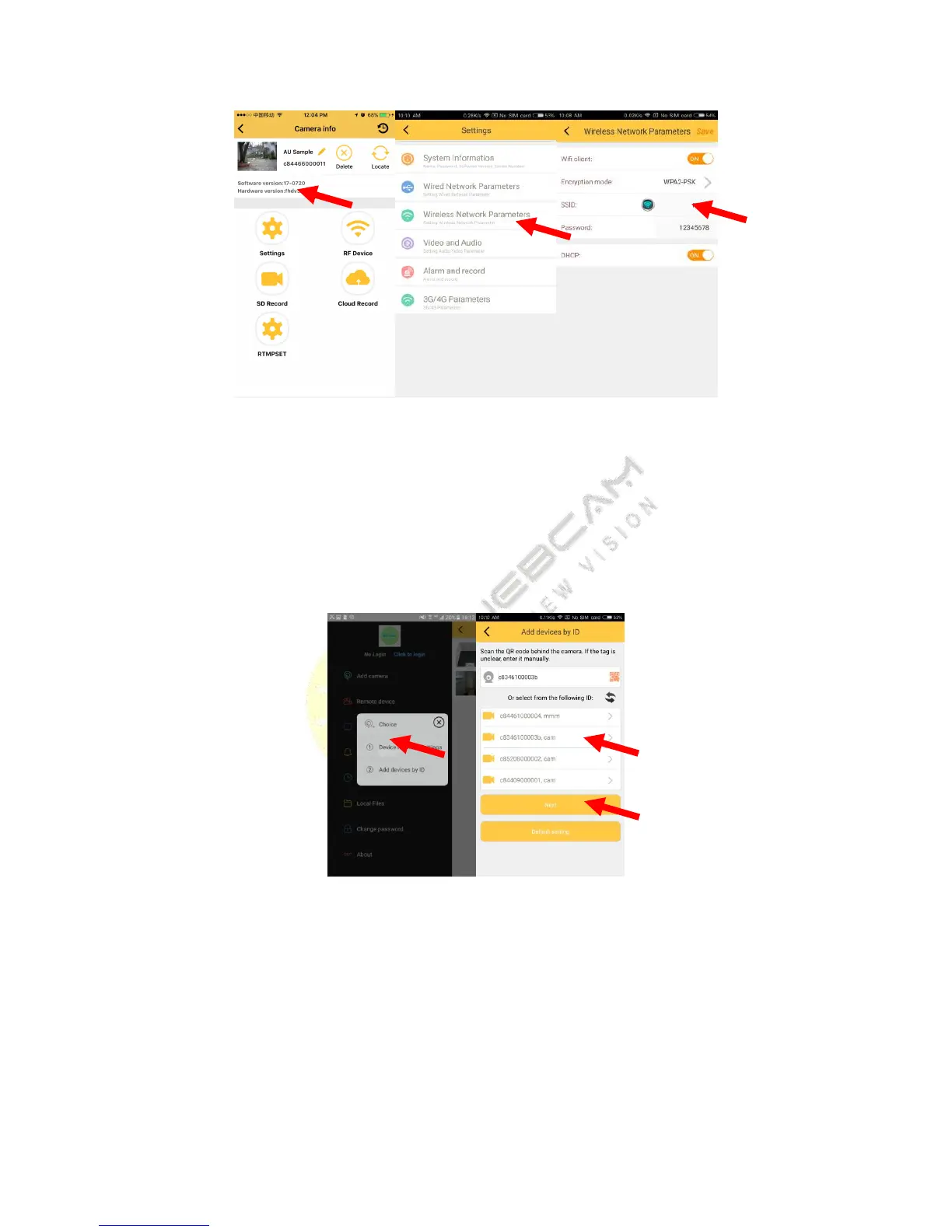
When you set Wi-Fi successfully, the Wi-Fi of camera will disappear, you should exit the app, open the Wi-Fi
setting interface, connect the Wi-Fi which the camera connect, then you open the app, login to your account,
choose ‘add devices by ID’, select the camera you want to bind, click button next (need about two or three
minutes camera can be seen in the list, please be patient), Do not operate cell phone at this moment, until the
camera add successfully.back to sliding menu, click “Remote device”, refresh the list, you can see the camera you
add.If the camera has not appear in the list, the Wi-Fi setting is failed, you should long press the reset button
which behind the camera,5 second, then you should set again.


 To Next Page