ENG
4
Gaming Mouse
CHANGE MOUSE FUNCTIONS
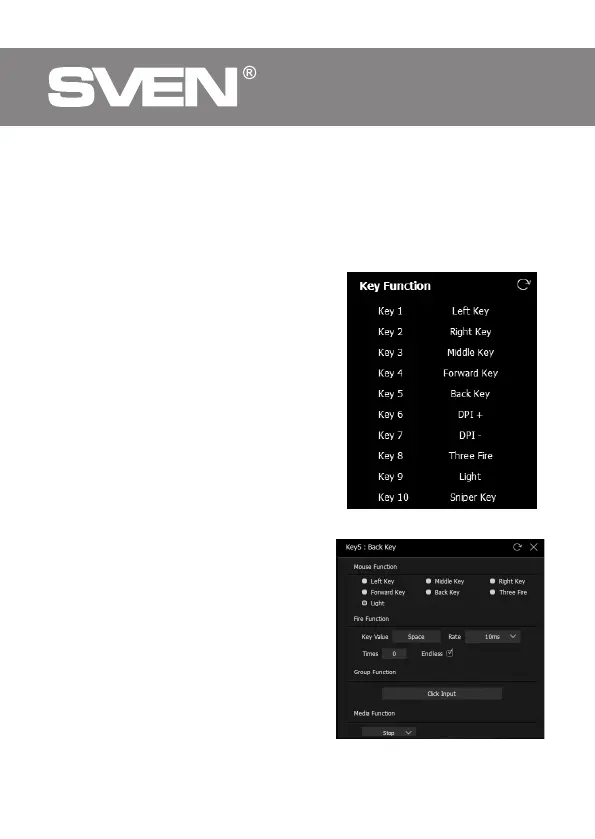
• The functions of the mouse buttons can be changed by giving other values button. Markers
with numbers on the image correspond to the list numbers from 1 to 10. Click on the marker
or list, opens a window with additional functions that can be reassigned. The following is a
list of default keys.
Note: After all changes in the software, you must click Save to save the changed settings to
the mouse. The Reset button sets the default settings.
PREPARATION FOR WORK
• Key 1 – left mouse button
• Key 2 – right mouse button
• Key 3 – middle button, button under the wheel
• Key 4 – next page
• Key 5 – previous page
• Key 6 – DPI + switching
• Key 7 – DPI – switching
• Key 8 – triple click
• Key 9 – change backlight mode
• Key 10 – precise aiming function
ADDITIONAL FUNCTIONS
• Mouse Function – basic mouse functions.
• Fire Function – hot key function, allows you
to assign mouse buttons, any one button on
the keyboard. Key Value – character input field
from the keyboard, Rate – character input speed,
Times – number of characters per click, option
set Endless – allows you to display a character
while the button is pressed.
• Group Function – combination of multiple
buttons.
• Media Function – media functions: stop,
pause, volume control.
• Macro Function - function allows you to
display a previously recorded macro. How to
create a macro is described in «Creating macro».
Macro runs one-time after pressing the button –
macro launches once after pressing button
• Macro runs endless loop until any button is
pressed – the macro runs an infinite loop until
any button is pressed.
Fig. 2.
Fig. 3.



 To Next Page