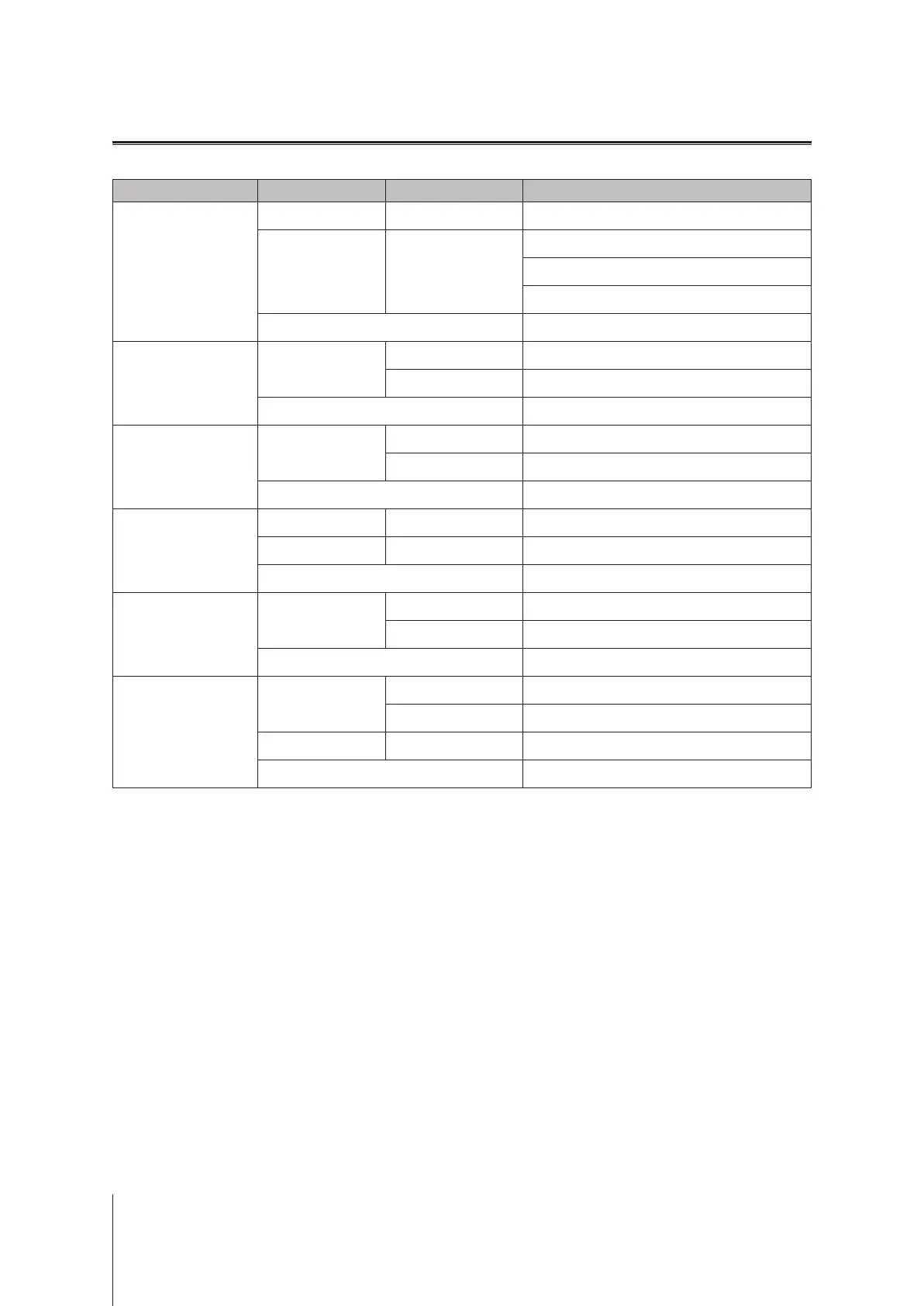
LED Indicator Color Status Description
STATUS
Green Static Volume normal
Orange Blinking
Volume degraded / Volume crashed
Volume not created
DSM not installed
O HDD hibernation
Power
Blue
Static Powered on
Blinking Booting up / Shutting down
O Powered o
LAN
Green
Static Network connected
Blinking Network active
O No network
Rear LAN
(on right side of jack)
Green Static Gigabit connection
Orange Static 100 Mbps connection
O 10 Mbps connection / No network
Rear LAN
(on left side of jack)
Green
Static Network connected
Blinking Network active
O No network
Disk 1-6
Green
Static Drive ready and idle
Blinking Accessing drive
Orange Static Drive error / Port disabled
1
O No internal drive / Advanced HDD Hibernation
Note: This table is applicable to Synology NAS running DSM 6.2.3 and earlier. For DSM 6.2.4 and above, please refer to this article for
the latest information.
LED Indicator Table
13
Appendix
1
Please try to restart your Synology NAS or re-insert the drive(s), and then run the HDD/SSD manufacturer's diagnostic tool to check the
health status of the drive(s). If you can log into DSM, please run the built-in S.M.A.R.T. test to scan the drive(s). If the problem remains
unresolved, please contact Synology Technical Support for help.


 To Next Page