After hardware setup is completed, please install DiskStation Manager (DSM) – Synology’s browser-based
operating system – on your DVA3221.
Install DSM with Web Assistant
Your DVA3221 comes with a built-in tool called
Web Assistant
that helps you download the latest version of
DSM from the Internet and install it on your DVA3221. To use Web Assistant, please follow the steps below.
1
Power on your DVA3221.
2
Open a web browser on a computer connected to the same network as the DVA3221.
3
Enter either of the following into the address bar of your browser:
a nd.synology.com
b synologynvr:5000
4
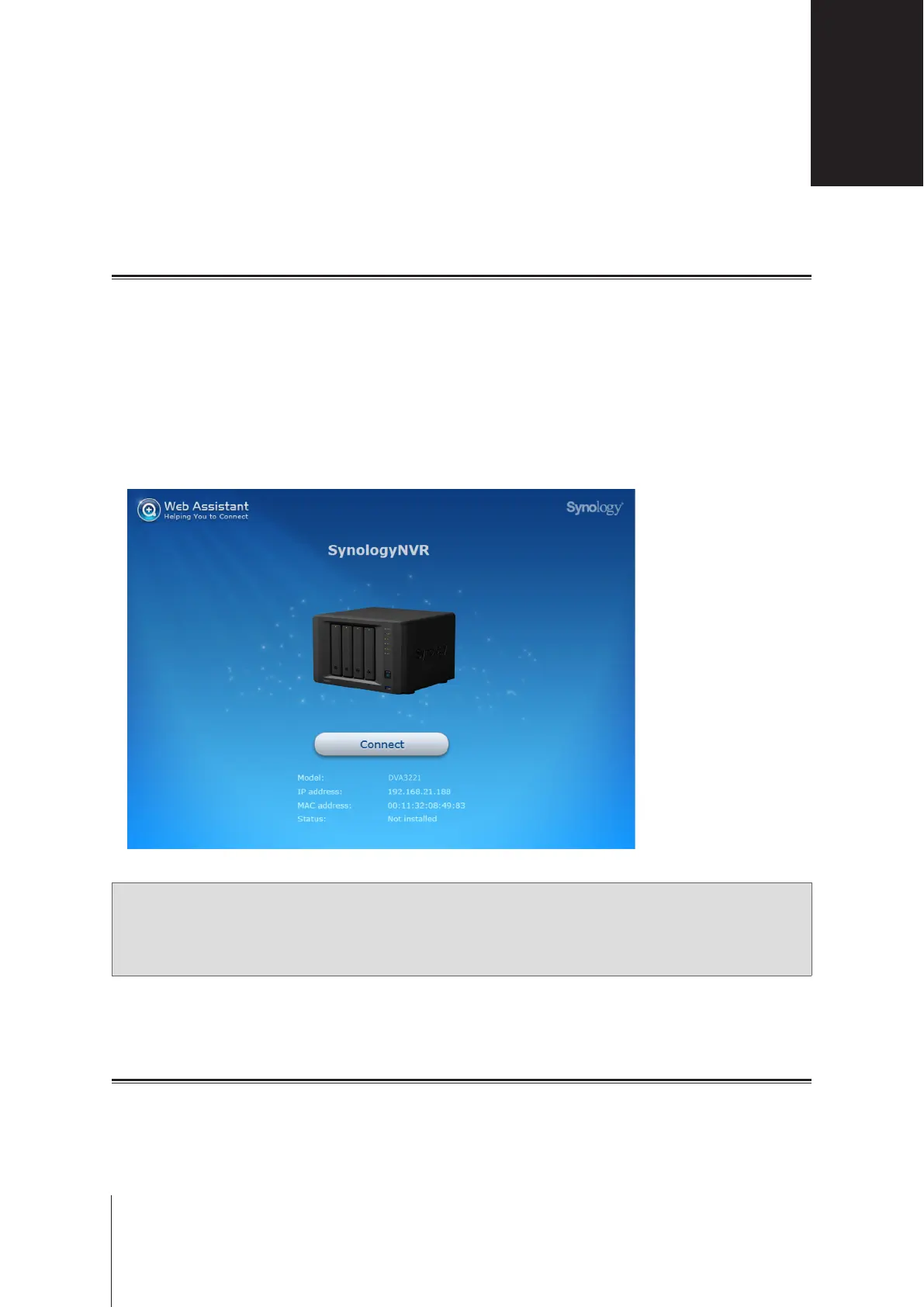
Web Assistant will be launched in your web browser. It will search for and nd the Network Video Recorder
within the local network. The status of the DVA3221 should be
Not installed
.
5
Click
Connect
to start the setup process and follow the onscreen instructions.
Note:
• The Network Video Recorder must be connected to the Internet to install DSM with Web Assistant.
• Recommended browsers: Chrome, Firefox.
• Both the Network Video Recorder and the computer must be in the same local network.
6
If you accidentally leave the installation process before it is nished, sign into DSM as admin (default
administrative account name) with the password left blank.
Learn More
Your DVA3221 is now ready for action. For more information or online resources about your DVA3221, please
visit
www.synology.com
.
Install DSM on Network Video Recorder
4
18
Chapter



 To Next Page