12
Chapter 2: Using VS80
Snapshot
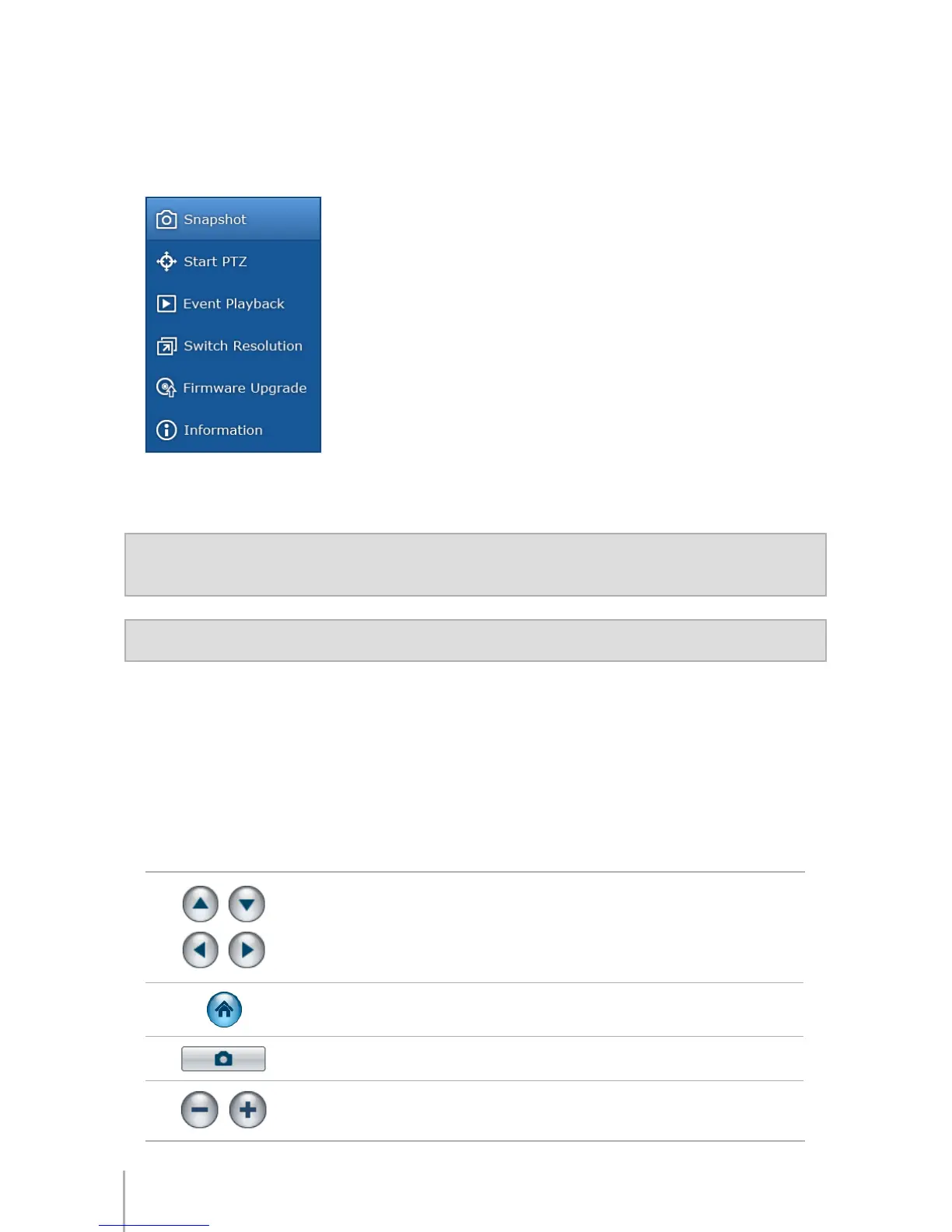
By right-clicking on the live-view and selecting
Snapshot
, you can save the
current image as a snapshot. The image will be stored onto the connected USB
storage device. VS80 will create an individual folder for each live-view channel.
Alternatively, you can also take snapshots by clicking on the Snapshot button on
the PTZ control Panel.
Note:
You can connect a USB ash drive to Synology VS80 via the USB port. Synology VS80
also supports external USB HDD, provided that it comes with its own power supply.
Important:
VS80 only recognizes USB storage devices in FAT32 format.
Start PTZ
If your camera supports PTZ (pan/tilt/zoom) function, you can select a camera
and use the PTZ control panel to adjust the camera's direction and to zoom in and
out on specic areas. The supported functions on the control panel will appear in
blue, while the unsupported functions will be grayed out.
The button functions are shown as follows:
Adjust the camera’s direction
Restore the camera back to its home position
Take a Snapshot
Zoom in/out function



 To Next Page