9
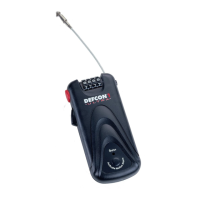
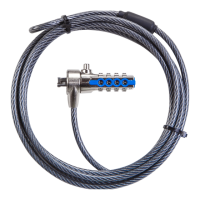
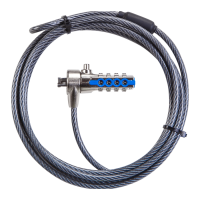
Targus Notebook Security DEFCON® CL Combo Cable Lock
Then remove the adhesive strip from the back of the
SecureSpacer and attach the spacer to the DEFCON
lock.
Unlocking the DEFCON CL
WARNING: DO NOT ATTEMPT TO REMOVE THE DEFCON CL WITHOUT USING
THE
COMBINATION. TO DO SO WILL PHYSICALLY DAMAGE YOUR NOTEBOOK
COMPUTER
.
1 Using the dials, enter the correct combination.
2 The combination appears in the windows.
3 Press and hold the locking button to realign the
locking teeth.
4 Remove the DEFCON CL from your notebook
computer’s lock slot.
DEFCON Security Base
Plate
Included with your DEFCON CL Combo Cable Lock is
the Security Base Plate for the security of desktop
computers.
Using the DEFCON Security Base
Plate
1 Choose a solid location to attach the DEFCON
Security Base Plate: a piece of furniture, or metal


 To Next Page