4 − Recording and Playback
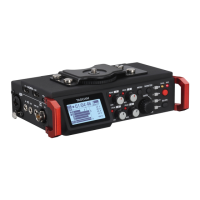
In this chapter, we explain basic procedures for recording
with a microphone. The display on this unit functions as a
touch panel. Operate the unit using its keys, switches and
touch panel display buttons.
NOTE
This unit can record a maximum of 8 separate tracks and a
stereo track (when the sampling frequency is set to 44.1 or 48
KHz). The maximum number of input channels is 8. The stereo
track records a stereo mix of the 8 recorded tracks.
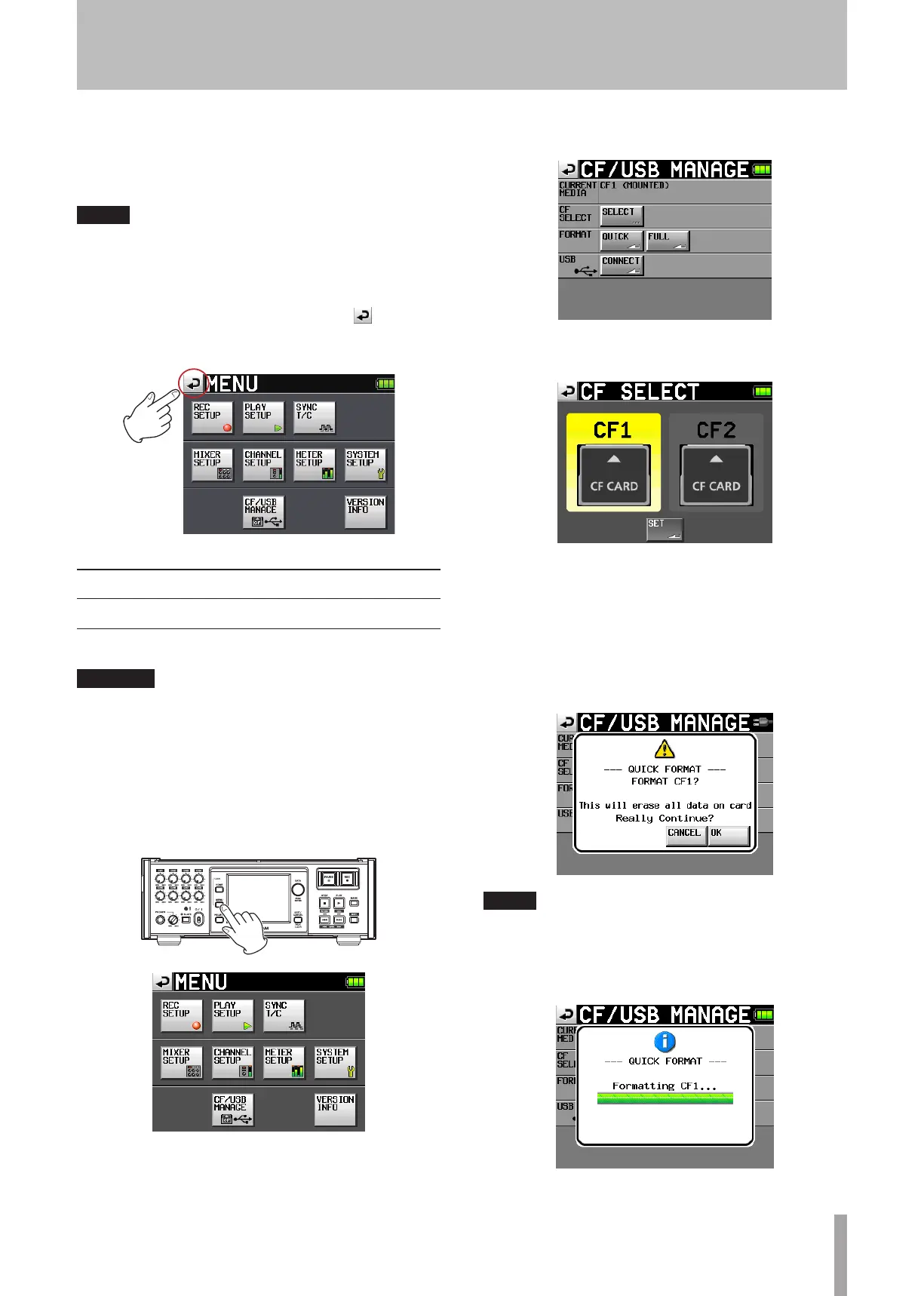
On every screen except the Home Screen, a “ ” button
appears at the top left. Touch this button to return to the
previous screen.
Preparing to record
Formatting a CF card
CAUTION
Formatting a CF card erases all the data on it.
•
Format a CF card with this unit. (If a CF card is formatted
•
with another equipment or PC, some malfunction may
occur.)
Format CF cards with this unit. (If a CF card is formatted
•
with other equipment or a PC, errors may occur.)
1 Press the MENU key on the front panel to open the
MENU
screen.
2 Touch the
CF/USB
MANAGE
button to open the
CF/USB
MANAGE
screen.
3 Touch the
SELECT
button next to the
CF
SELECT
item
to open the
CF
SELECT
screen.
4 Touch the button for the CF card that you want to
format to select it. The background of the selected
CF card appears yellow.
5 Touch the
SET
button to confirm and return to the
CF/USB
MANAGE
screen.
6 Touch the
QUICK
button next to the
FORMAT
item. The
following pop-up message appears.
NOTE
If no CF card is inserted in that slot, the pop-up message
appears: “CF1/CF2 Is not available.”
7 Touch the
OK
button on the pop-up message. During
formatting, the following pop-up message appears.



 To Next Page