NOTE
The scene name cannot be changed later because it is also
used for take file names.
Loading projects
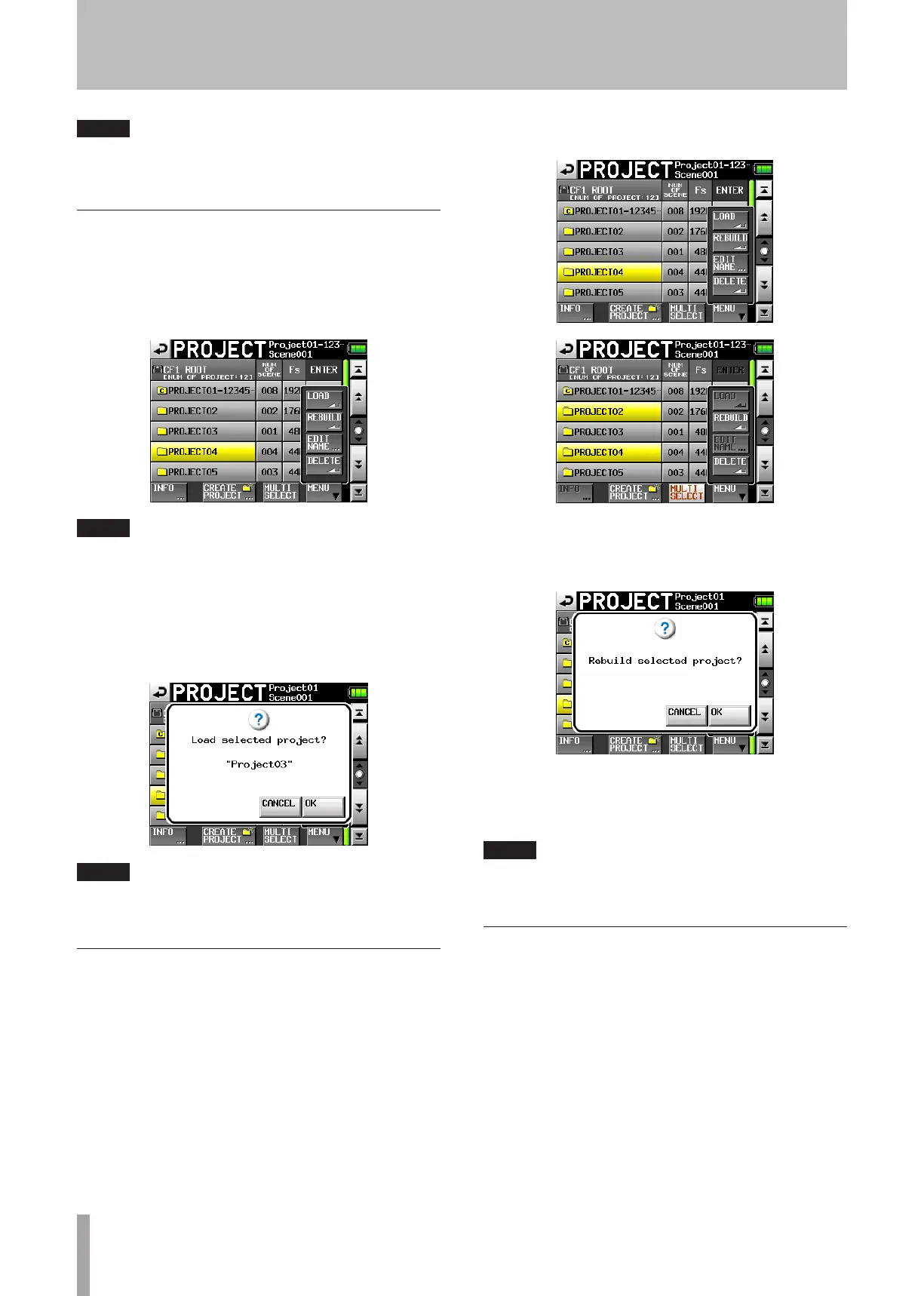
1 Press the PROJECT key on the front panel to open
the
PROJECT
screen.
2 Select the project that you want to load.
3 Touch the
MENU
button to open a pop-up menu.
NOTE
When multiple projects are selected, the “LOAD” and “NAME
EDIT” items are not available.
4 Touch the
LOAD
button in the pop-up menu.
5 Touch the
OK
button or press the DATA dial when the
confirmation pop-up message appears.
After loading completes the Home Screen opens.
NOTE
When a project is loaded, the last loaded scene is also loaded.
The highest numbered take in that scene is also loaded
Rebuilding projects
Rebuild a project to play data files that were not recorded
by the unit, including scenes that were copied from another
project within the unit, and audio files that were copied
from a computer to a scene within the unit (files copied
from a computer must be a format that the unit can play).
1 Press the PROJECT key on the front panel to open
the
PROJECT
screen.
2 Select the project that you want to rebuild.
Touch the
MULTI
SELECT
button on the
PROJECT
screen to allow the selection of multiple projects.
3 Touch the
MENU
button on the
PROJECT
screen to open
a pop-up menu.
4 Touch the
REBUILD
button in the pop-up menu.
5 Touch the
OK
button or press the DATA dial when a
confirmation pop-up message appears.
During rebuilding, a progress status pop-up appears.
When rebuilding completes, the pop-up disappears and
the Home Screen opens.
NOTE
If you rebuild when no project has been selected in the
PROJECT screen, the selected CF card is rebuilt entirely.
Erasing a project
1 Press the PROJECT key on the front panel to open
the
PROJECT
screen.
2 Select the project that you want to erase.
Touch the
MULTI
SELECT
button on the
PROJECT
screen to allow the selection of multiple projects.
3 Touch the
MENU
button on the
PROJECT
screen to open
the pop-up menu.
5 – Projects



 To Next Page