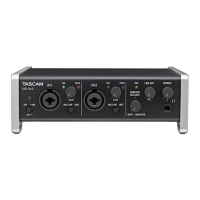
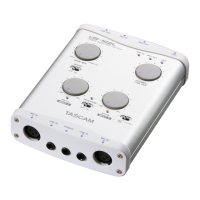
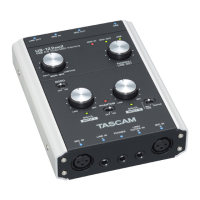
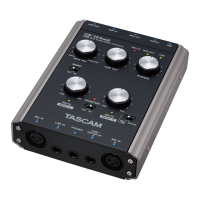
TASCAM US-2x2/US-4x4
9
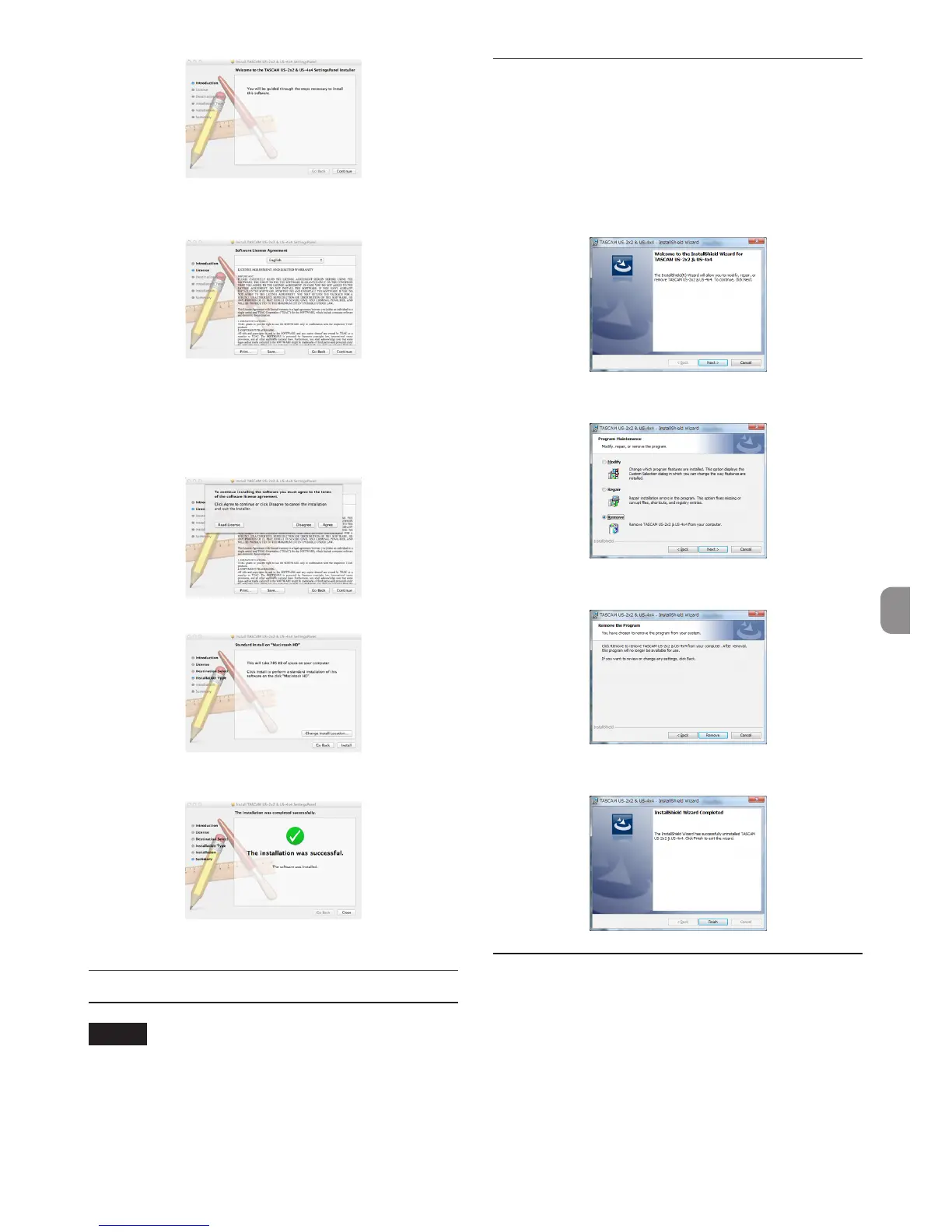
4. Next, select the desired language and click the
“Continue” button.
5. Click the “Read License” button and check the
contents of the Software License Agreement.
If you agree to the contents of the license, click
“A g r e e”.
Then, click the “Next” button.
6. Next, click the “Install” button to start installation.
7. The following screen appears when installation
has completed. Click the “Close” button.
Uninstalling the dedicated software
NOTE
Normally, there is no need to uninstall the
dedicated software. Follow these procedures if
a problem occurs or you no longer intend to use
the unit with the computer.
Uninstalling the dedicated driver for
Windows
1. Double-click the “US-2x2_US-4x4_InstallerXX.
exe” file used for installation. When a “Security
Warning” or “User Account Control” screen
appears, click the “Run” or “Yes” button.
2. Next, the Installshield Wizard will launch.
Click the “Next” button.
3. When the “Program Maintenance” screen opens,
select “Remove” and click the “Next” button.
4. When the “Remove that Program” screen opens,
click the “Remove” button.
5. The following screen appears when uninstal-
lation has completed. Click the “Finish” button.
Uninstalling the Settings Panel for Mac
OS X
Delete “US-2x2_US-4x4_Settings Panel” from the
Applications folder to complete uninstallation.



 To Next Page