32
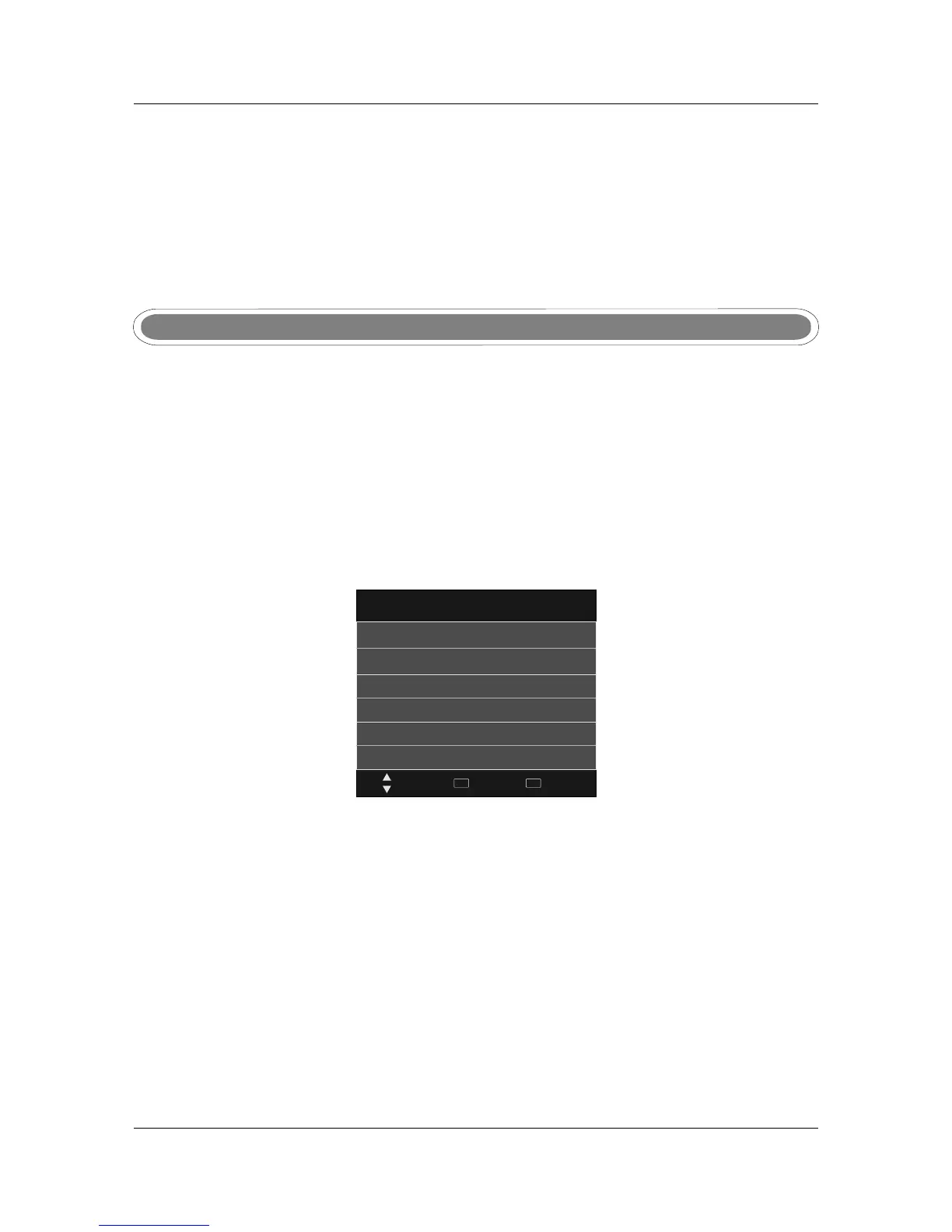
DVR File Syetem
Select Disk C:
Move
Select
OK
Back
MENU
Check DVR File Syetem Start
USB Disk
Format
Time Shift Size
Speed
DVR menu DVR menu
DVR function is only available for DTV,includes Record,Timeshift and Playback function.
DVR File System
Enter DVR from CHANNEL menu, as follows:
DVR File System
If a compatible USB device is attached, this will indicate 'PASS'. If no device is attached it will appear grey.
USB DiskUSB Disk
SpeedSpeed
Can’t be chosen. After Check DVR File System,it means the USB passed Mstar Format and can be used
At Timeshift space,the size is choosen by clients when doing format.
Time Shift SizeTime Shift Size
Stop
Stop playing and Exit to Browser menu.
Playlist
Show play list.
Info
Displays the current file's information including file name and size.
Stop
Playlist
Info
FormatFormat
Your USB device will need to be formatted before it can be used for DVR functions.
Displays the speed of the attached USB device.
Note
When DVR function is in progress, please don’t unplug the power and the external USB device at will.
When DVR function is active, the power indicator will blink with red and blue consecutively.
Before start recording a program, please make sure the external USB device is connected.
While recording, if the available storage space becomes low, the recording will be automatically
stopped.
Note
Note
Formatting a USB device will erase any existing data on the device, back up all existing data.
TEAC accepts no responsibility for any loss of data.
Larger devices will take longer to format.
Note


 To Next Page