EasyManua.ls Logo

Teac V-3000 - Playback and Recording Operations; Stereo Playback and Recording Procedures; Optimizing Recording Levels and Bias; Record Muting and Tape Erasing

Teac V-3000
10 pages
Print Icon
To Next Page IconTo Next Page
To Previous Page IconTo Previous Page
Loading...
Operations
rr
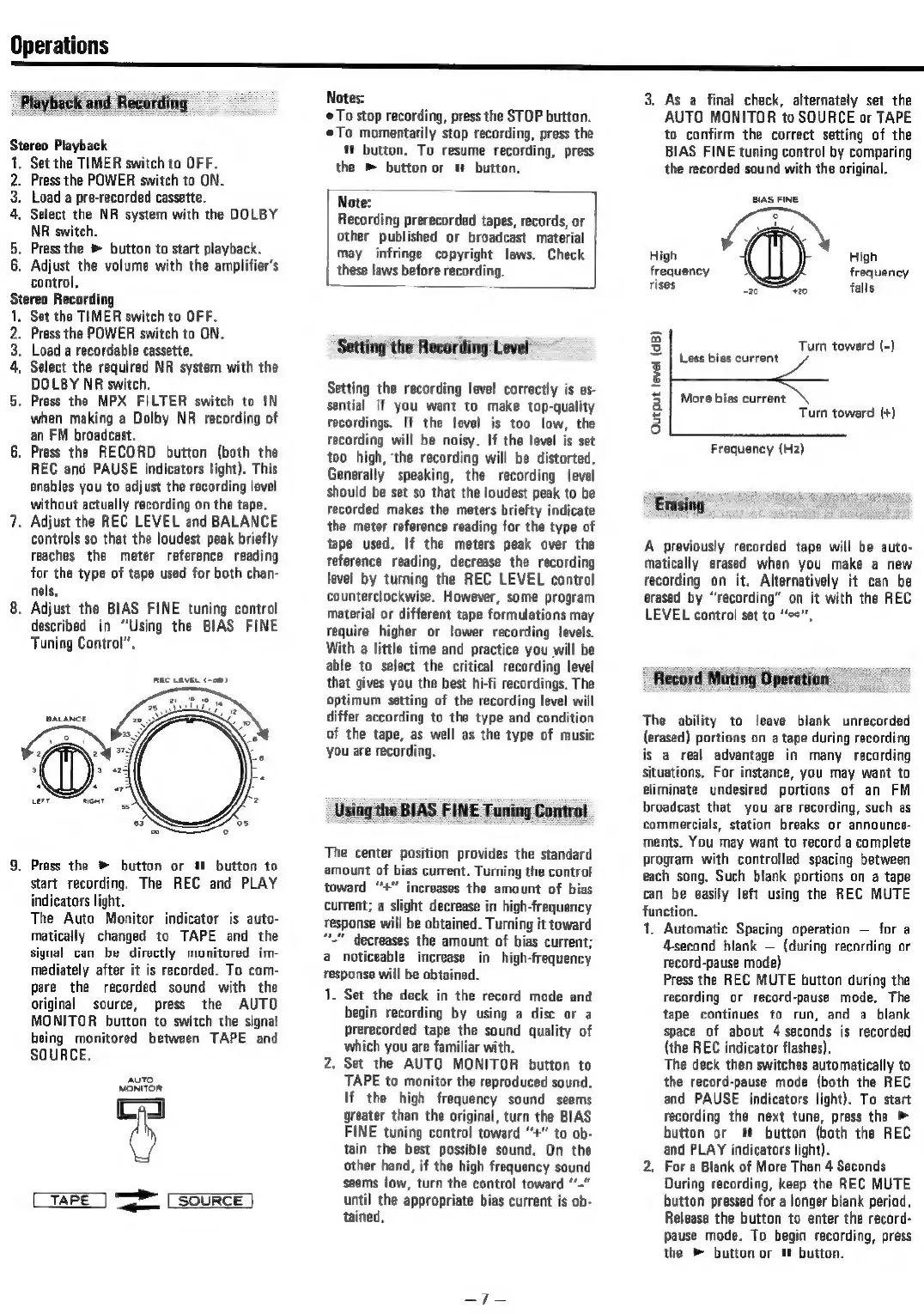
Playback
and
Recording
Stereo
Playback
1,
Set
the
TIMER
switch
to
OFF.
2.
Press
the
POWER
switch
to
ON.
3.
Load
a
pre-recorded
cassette.
4,
Select
the
NR
system
with
the
DOLBY
NR
switch.
5.
Press
the
»
button
to
start
playback.
6,
Adjust
the
volume
with
the
amplifier’s
control,
Stereo
Recording
1.
Set the
TIMER
switch
to
OFF.
2.
Press
the
POWER
switch
to
ON,
3.
Load
a
recordable
cassette.
4,
Select
the
required
NR
system
with
the
DOLBY
NR
switch.
5.
Press
the
MPX
FILTER
switch
to
IN
when
making
a
Dolby
NR
recording
of
an
FM
broadcast.
6.
Press
the
RECORD
button
(both
the
REC
and
PAUSE
indicators
light).
This
enables
you
to
adjust
the
recording
level
without
actually
recording
on
the
tape.
7.
Adjust
the
REC
LEVEL
and
BALANCE
controls
so
that
the
loudest
peak
briefly
reaches
the
meter
reference
reading
for
the
type
of
tape
used
for
both
chan-
nels,
8.
Adjust
the
BIAS
FINE
tuning
control
described
in
‘Using
the
BIAS
FINE
Tuning
Control”.
9.
Press
the
®
button
or
WM
button
to
start
recording.
The
REC
and
PLAY
indicators
light.
The
Auto
Monitor
indicator
is
auto-
matically
changed
to
TAPE
and
the
signal
can
be
directly
monitored
im-
mediately
after
it
is
recorded.
To
com-
pare
the
recorded
sound
with
the
original
source,
press
the
AUTO
MONITOR
button
to
switch
the
signal
being
monitored
between
TAPE
and
SOURCE.
AUTO
MONITOR
$
=
TAPE
SOURCE
Notes:
To
stop
recording,
press
the
STOP
button.
To
momentarily
stop
recording,
press
the
button.
To
resume
recording,
press
the
>
button
or
«
button.
Note:
Recording
prerecorded
tapes,
records,
or
other
published
or
broadcast
material
may
infringe
copyright
laws.
Check
‘these
laws
before
recording.
Setting
the
Recording
Level
Setting
the
recording
level
correctly
is
es-
sential
if
you
want
to
make
top-quality
recordings.
If
the
level
is
too
low,
the
recording
will
be
noisy,
If
the
level
is
set
too
high,
‘the
recording
will
be
distorted.
Generally
speaking,
the
recording
level
should
be
set
so
that
the
loudest
peak
to
be
recorded
makes
the
meters
briefty
indicate
the
meter
reference
reading
for
the
type
of
tape
used.
If
the
meters
peak
over
the
reference
reading,
decrease
the
recording
level
by
turning
the
REC
LEVEL
control
counterclockwise.
However,
some
program
material
or
different
tape
formulations
may
require
higher
or
lower
recording
levels.
With
a
little
time
and
practice
you
will
be
able
to
select
the
critical
recording
level
that
gives
you
the
best
hi-fi
recordings.
The
optimum
setting
of
the
recording
level
will
differ
according
to
the
type
and
condition
of
the
tape,
as
well
as
the
type
of
music
you
are
recording.
Using
the
BIAS
FINE
Tuning
Control
The
center
position
provides
the
standard
amount
of
bias
current.
Turning
the
control
toward
“+”
increases
the
amount
of
bias
current;
a
slight
decrease
in
high-frequency
response
will
be
obtained.
Turning
it
toward
“"
decreases
the
amount
of
bias
current;
@
noticeable
increase
in
high-frequency
response
will
be
obtained.
1.
Set
the
deck
in
the
record
mode
and
begin
recording
by
using
a
disc
or
a
Prerecorded
tape
the
sound
quality
of
which
you
are
familiar
with,
2.
Set
the
AUTO
MONITOR
button
to
TAPE
to
monitor
the
reproduced
sound.
If
the
high
frequency
sound
seems
greater
than
the
original,
turn
the
BIAS
FINE
tuning
contro!
toward
“+”
to
ob-
tain
the
best
possible
sound.
On
the
other
hand,
if
the
high
frequency
sound
seems
low,
turn
the
control
toward
‘-"
until
the
appropriate
bias
current
is
ob-
tained.
3.
As
a
final
check,
alternately
set
the
AUTO
MONITOR
to
SOURCE
or
TAPE
to
confirm
the
correct
setting
of
the
BIAS
FINE
tuning
control
by
comparing
the
recorded
sound
with
the
original.
BIAS
FINE
High High
frequency frequency
rises
29 20
falls
Turn
toward
(-)
Less
bias
current
More
bias
current
Turn
toward
(+)
Output
level
(dB)
Frequency
(Hz)
A
previously
recorded
tape
will
be
auto-
matically
erased
when
you
make
a
new
recording
on
it.
Alternatively
it
can
be
erased
by
“recording”
on
it
with
the
REC
LEVEL
control
set
to
“eo”,
Record
Muting
Operation
The
ability
to
leave
blank
unrecorded
(erased)
portions
on
a
tape
during
recording
is
a
real
advantage
in
many
recording
situations,
For
instance,
you
may
want
to
eliminate
undesired
portions
of
an
FM
broadcast
that
you
are
recording,
such
as
commercials,
station
breaks
or
announce-
ments.
You
may
want
to
record
a
complete
program
with
controlled
spacing
between
each
song.
Such
blank
portions
on
a
tape
can
be
easily
left
using
the
REC
MUTE
function.
1,
Automatic
Spacing
operation
for
a
4-secand
blank
(during
recording
or
record-pause
mode)
Press
the
REC
MUTE
button
during
the
recording
or
record-pause
mode,
The
tape
continues
to
run,
and
a
blank
space
of
about
4
seconds
is
recorded
(the
REC
indicator
flashes).
The
deck
then
switches
automatically
to
the
record-pause
mode
(both
the
REC
and
PAUSE
indicators
light).
To
start
recording
the
next
tune,
press
the
>
button
or
M™
button
(both
the
REC
and
PLAY
indicators
light).
For
a
Blank
of
More
Than
4
Seconds
During
recording,
keep
the
REC
MUTE
button
pressed
for a
longer
blank
period,
Release
the
button
to
enter
the
record-
pause
mode.
To
begin
recording,
press
the
»
button
or
button.
Lad

Related product manuals