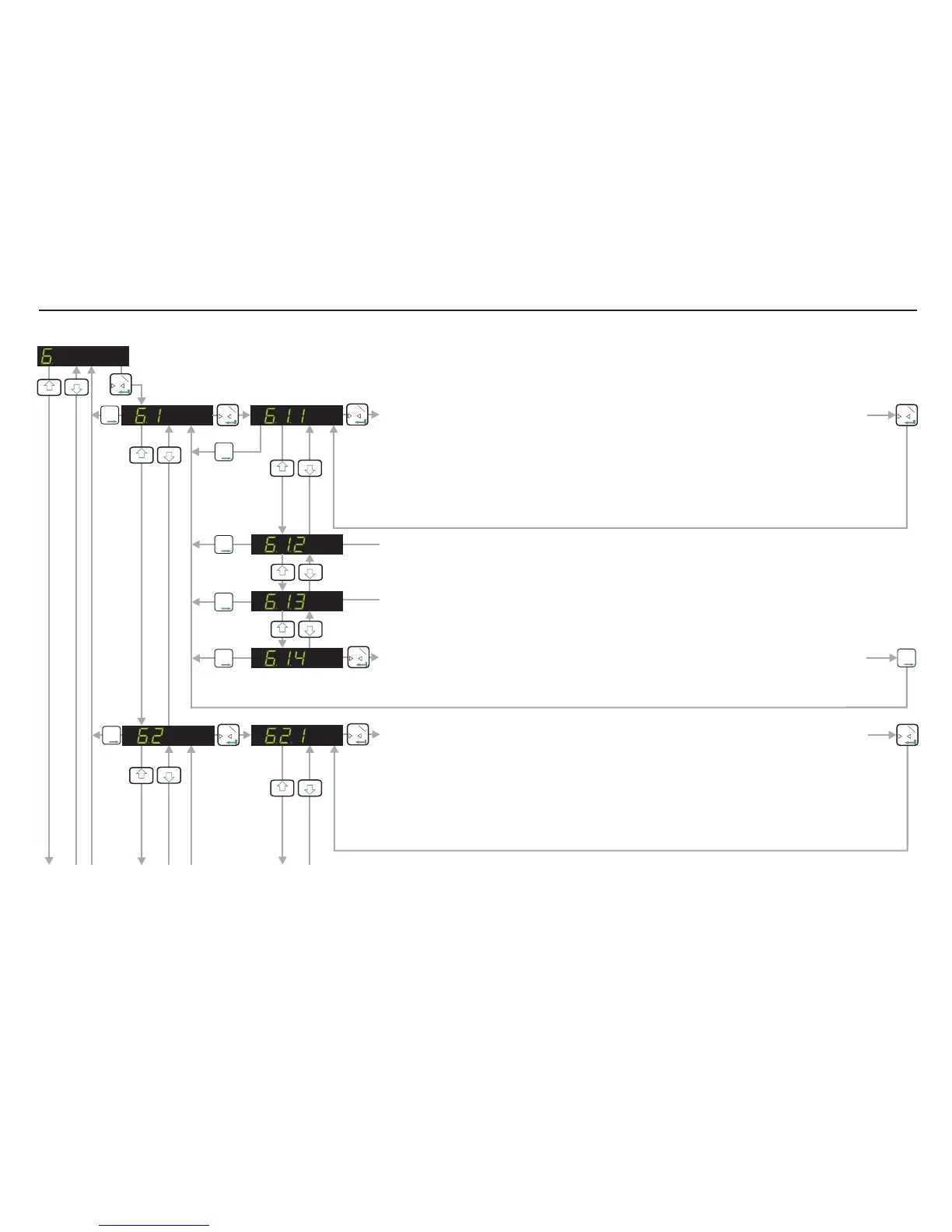
LOGIC INPUTS
0
T
1
T
T
T
2
3
4
3
4
0
T
1
0
T
1
SET THE FUNCTION OF LOGIC INPUT 1. (RANGE 00 - 14)
Use the UP/DOWN keys to set the function of logic input 1.
.00 - No function. .01 - Remote Zero. .02 - Remote Tare. .03 - Up Arrow Key. .04 - Down
Arrow Key. .05 - Trigger the average function. .06 - Display average value. .07 - Display
peak value. .08 - Clear peak, valley and hold values. .09 - Display hold value. .10 - Display
peak to peak value. .11 - Display valley value. .12 - Lock keyboard. .13 - Trigger hold
function. .14 - Set tare and reset/clear the peak/valley/hold values. Please ensure that
this logic input is NOT high when setting or changing the function of this logic input.
0
T
1
T
T
T
2
3
4
T
T
T
2
NOT IN USE
T
T
T
2
NOT IN USE
T
T
T
2
READ THE STATUS OF LOGIC INPUT 1. (In1 0 or In1 1)
Read the status of Logic Input 1. If the input is high the display reads In1 1. If the input is
low the display reads In1 0. In order for the status of this logic input to be read correctly,
you must set the function (as defined in section 6.1.1) to 0 [No function]
T
T
T
2
3
4
3
4
0
T
1
LOGIC INPUTS (Continues on next page)
0
T
1
0
T
1
0
T
1
3
4
T
T
T
2
3
4
SET THE FUNCTION OF LOGIC INPUT 2. (RANGE 00 - 14)
Use the UP/DOWN keys to set the function of logic input 2.
.00 - No function. .01 - Remote Zero. .02 - Remote Tare. .03 - Up Arrow Key. .04 - Down
Arrow Key. .05 - Trigger the average function. .06 - Display average value. .07 - Display
peak value. .08 - Clear peak, valley and hold values. .09 - Display hold value. .10 - Display
peak to peak value. .11 - Display valley value. .12 - Lock keyboard. .13 - Trigger hold
function. .14 - Set tare and reset/clear the peak/valley/hold values. Please ensure that
this logic input is NOT high when setting or changing the function of this logic input.
Page 17


 To Next Page