EasyManua.ls Logo

Teleco Daisy - Adding Commands to Rooms; Scenario Management

Teleco Daisy
12 pages
Print Icon
To Next Page IconTo Next Page
To Previous Page IconTo Previous Page
Loading...
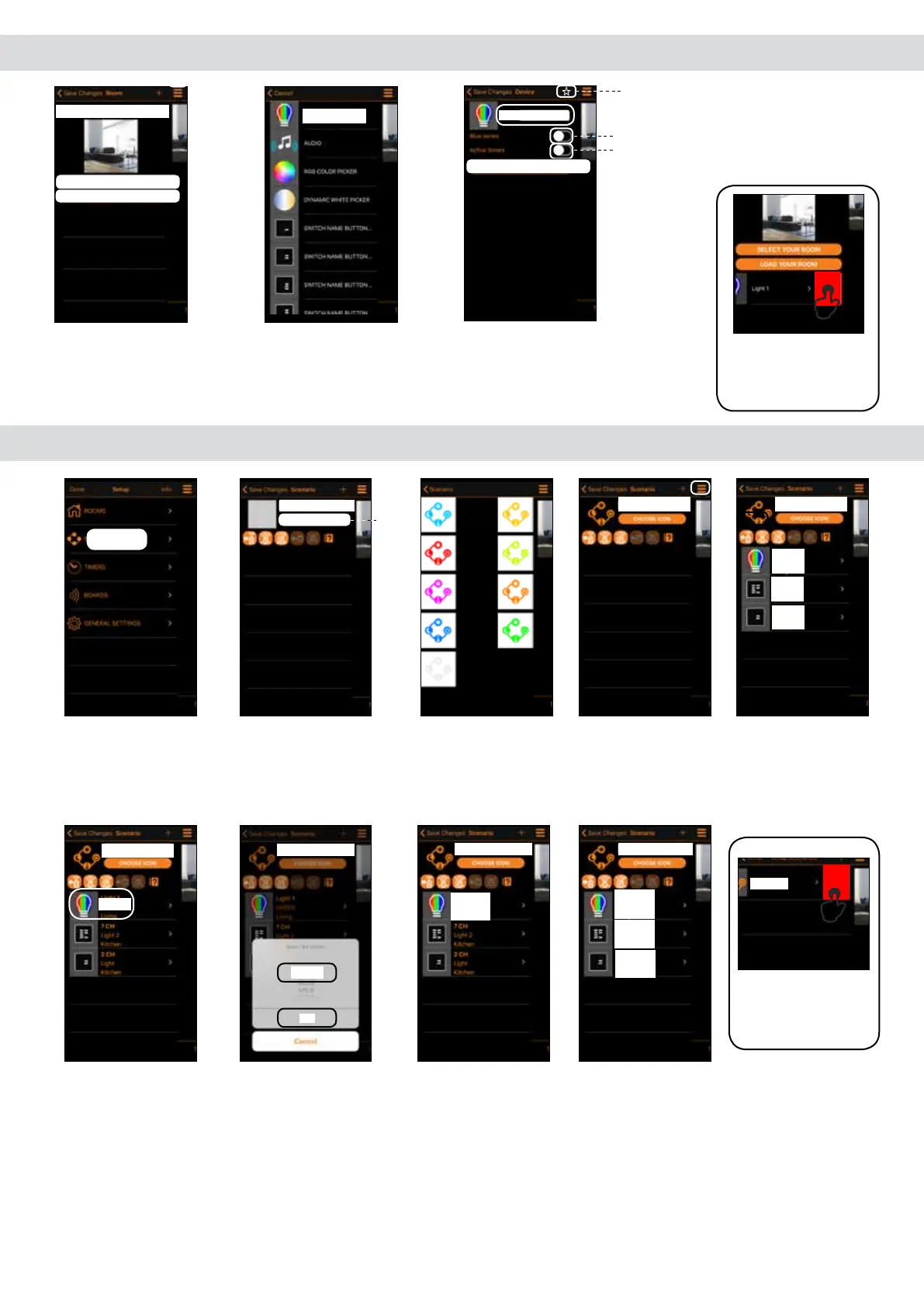
6.2 Adding commands to a room
1. Tap “+” to add remote
commands. Select
the type of controlled
device from the list.
2. Tap the transmitter
to add.
3. Assign a “Name”.
Add to Favourites
Enable if the receiver is Blue Series
Enable to set the timers
Note: swipe a listed
transmitter left to
delete it.
7.0 Scenarios
1. Create new
scenarios accessing
the menu “Scenarios”
in Setup.
2. Tap “+” to add a scenario. Set the Name
and assign an icon amongst the 9 provided.
3. Tap “+” to add
remote commands
from any room.
4. Select the type
of controlled device
from the list.
5. Tap (Light 1)
to add the first
command.
6. Tap (GREEN) to
chose the command
the (OK).
7. The rst device
configured for the
scenario appears
on the display.
8. Repeat steps
3-4-5 to add the
other devices to
the scenario.
Living
Name:
Name: Light 1
RGB 7 COLOR
Select your room
Load your room
Change type
Delete
Name
SCENARIOS
Choose Icon
Scenario
Scenario 1
Light 1
Kitchen
7CH
Note: swipe a
listed scenario left
to delete it.
Light 1
GREEN
Light 1
GREEN
Living
Scenario 1
Scenario 1
Light 1
ON
Living
7CH
Button5
Kitchen
2CH
Button1
Kitchen
Delete
Scenario
Kitchen
2CH
Living
Scenario 1
Scenario 1
OK
Scenario 1

Related product manuals