INITIAL SETUP 7
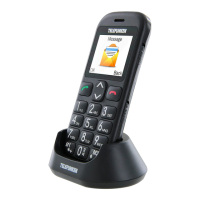
You can also charge your phone using the charging cradle. Insert the small plug of the charging
cable into the charging port on the back of the cradle. Insert the power plug into a power socket.
Place the closed phone in the cradle and ensure the phone's LED indicators face towards the front
of the cradle. The icon will be displayed once the battery is fully charged. Remove the phone
from the cradle and unplug the adapter when you see this icon.
To extend the battery life, you can turn on power saving mode when the phone is not being charged.
To do so, go to MENU > Settings > Device > Battery > Power Saving Mode and select On.
NOTES:
When a travel charger and its accessories are used to charge the battery, please check if they are
original or recognised by the original manufacturer. Using other accessories can damage your
mobile phone and present a risk.
Always use the accessories indoors and in a dry place.
Do not throw the battery into a fire. Damaged batteries can cause an explosion.
Refer to the detailed safety instructions concerning the precautions for use of the battery.
Do not leave the battery connected to a charger for longer than 12 hours. Overcharging may
shorten its life.
5. INITIAL SETUP
5.1 Powering On / O your phone
Before powering on your phone, make sure you have charged its battery. To power on your phone,
long press until the main screen turns on. If passwords are required to unlock the phone and/
or micro-SIM card, enter them correctly using the keypad. Once unlocked, the phone shows you
the home screen.
To power off your phone, long press and then select Power Off from the list of options.
5.2 Set-up wizard
When your phone is turned on for the rst time, you will be guided by the set-up wizard.
This wizard allows to you make some basic settings such as language. It also allows you to connect
your phone to a Wi-Fi network. All settings you make in the wizard can be modied later in Settings.
At the end, the wizard shows you a few handy tips for using the phone.
5.3 Entering the PIN code
If a micro-SIM card is installed and it is secured, your phone will request the PIN (Personal Identication
Number) code. In this case, please use the keypad to enter the PIN code and select OK to conrm.
Notes:
- You have only 3 attempts to enter the PIN code every time you switch on your phone. Restarting
the phone will allow you to get another 3 attempts. If you enter the wrong PIN code 3 times in a row,
the micro-SIM card will be locked and can only be unlocked with the associated PUK (Personal
Unblocking Key) code.
- If the PUK code was not provided to you, please contact your mobile service provider. If you enter
the wrong PUK code 10 times in a row, the micro-SIM card will be permanently locked and you will
lose all data stored in it.


 To Next Page