Installation and Setup cont’d
Special note for European users:
In Windows control panel, open the "Regional and Language Options" panel, select Regional Options, and then Customize. Select "."
(period) for Decimal Point, Select "," (comma) for Digit Grouping Symbol. This is normally reversed in most of Europe. The version of
PowerSDR that we based our sub-version on does not understand European numbering. I think the latest version does, and we will
update to that version this Fall.
If you have a problem with the numerical displays, and have run PowerSDR with normal European numbering already, you will have to
uninstall PowerSDR, including the WU2X folder, because the PowerSDR.mdx can be corrupted. Reinstall after changing the Regional
Options and you should be OK.
Software Installation:
The following assumes that you will be using PowerSDR/IF Stage and LP-Bridge...
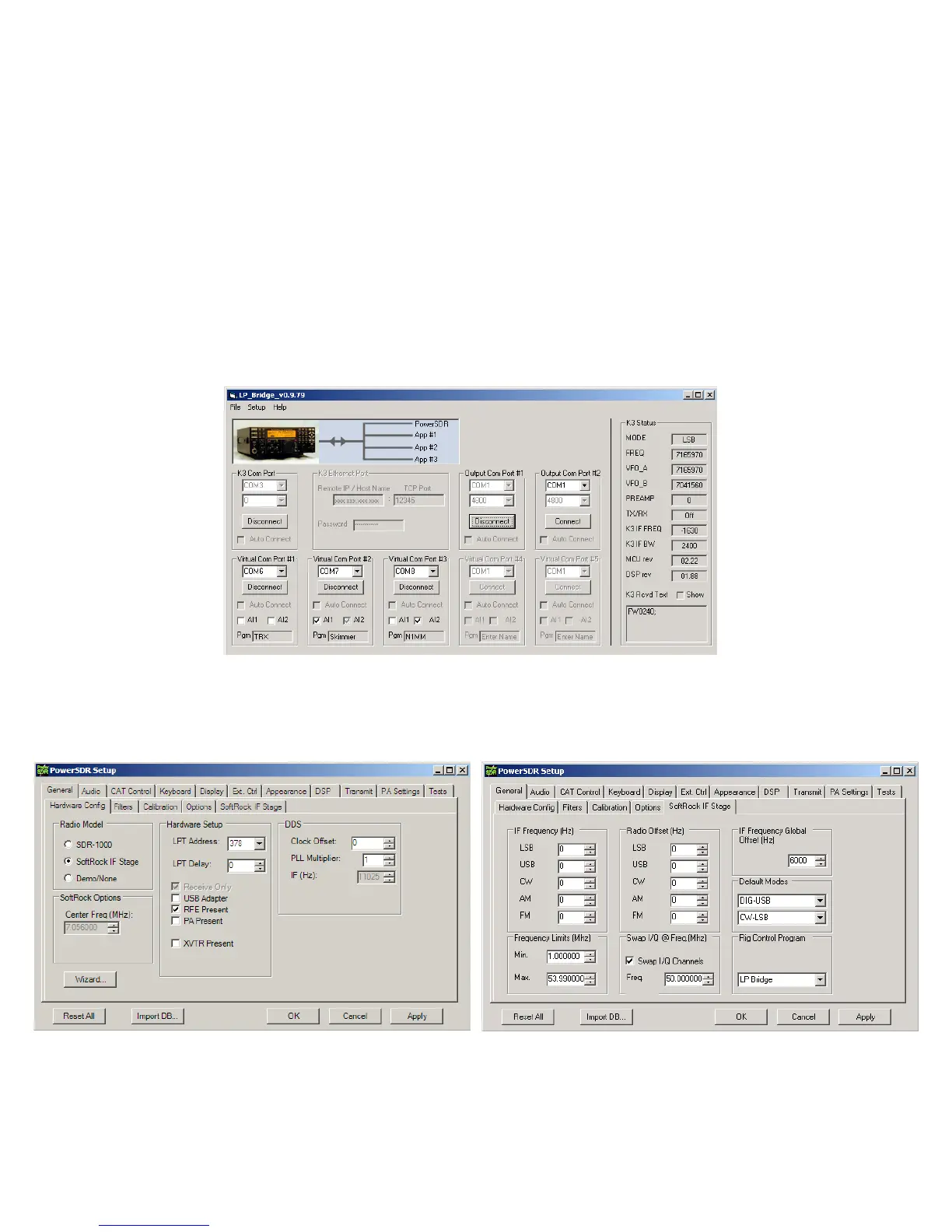
Start LP-Bridge. In the section labeled K3 Com Port, select the port that your K3 is connected to. Make sure the K3 is set for 38,400
baud. Warning: If you are using a USB to serial adapter, it is recommended that it use an FTDI chipset. The KUSB adapter sold by
Elecraft does not, and will likely cause problems. Click the Connect button. The button will change to Disconnect unless there’s a
problem. You should see data in the K3 Rcvd Text window in the bottom right of the display, and the K3 Status fields.
Start PowerSDR. After it starts and initializes the FFTs, you may see an error message about HRD not running. Close the message and
select File>Setup and the General tab>Hardware Config sub tab. Select SoftRock IF Stage in the Radio Model section. Make sure
“RFE Present” box is checked. Leave all other settings as they are. Click on the Softrock IF Stage sub tab, and set all the
options to exactly match the above right picture. These will all stay this way except the Global Offset value, which will be fine
tuned later.



 To Next Page