Operation
LP-Bridge Operation
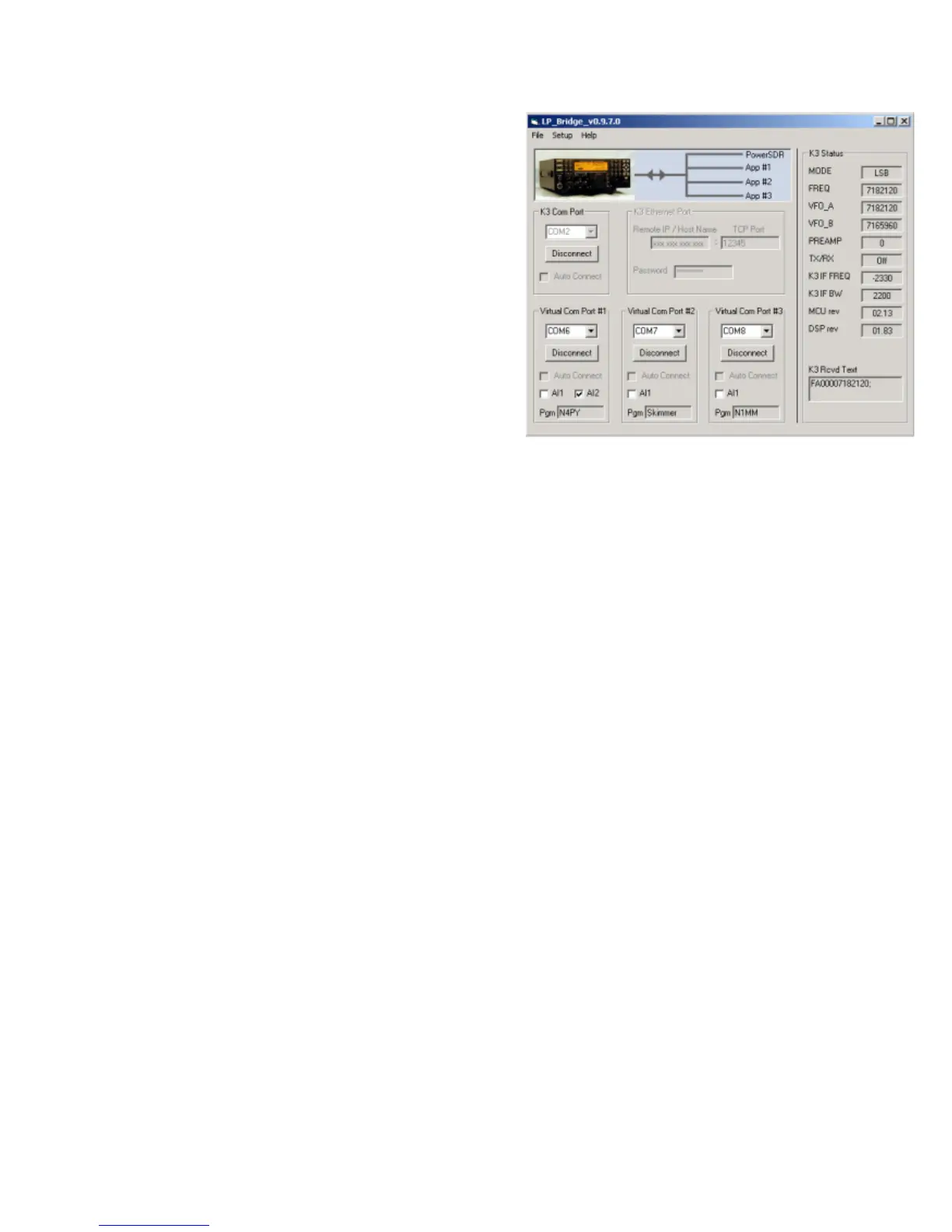
Normal View
Menu Bar... Along the top of the window. There are three pulldown
menus.
File: Only has one choice, "Exit". You can also exit cleanly by using the
X in the upper right of the LP-Bridge window. Your curent settings are
saved on exiting.
Setup: Can be set for "Show" or "Hide". Normally, it is left on Hide unless
you want to change a setting or run diagnostics on a port.
Help: "Web Help" will display a link to this page. "About" displays version
and copyright data for LP-Bridge.
K3 Port... This is the area where you select the port that your rig is
connected to. The K3 must be set for a baud rate of 38,400, which is the
maximum connection speed for the rig. Warning: If you are using a USB
to serial adapter, it is recommended that it use an FTDI chipset. The KUSB adapter sold by Elecraft does not, and will likely cause
problems.
Click on "Connect" to connect to the K3, and "Disconnect" to disconnect. If you have a virtual port open when you try to disconnect, you
will get an error message to close the virtual port first. If there is a problem connecting to the rig, you will also get an error message.
Check cabling and K3 settings if this occurs. If connection is successful, the row of boxes grouped under the "K3 Status" heading will fill
with data. This is mostly the data that is linked to PowerSDR, but can also be used to verify proper connection to the K3. The current
firmware versions loaded into your K3 are also shown. The "Auto Connect" checkbox is grayed out for now, but will eventually allow LP-
Bridge to automatically connect to the K3 when the program starts.
Virtual Port 1-3... This is the area where you select the ports that LP-Bridge will provide for connecting various applications to the K3.
Ports can be any port that is not already used on your system. When selecting a port to use, you must avoid all real and virtual ports
which already exist, such as those used by USB adapters, devices such as microHam, etc. Select a port number and click Connect. If
the connection is succesful, the button name will change to "Disconnect". If not, you will get an error message. If there is no connection
to the K3, you will also get an error message to connect to the K3 first.
Applications which will connect to this port must be set for the selected port number (not the K3 physical port number). Additional
settings should be 38,400 baud, 8-bits, no parity and 1 stop bit (38400,8,N,1). If the application has a polling rate, it should be set fairly
fast. I use 200ms for most of mine, but if you have an older computer and it bogs down at that setting, a slower one can be used.
Loggers which require minimal data can be set as low as 1 second. Programs which require interactive tuning, or have an S-Meter
display should be to a fast setting.
Handshaking should be set how you would normally for connecting to the K3, ie. if you are using DTR or RTS for PTT or CW keying,
you would leave these settings as they would be if connected to a K3. Keying signals from multiple applications will all key the K3 in
parallel. It is assumed that only one keying application would be in control at any time.
Once again, "Auto Connect" is currently grayed out. There is also a choice for each virtual port to accept "AI1" (Auto Information) from
the K3. VPort1 also allows using "AI2" for applications that require it. Some applications don't poll for data, so the K3 has to initiate the
comms dialog using one of the Auto Information modes. Checking this setting provides a way for them to do that. If in your testing you
find your application does not update when tuning the K3, try checking either "AI1" or "AI2". In my testing, I found that Logic8 requires
"AI1", and N4PY's Pegasus requires "AI2". TRX-Manager can be set up to use polling or "AI2". Other programs I have tried that don't
need these settings include CW Skimmer, DXLabs' Suite, N1MM, MixW, Logger32, Wintest, DX4WIN and HRD.
In addition, there is a little text box for each virtual port which will allow you to type a program name to help you remember which
application is connected to that port. LP-Bridge will remember these titles.


 To Next Page
 Loading...