Operation cont’d
LP-Bridge Operation
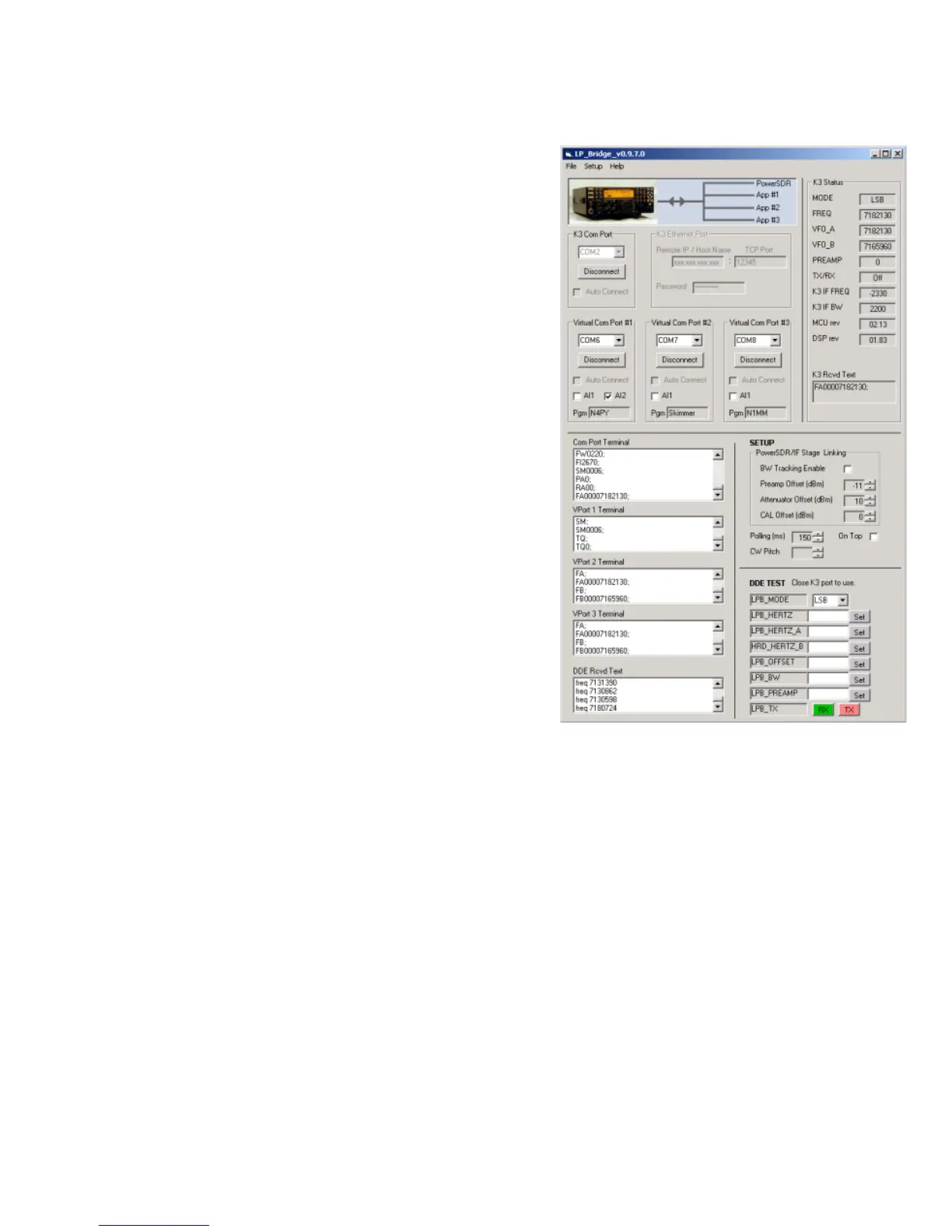
Setup View
Terminal Windows... These let you view traffic to and from the K3 for the serial
port, and to and from applications for the virtual ports. Each window shows the
last 100 comm events, and can help you track down a problem. For instance, if
an application is not polling for a certain command, or you want to verfiy that it
is getting a response that is not being properly displayed. To scroll through the
data, you must disconnect or stop the application from polling, at which point
you can scroll through the lines and look for your problem.
Setup... This area provides a place to choose your settings. These include...
Preamp, Attenuator and CAL: Allow you to set the panadapter vertical scale
offsets so that the displayed levels are correct whether the K3 preamp or
attenuator are on or off. Not implemented yet.
On Top: Allows you to set LP-Bridge to display on top of other applications at
all times.
Polling: Sets the polling rate for LP-Bridge. This largely determines the tuning
"feel", and S-Meter update speed for programs which need this. The default is
200ms.
CW Pitch: This is a temporary control which provides a workaround to a bug.
Once this bug is fixed, the control will disappear. Enter your CW Pitch to match
the setting on the K3 and PowerSDR. The LP-Bridge default is 600 Hz.
DDE Diagnostics... This allows testing of the link to PowerSDR. The K3 must
be disconnected to use these. If the link is working properly, you can select
modes, enter frequencies (in Hz, ie. 14150000), etc. to verify that PowerSDR
follows your commands. PowerSDR should respond with return data in the
DDE Rcvd Text window.
Again, once you have set the settings, you can hide the setup portion of LP-
Bridge.



 To Next Page