I
The Display Menu
The
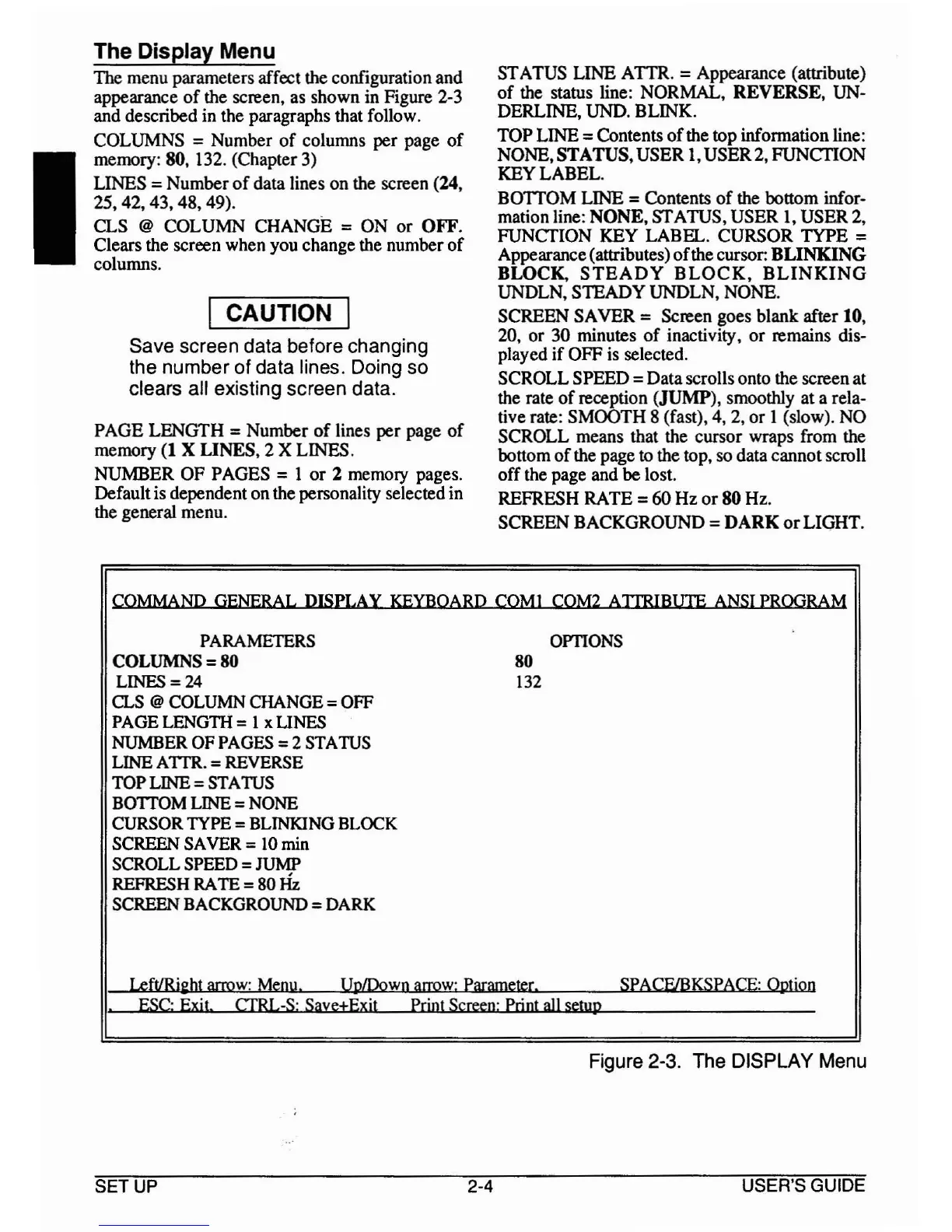
menu parameters affect the configuration
and
appearance
of
the screen, as
shown
in Figure 2-3
and described
in
the paragraphs that follow.
COLUMNS
=
Number
of
columns
per
page
of
memory: 80, 132. (Chapter 3)
LINES
=
Number
of
data lines
on
the screen (24,
25,
42, 43, 48,
49).
CLS
@
COLUMN
CHANGE
=
ON
or
OFF.
Clears the screen
when
you change the
number
of
columns.
I CAUTION I
Save screen data before changing
the number of data lines. Doing so
clears all existing screen data.
PAGE
LENGTH
=
Number
of
lines
per
page
of
memory (1 X
LINES,
2 X
LINES.
NUMBER
OF
PAGES
=I
or
2 memory pages.
Defaultis dependent
on
the personality selected in
the general menu.
ST
A
TUS
LINE
ATfR. =Appearance (attribute)
of
the status line:
NORMAL,
REVERSE,
UN-
DERLINE, UND.
BLINK.
TOP
LINE
=Contents
of
the
top
information line:
NONE,
STATUS,
USER
I,
USER
2,
FUNCTION
KEY
LABEL.
BOTTOM
LINE
=Contents
of
the
bottom
infor-
mation line:
NONE,
STATUS,
USER
I,
USER
2,
FUNCTION
KEY
LABEL.
CURSOR
TYPE
=
Appearance(attributes)
of
the cursor:
BLINKING
BLOCK.
STEADY
BLOCK,
BLINKING
UNDLN,
STEADY
UNDLN,
NONE.
SCREEN
SAVER
=Screen
goes
blank
after 10,
20,
or
30 minutes
of
inactivity,
or
remains dis-
played
if
OFF
is selected.
SCROLL
SPEED
=
Data
scrollsonto the screen
at
the rate
of
reception (JUMP), smoothly
at
a rela-
tive rate:
SMOOTH
8 (fast), 4, 2,
or
1 (slow).
NO
SCROLL
means that the cursor wraps from the
bottom
of
the page to the top, so data
cannot
scroll
off
the page and
be
lost.
REFRESH
RATE =60
Hz
or
80 Hz.
SCREEN
BACKGROUND
=
DARK
or
LIGHT.
COMMAND GENERAL DISPLAY KEYBOARD COM! COM2
AITRIBlITE
ANSI PROGRAM
PARAMETERS
COLUMNS=80
LINES =24
CLS
@ COLUMN CHANGE =OFF
PAGE LENGTH =1 x LINES
NUMBER
OF
PAGES =2 STATUS
LINE
ATfR.
= REVERSE
TOP
LINE = STATUS
BOTTOM LINE =NONE
CURSORTYPE
=BLINKING BLOCK
SCREEN SAVER = 10 min
SCROLL SPEED =JUMP
REFRESH RATE =80
Hz
SCREEN BACKGROUND =DARK
80
132
OPTIONS
Left/Riebl arrow: Menu UplDown arrow: Parameter SPACFlBKSPACE: Option
ESC: Exit.
crRL-S'
Save±Exit Prinl Screen: Print all setup
Figure 2-3. The DISPLAY Menu
SETUP
2-4
USER'S GUIDE



 To Next Page