6
Blue Jeans Meetings with telyHD Pro
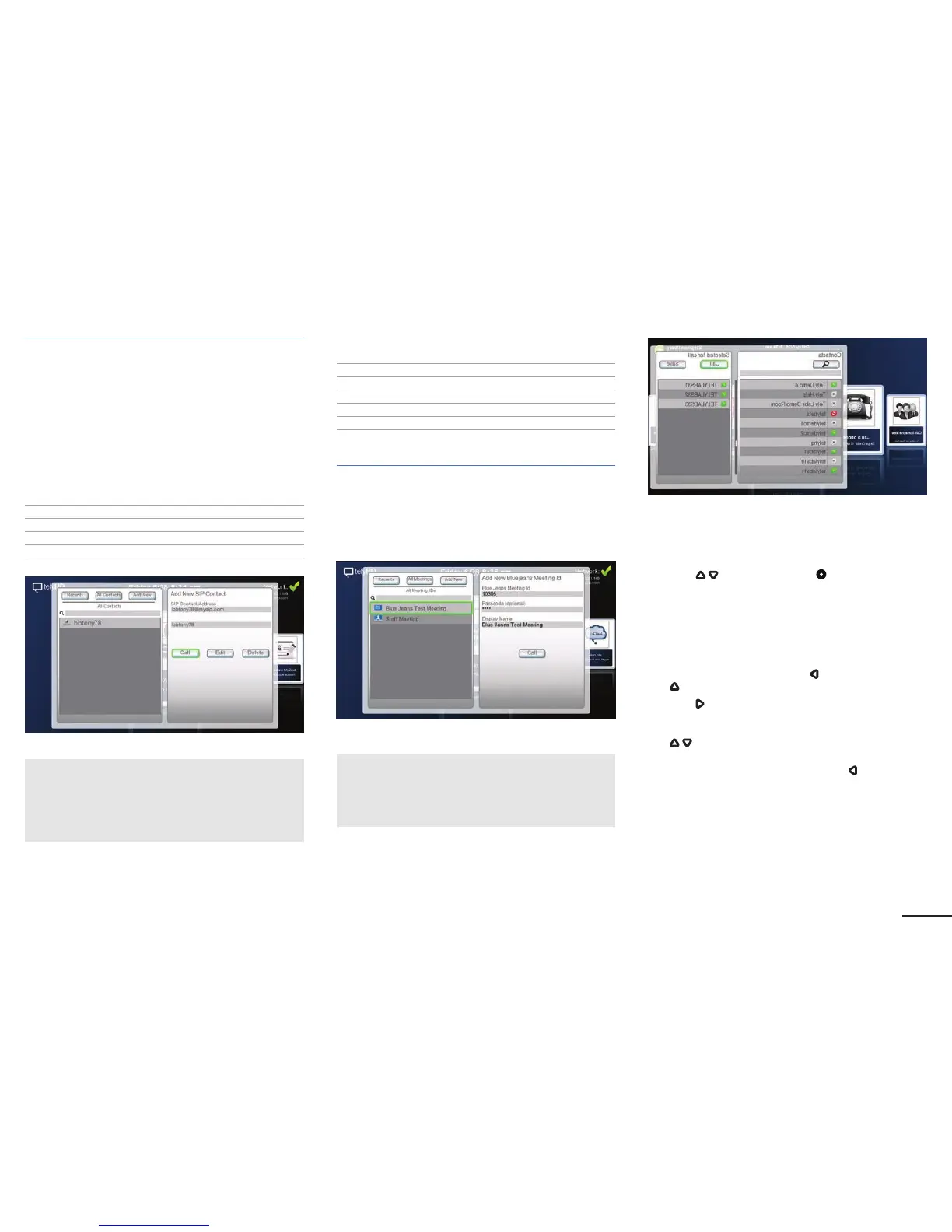
Select the Blue Jeans card from the main screen.
• Save a new meeting room listing into the directory using the
Meeting ID and optional Passcode.
• Join a Blue Jeans meeting from the directory.
Requirements
Ensure that the following rewall ports are open:
Blue Jeans 199.48.152.0/22
Blue Jeans 31.171.208.0/21
Blue Jeans 103.20.59.0/24
Blue Jeans 8.10.12.0/24
Note: Blue Jeans has several POPs distributed globally. The
call will be automatically redirected to the closest POP to the
end point or media egress point. Audio/video trafc will likely
be routed to any of above IP range based on geographic
location.Hence it’s important that rewall ports are opened
against the entire IP range.
Ensure that the following TCP and UDP ports are open:
TCP Port 5060 - SIP Signaling
TCP Port 5061 - SIPS (TLS) Signaling
UDP Ports 5000-5999 - RTP Media
TCP Port 443 - Blue Jeans API
UDP Ports 40000 - 60000 - telyHD Pro Multiparty Media
For full list of necessary ports please refer to page 10.
Using telyCloud with telyHD Pro
Select the telyCloud/Skype card from the main screen.
Making a telyCloud call
Note: telyCloud uses a Skype address book. To access your
contacts, log into a Skype account using the Sign In card on
the main screen. If you do not have a Skype account available,
please sign up for one using the Sign Up card on
the main screen.
• Select telyCloud/Skype card from the main screen or select
the Multi-Party Calling option from the Menu.
• Use the
Up/Down arrows and
Select button on your
remote control to select Contacts to call.
• You can also save the selected contacts to dene a new
group.
• Select the search button to search for specic contacts.
º
Select done on the keyboard to start a search and go back
to the contact list for selection.
º
To start a new search, press the
Left arrow or press the
Up arrow until you are back in the search eld.
• Use the
Right arrow once you are
done selecting participants.
º
To delete participants from the list of selected, use the
Up/Down arrow to highlight the participant you want
to delete and press select.
º
To maneuver back to the Contact list use
Left arrow.
• Select Call to start the call or Save to save the selected
group for future use.
Add/remove a participant in a multi-party call
• Anyone can invite a participant to an existing call, but only
a Moderator (indicated by a crown symbol) can approve or
decline the invitation.


 To Next Page