7
• Only the Moderator can remove people from the call using the
in-call menu.
GOOD TO KNOW
• For best quality, all parties should have at least
1Mbps of upstream and downstream bandwidth
• A telyHD Pro is required to participate with video in a
multi-party video call; non telyHD Pro participants can
join via Skype in audio-only mode
• An audio-only participant is represented by an
avatar card that pulses when that party is speaking
• Standard telephone participants can join a multi-party call,
as long as the inviting participant has Skype Credit and
has the party’s phone number saved as a Skype Contact
• If the Moderator accepts an incoming call while in
a multi-party call, the multi-party call will end
Using telyShare with telyHD Pro
telyShare can be used to share content with participants during
a call or for sharing locally.
telyShare can only be used with telyCloud service.
Requirements
• PC with Windows XP and above
• telyShare software (available from www.tely.com/downloads)
Installation
• After downloading telyShare.exe to your computer,
double-click the le and when prompted, select Run.
• Follow the on-screen Wizard.
• If prompted, allow access to your network. Similarly, if using
3rd-party rewall software, allow access to telyShare.
Sharing your desktop
• Launch telyShare from the Windows Start Menu or
desktop icon. If telyShare is already running, you will nd
it in the system tray. Click the telyShare icon to open
the con guration window.
• Click Tools > Pair with telyHD Pro.
• Select your telyHD Pro from the list.
• If you don’t see your telyHD Pro listed, select Manual Pair
and enter the IP address of your telyHD Pro.
• Click Pair, then click OK.
Sharing Options
• Full Desktop: Projects your PC’s entire desktop.
• Select Window: Projects the screen portion used by the
chosen window, which is selected from the pull-down menu.
• If the selected window is minimized, a black (empty) screen
will project; open or maximize the window to project it.
• Custom: Move or resize the blue projection area as needed.
Right-click the rectangle to hide it or select Hide in the
telyShare window.
Sharing Images
• Image Sharing can be used with any paired telyHD Pro to
project images to a connected HDTV or monitor.
• Click Tools > Share Images to open Image Sharing Window.
• Drag and drop or paste images into the Image Sharing
Window to display them on your telyHD Pro.
• To stop Image Sharing, close the Image Sharing Window.
Settings
• To access: Right-click the telyShare icon in the system tray
on your PC then select Settings, or click Tools > Settings in
the telyShare window.
• Remove Wallpaper: Increases performance by removing your
Background during desktop sharing.
• Use Mirror Driver: Only engages if you have a PC Mirror
Driver installed; Windows will temporarily revert to a basic
look and feel.
• Desktop Port: The default (5900) may be changed if in use by
another app; 1024 or higher is recommended.
Install Mirror Driver
Opens a wizard to guide you through Mirror Driver Installation.
Using a Mirror Driver can increase the performance of
the le-sharing application.
Manage telyHD Pro from your PC
• Lights Out - Checking this option will allow you to turn off
the blue light at the front of your telyHD Pro. Leaving it
unchecked will keep the blue light enabled.
• Restart - Restart telyHD Pro.
• Sign In - Sign into your Skype account on telyHD Pro.
• Sign Out - Sign out of your Skype account on telyHD Pro.
• Local Pan/Tilt/Zoom controls to adjust cameras.
Virtual Mouse and Keyboard
Allows you to control your telyHD Pro using your PC’s mouse
and keyboard.
Using Skype with telyHD Pro
Making a Skype point to point call
• Log into your Skype account using the Sign In card on
the main screen.
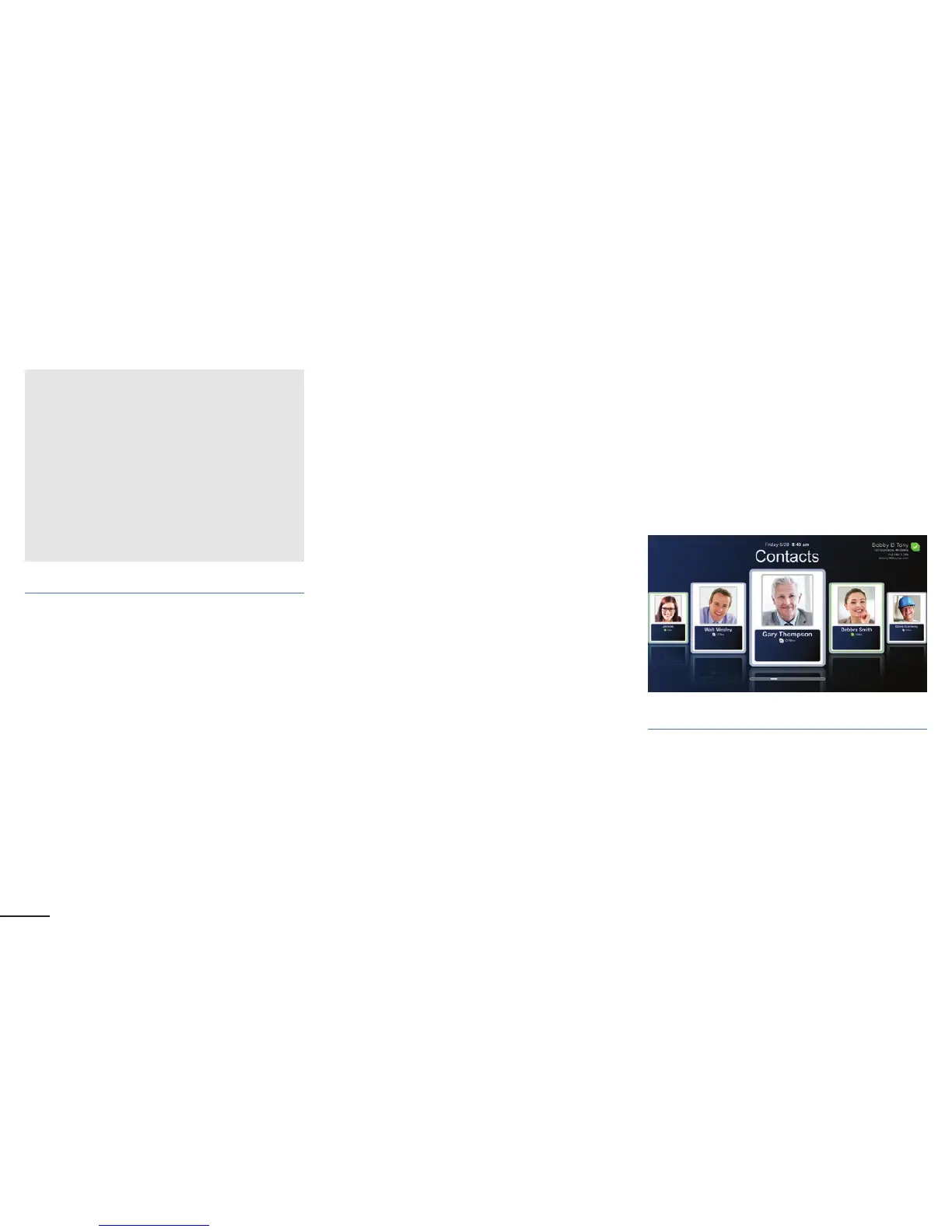
Calling a contact
• Use the buttons on your telyHD remote to
browse your contacts.
• Select an online contact and press the select button to call.


 To Next Page