Talk to Alexa
Video calls: temi
Video calls: mobile app
USER MANUAL 13
Back to index
TIP: Using the temi skill for Alexa you can control your robots movement, calls, locations and more with
Alexa commands! Refer to pg. 14 to learn how.
Alexa is a voice-controlled virtual assistant.
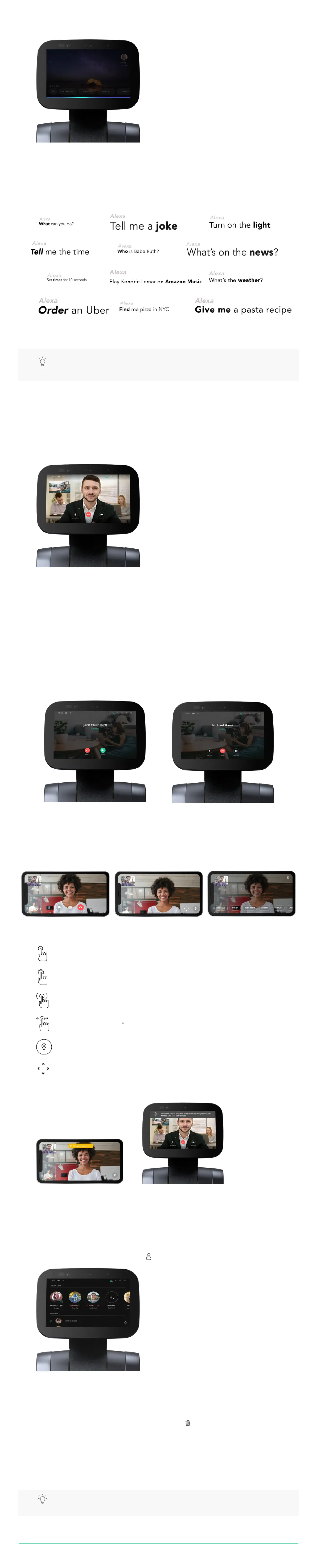
• If you have connected your Alexa account properly whenever saying “Alexa” a blue bar will appear
on the bottom of temi’s screen.
or
• You can tap the microphone icon instead of saying “Alexa”.
Here are some examples of what you can say to “Alexa”…
For the full command list, visit https://theassistant.io/commands
To make a call from temi:
• By voice: say: “Hey temi, call Rosie”
• Currently, initiating a call by voice command is only available when using the “hey temi” personal
assistant. Alexa will be added shortly.
To call users through mobile app:
• Select a contact in the ‘contacts’ tab - you will be given the option to choose between connecting
your contact’s robot or video call the contact’s mobile device.
Admins and Members automatically “hop in” to their temi, while guests’ calls need to be accepted.
• When a guest is calling temi, a user on the robot’s side needs to accept the call (image A).
• When an Admin or a Member calls their temi, the connection will occur automatically after a few
seconds during which it is possible to dismiss the call from robot’s side (image B).
Controls during video call through mobile app:
• While in Call control view, touch anywhere on the screen to begin controlling the robot and to reveal
the locations button.
• To switch from Robot control view to Call control view, touch the controls button on the bottom left
of the screen.
Map Alerts During Video Call
In case of a map issue during a video call, the following alerts will show on the mobile device and on temi.
Driving to locations will not be available during the call. Once the call ends, return temi to its home base
in order for it to restore its map.
Video call view
A B
Call control view Robot control view
Saved Locations view
Single tap a point of interest to look at it
Double tap to zoom in.
Hold until white “waves” appear around your nger for temi to drive to the selected spot.
Swipe left or right to turn 90 .
Send temi to a saved location.
Control temi’s driving using a joystick.
Alert on mobile app Alert on temi
Contacts and recent calls
Deleting phone call logs
To access the contacts and recent calls, press on the top bar (image A).
iOS – Swipe the call that you wish to delete to the left
Android – Tap the call that you wish to delete then tap on the
TIP: Due to the fact that members are allowed to hop in to the robot, it is recommended to dene only
core users as “members”


 To Next Page
 Loading...