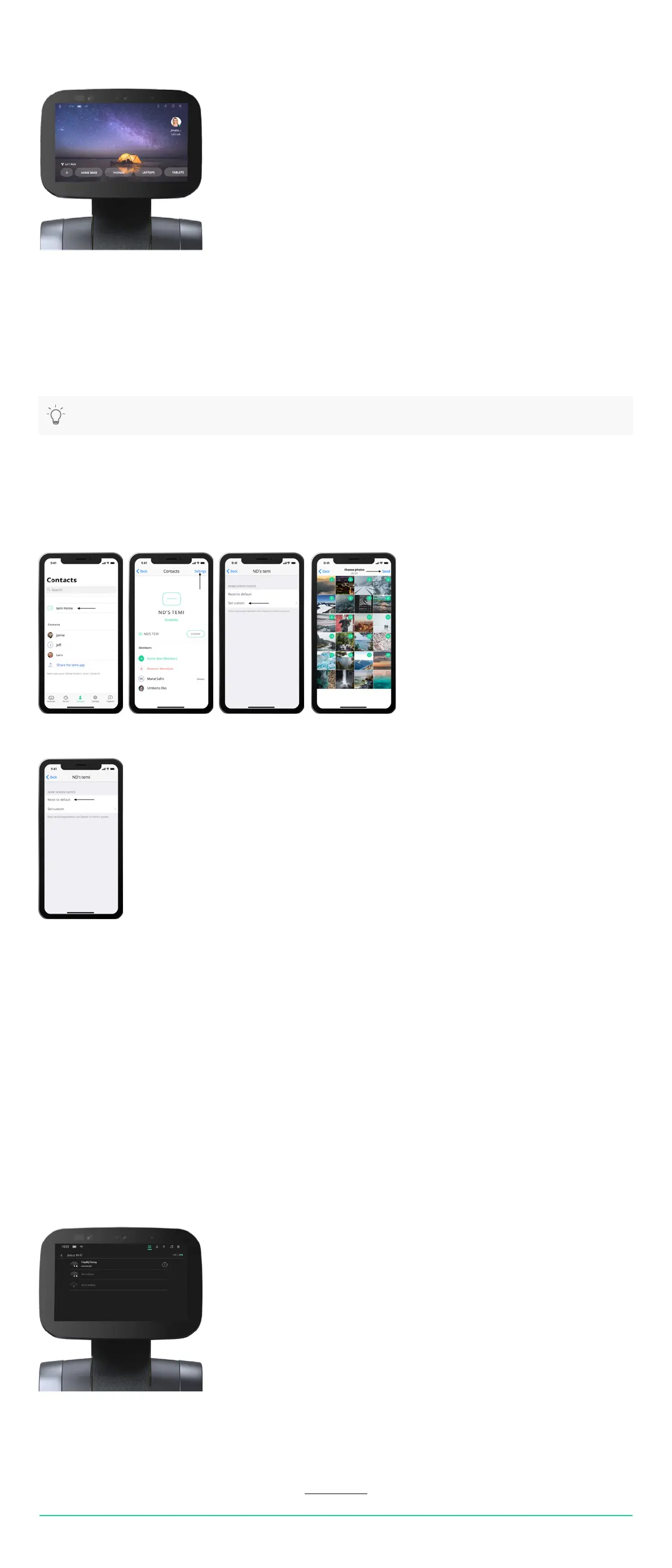
Home Screen
Customize temi’s Homescreen
WiFi
Standby mode
When turning on temi or after it has not been in use for over 30 seconds, temi’s screen will display a screensaver image, which
will switch to a black time screen after ten minutes without use. While in standby mode, temi still accepts voice commands and
will toggle out of standby mode once it is in use by either voice or touch.
WiFi
• Temi needs to be connected to Wi in order to function
• The WiFi network setup is part of the initial setup process or can be later on accessed from Settings > Select WiFi
You can customize your home screen on temi to have any of your own pictures as the home screen.
1. Open your temi mobile app and select your temi [Image 1]
2. Tap “Settings” at the top right corner [Image 2]
3. Tap “Set custom” to select which of your phone’s photos you will be using as temi’s home screen [Image 3]
4. You can select as many as 20 images to display on temi’s home screen, which will switch every 30 seconds. You can
change the picture selection at any time [Image 4]
* You can reset temi’s home screen images to default at any time [Image 5]
Standby mode
“Select WiFi screen”
TIP: You have the option to turn standby mode ON or OFF. Simply go to Settings > General Settings > Switch ON/OFF
USER MANUAL 08
Back to index



 To Next Page