Activating temi with mobile app
Setting up Alexa
The mobile app is used to:
• Call and control temi from a remote location
• Sync your contacts with temi
• To view pictures, recent searches, or used services on temi
Download
Download the app from the Play or App Store or by using this link:
http://www.robotemi.com/temiapp
Activate
In order to operate, each temi needs to be activated and registered on the temi server. This process will ensure that:
• This is a real temi
• Temi has an Admin user
This activation process takes place during the initial setup using both the robot and the mobile app.
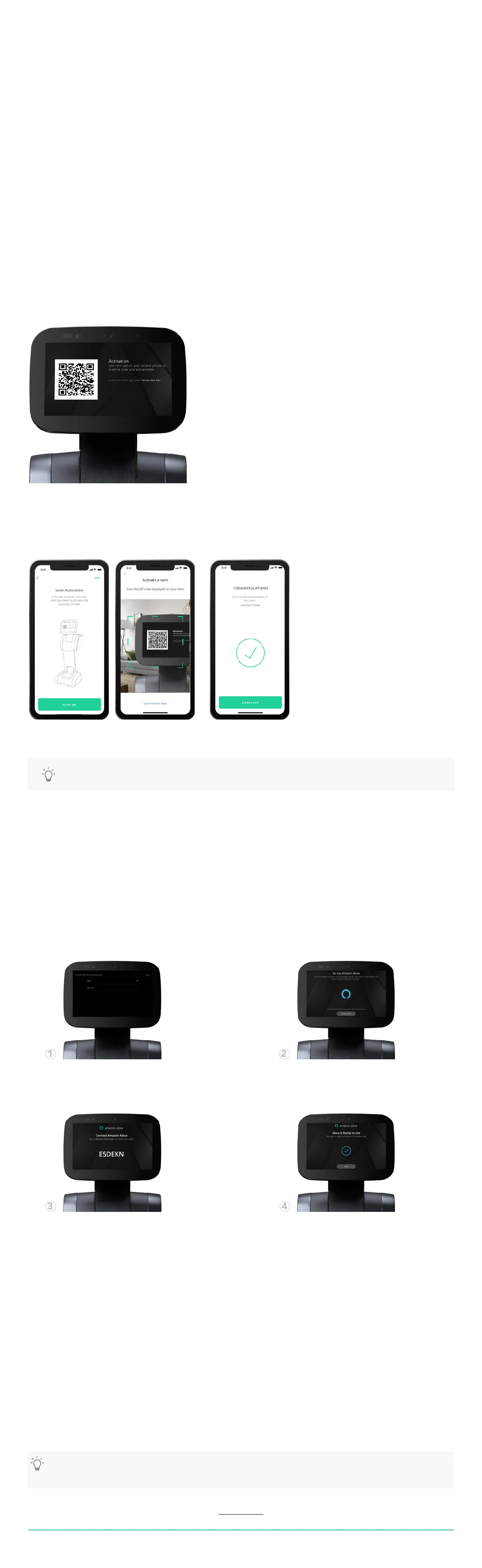
1. During the initial activation, temi will generate and display a QR code containing the robot’s ID information.
temi works with Alexa bringing in all of Alexa skills. Users will be able to add items to their shopping list, control connected
devices, order food or transportation, get the latest news updates, weather forecast and so forth.
How to set up Alexa on temi
As part of temi’s initial activiation process a screen will appear giving you the option to choose the voice assistant of your
preference. Choosing the Alexa option will activate the Alexa set up.
You can always reach this screen after activation by going to settings > personal assistant.
Switching assistants
To benet from both voice assistants, users can switch between Alexa and temi.
• Go to settings; scroll down and press Personal Assistant
• Tap on the desired voice assistant option
For more helpful tips related to Alexa or other features on temi, be sure to subscribe to the temi support channel or customer
support for any further assistance.
Disconnecting Alexa account
You can disconnect your Alexa account on temi at any time. Go to Settings > Personal Assistant > Alexa Account > DISCONNECT
2. In the app during the registration process, you will reach the “Temi Activation” screen. (Image A)
3. Press the “Scan QR” button and follow the instructions. (Image B)
4. Once the QR code has been scanned, you will receive the conrmation. (Image C)
5. To activate a temi at any time after the registration process, go to Settings > Activate new temi
USER MANUAL 07
Back to index
A
B
C
TIP: temi is restricted to one admin. Go to page 9 to learn more about user management.
Choose Alexa as the voice assistant.
On your desktop or mobile device login to
Amazon.com/code
and input the code displayed on temi.
Once you’ve entered the code on Amazon’s
website- Alexa will be ready to use on temi and
this notication on the screen should appear.
Click “Connect Alexa” to receive the
conrmation code.
TIP: When using Alexa as the voice assistant on temi, you can use the camera, the locations, and video calls only manually
by tapping these options on the screen. These actions will soon be enabled through Alexa’s voice commands.


 To Next Page
 Loading...