Kiosk Mode
Welcoming Mode
Auto-Return Mode
Kiosk mode enables the use of temi as a customer facing Kiosk by “locking” temi to a chosen SDK
based app without giving customers access to temi in it’s whole.
Enabling Kiosk mode:
Tap Settings > Kiosk Mode > ON
Once Kiosk mode is enabled the user can chose which SDK developed app will be the one displayed
to customers.
Welcoming Mode B2B (also Welcoming Skill)
The welcoming skill is aimed at business environments, using simplied views to control temi.
It works only under “Kiosk Mode” meaning temi will be limited to use only through this interface
and aborted only by using a hidden tap point. It also offers the option of customizing the greeting
message on “Welcoming mode” in speech and text.
To Enable Welcoming Skill:
1. Go to Settings > Kiosk Mode and toggle to “ON” – Select “Welcoming Mode B2B”
2. Go to Settings > General Settings > Welcoming Mode – Select “On”
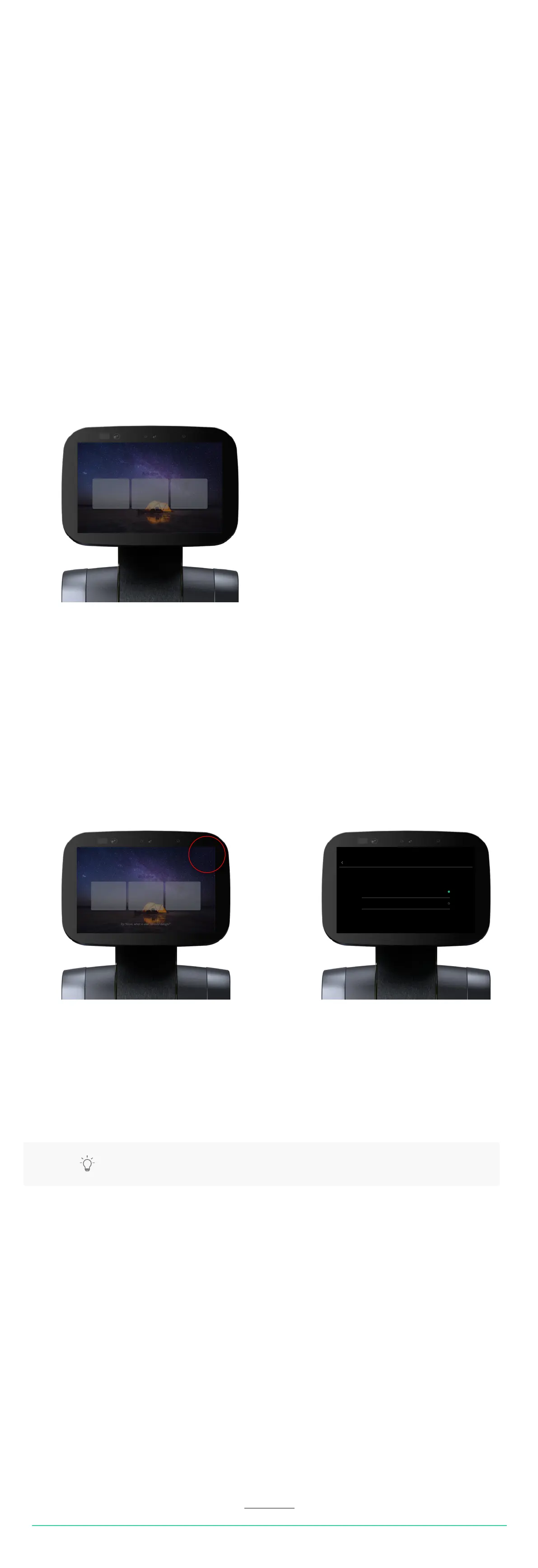
3. Tap the icon on the top right corner of temi’s topbar twice –
the screen should display 3 boxes atop of temi’s background
Using the Welcoming Skill:
Walk – Tapping “Walk” temi will offer to lead to any locations set on it.
Call – temi will offer calling whoever is paired as temi’s Admin
Play – temi will offer music, camera and “Follow” functionalities.
Exiting the “Welcoming Skill”:
1. Press and hold the top right corner of temi’s display for 2-3 seconds – the screen will shift to
“Welcoming Skill Conguration” screen
2. Scroll down to “Open app list” and tap to go to temi’s native skill screen
Customizing “Welcoming skill” greeting and announcements:
Using the “Welcoming Skill” you can customize the text and voice messages which will initiate once temi
detects a user in it’s sight.
1. To access the “Welcoming Skill Conguration” - While the “Welcoming Skill” is activated tap the
hidden tap point on the top right corner of temi’s display
Custom – Tap and type your custom greet message – This message will appear on temi’s screen whenever
a user is detected in temi’s sight. Please note a custom message is limited to 24 characters.
Voice Greeter – When toggled ON, temi will add a verbal message – either default or custom
Location Announcments - When toggled ON, temi will announce that it is going to a location
as well as announcing its arrival.
temi will detect a user within its line of sight, turn to the user and greet them with text and speech.
To toggle Welcoming Mode go to Settings > General Settings > Welcoming Mode
- Welcoming Mode text and speech can be customized through
the “Welcoming Skill Conguration” – See instructions below.
By Activating Auto return, temi will return to a predened location after not interacting for a dened
period of time.
When in "Auto Return" mode temi will automatically return to it's Home Base when it's battery is as low
as 15% and will re-deploy itself to the selected Auto-Return location once it has charged back to 90% -
making it a fully autonomous kiosk.
Enabling Auto return:
Tap Settings > General settings > Auto Return
Interval:
Set the time length temi will stay put in a location without any interaction till it starts driving to it’s
predened “Start” location (The starting location can be any location which is preset on temi)
Locations:
Select the location to which temi will return to upon Auto-return
USER MANUAL 21
Back to index
TIP: Combine the “Welcoming Skill” with the use of “Auto Return” to create a
customized fully autonomous assistant within your business.
WALK CALL PLAY
Welcome
Try “Alexa, what is user centred design?”
WALK CALL PLAY
Welcome
Try “Alexa, what is user centred design?”
OFF /
Custom
Default message
(Hello)
(Customize the displayed message text)
Voice Greeter
OFF / ON
When enabled temi will also greet by voice
Greet User
OFF / ON
temi will recognize when a person is in front of it and
greet its’ user with a displayed message
Hidden button in Welcoming Skill Welcoming mode customization screen


 To Next Page
 Loading...