Maps
Using its LIDAR, temi constantly maps its surroundings while it is active, refreshing the map every second
to keep temi updated with its dynamic environment. Through the maps menu, you can view the map and
locations on your temi and resolve mapping issues.
Map Alerts
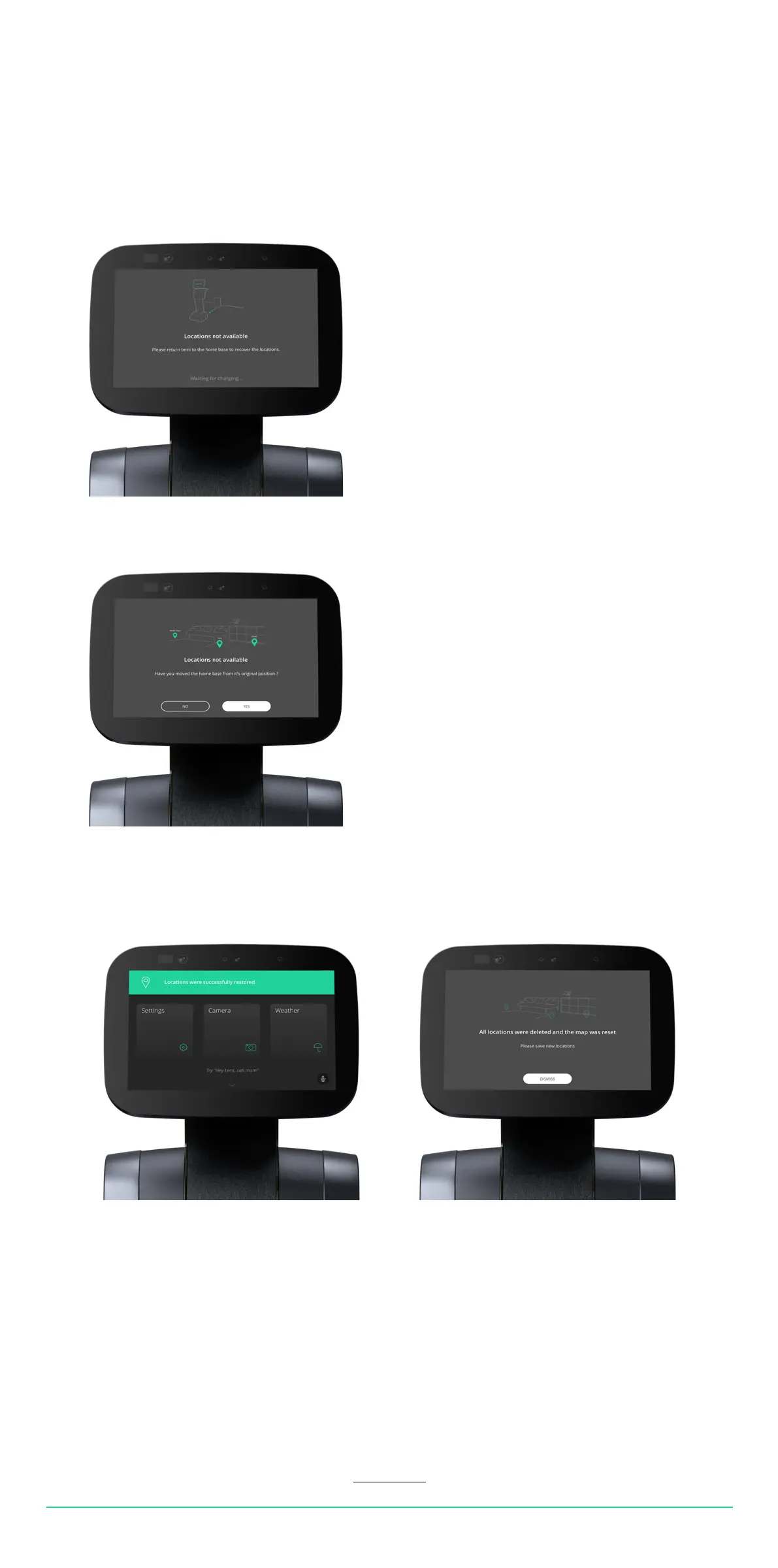
“Locations not available”
temi is alerting that it has lost its map and requests to be placed on the home base. The home base is the
map’s anchor point. After placing temi on its home base, the following nocation should pop up:
• If you have not moved the home base, select “NO.” This will restore temi’s map and saved locations.
(Image A)
• If you have moved the home base, select “YES.” This will reset temi’s map, erasing all previously
saved locations. (Image B)
Manually resetting map
In the following cases, it is recommended to reset temi’s map:
• You sense that temi’s navigation is not working properly.
• You want to delete all saved locations at once.
In order to reset temi’s map, it needs to be docked on its home base.
Once it is docked, go to Settings > Map > Reset Map.
USER MANUAL 22
Back to index
A
B


 To Next Page