Teo IP Phone 4101 User Guide 9
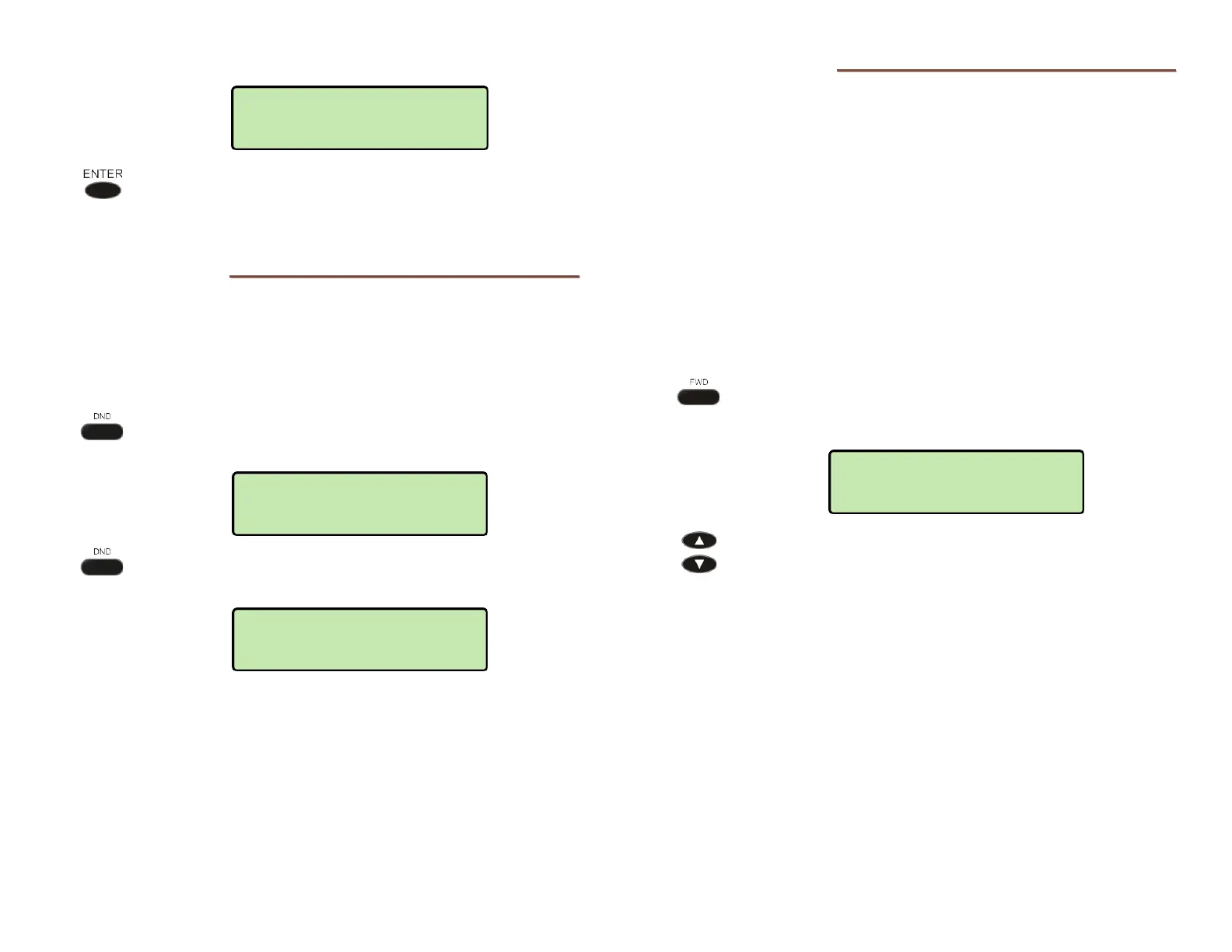
Enter the number that calls will be forwarded to.
Press the ENTER key. The display will show that Call
Forwarding is active.
D
D
o
o
N
N
o
o
t
t
D
D
i
i
s
s
t
t
u
u
r
r
b
b
This feature disables incoming calls. All callers will receive a
busy signal or will be routed to voice mail.
Note: If your phone is connected to a Teo UC System, calls may
be forwarded to another number, or to voice mail.
Press the
DND key.
The display will show that Do Not Disturb is active.
To disable, press the DND key again.
The display will briefly show that Do Not Disturb is off.
P
P
r
r
e
e
s
s
e
e
n
n
c
c
e
e
S
S
t
t
a
a
t
t
u
u
s
s
The Presence feature allows you to set your presence status in
a Teo UC System. Your status may be viewed by other users in
the system and may be used to determine routing of calls to
your extension.
Note: This feature is only available if your phone is connected to a
Teo UC System.
The
FWD key can be configured for either Call Forward or
Presence; the Teo Presence feature includes a Call Forward
option.
S
S
e
e
t
t
t
t
i
i
n
n
g
g
Y
Y
o
o
u
u
r
r
P
P
r
r
e
e
s
s
e
e
n
n
c
c
e
e
S
S
t
t
a
a
t
t
u
u
s
s
Press the PRESENCE (FWD) key.
Your current presence status will be shown in the
display with an asterisk.
Press the Up Arrow or Down Arrow key to select a
different presence status.
The following presence states can be selected:
• Available
• Busy
• Away
• Not Available
• Do Not Disturb
• On Holiday
• On Vacation
• After Hours
• Call Forward
PRESENCE STATE=
*AVAILABLE
DO NOT DSTRB OFF
DO NOT DISTURB
APR 15 7:23 PM
FORWARD TO:
5551233


 To Next Page